How to add an attendee
Most attendees register themselves through the registration form. Some registrations, however, come in outside the system, by phone, by email, or from a list passed on by a co-organizer. The SF-CONFERENCE system lets you add such people manually from the panel, and an attendee added this way is no different from one who registered on their own. They have the same data, payments, invoices, and notifications.
Where to find the attendee list
Everyone connected to the event can be found in the People section, available in the panel's side menu. The tabs above the table split people by role. Which ones appear depends on the roles and modules enabled for your event, so you always work with the right group. The Add attendee option sits above the table, in the More dropdown button, alongside the other actions for the whole list.
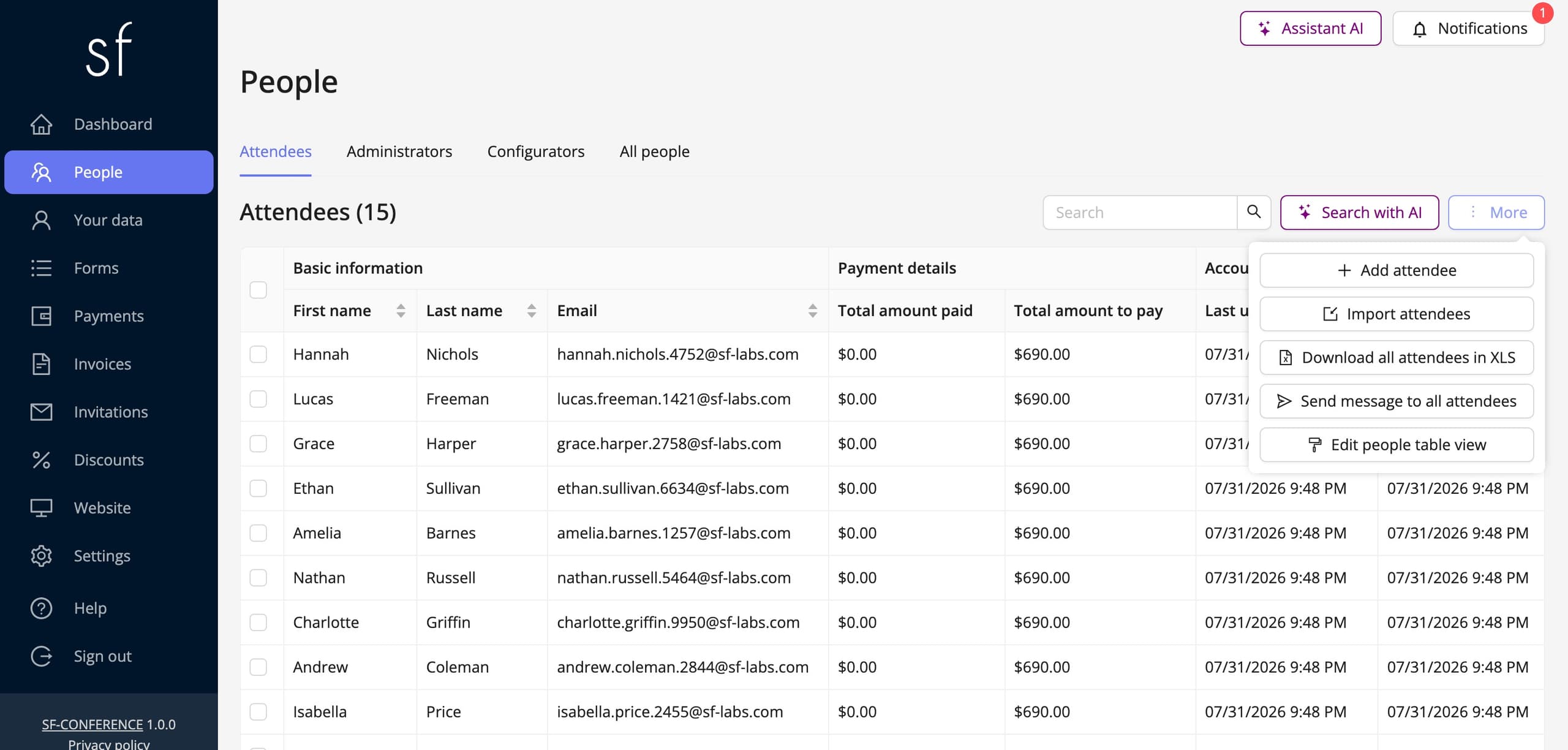
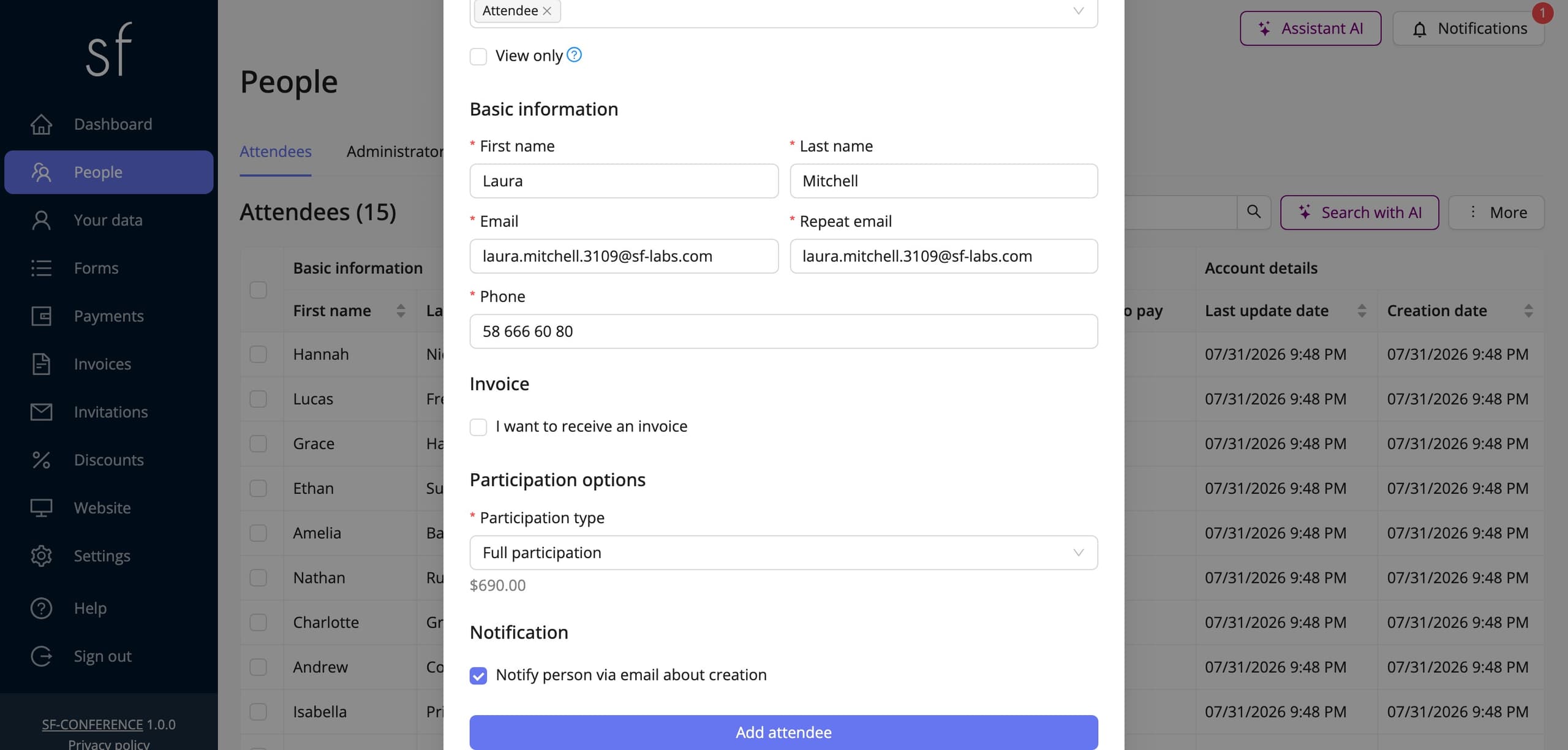
The new attendee form
The add-attendee form contains exactly the same fields as the one people see when registering themselves, including your own custom fields, participation options, and consents. Just fill in the basics: first name, last name, email address, and the chosen participation options. You can fill in the remaining fields right away or complete them later by editing the attendee's profile. You can also decide whether the attendee should receive a confirmation email about being added to the event.
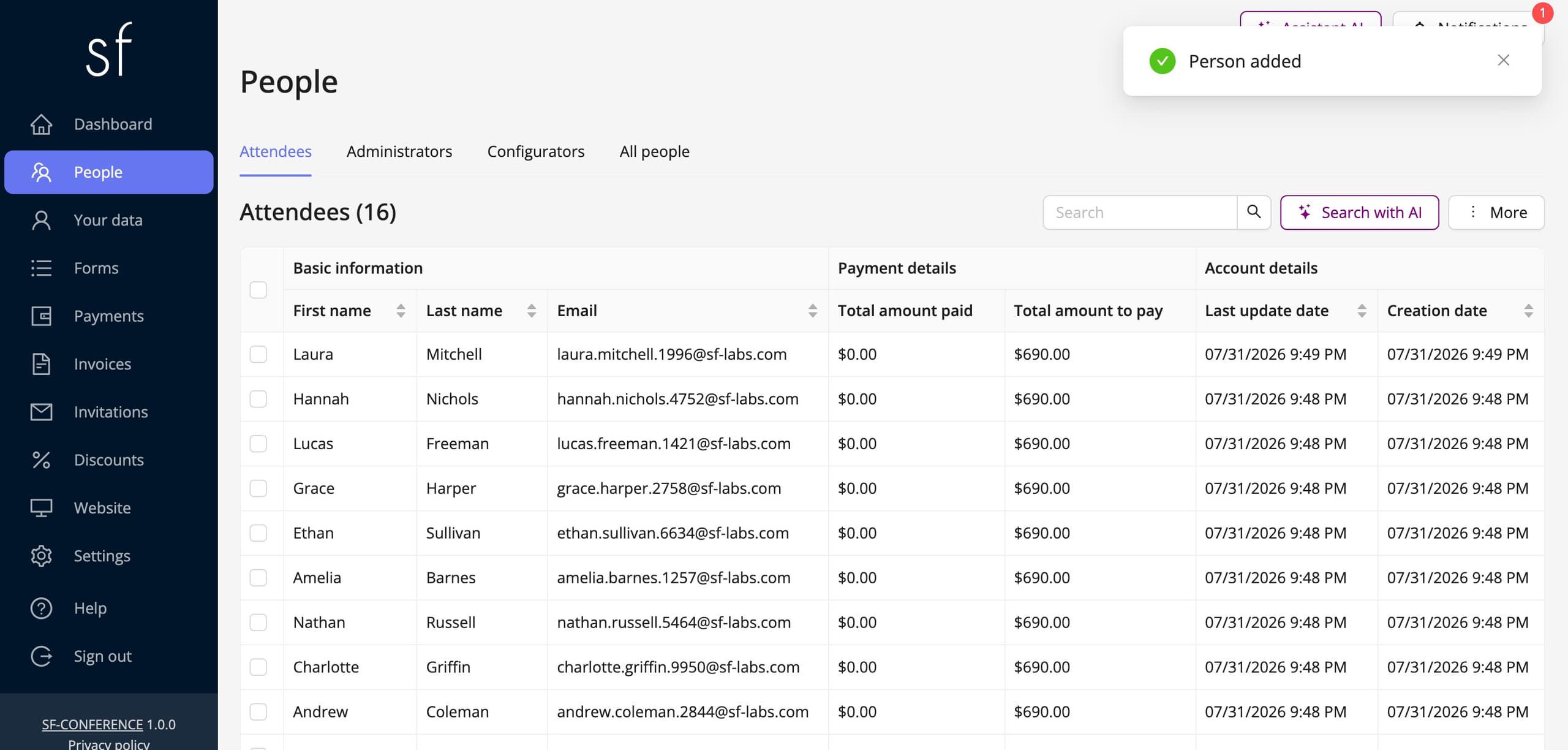
Saving the attendee
Once you save the form, the system confirms the addition with a notification, and the new attendee appears at the top of the table. From that moment you can edit their details, register a payment, issue an invoice, send a message, or download the participation summary, exactly as you would in the case of attendees who registered through the form.
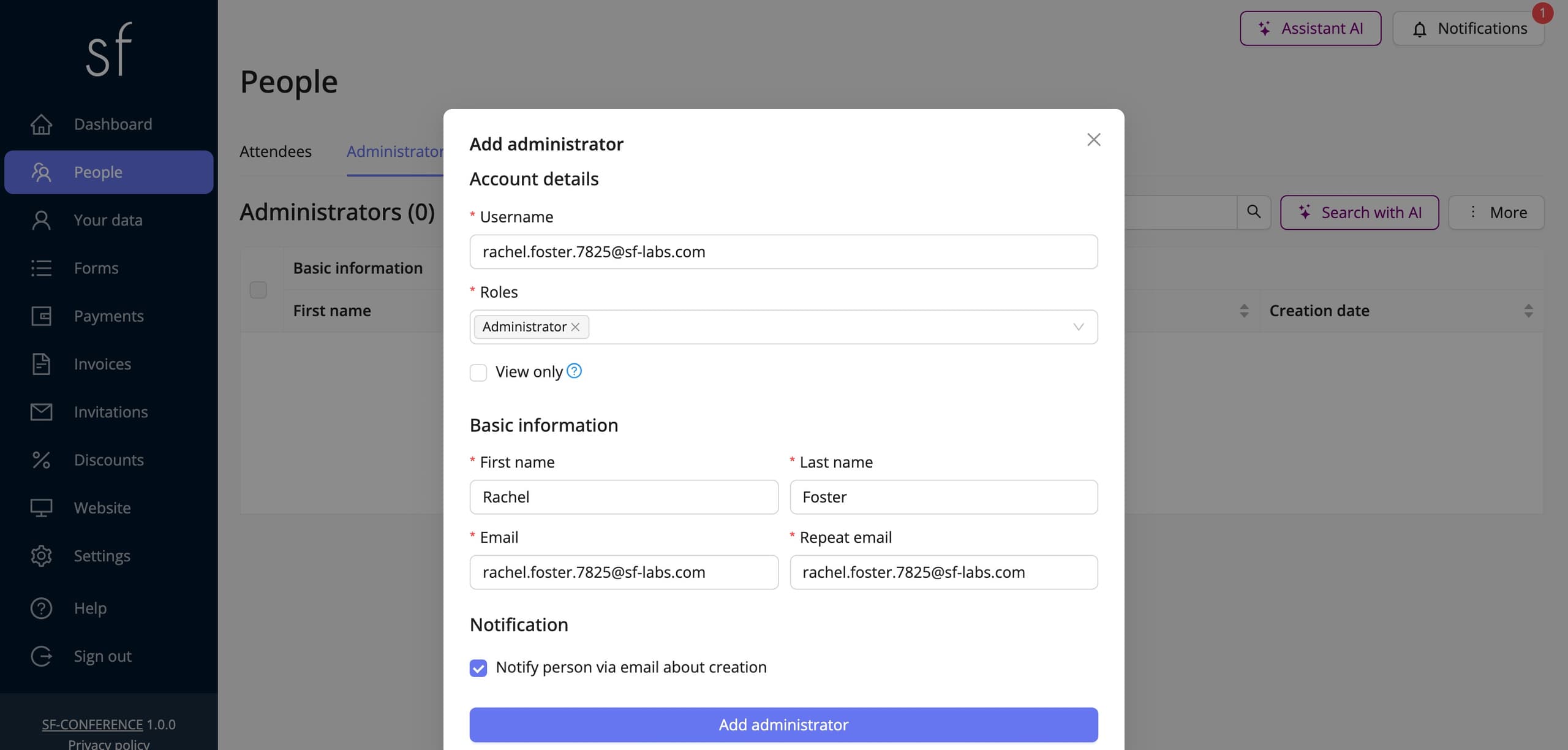
Adding an administrator
You add people with the other roles in the same way. Go to the Administrators tab above the table and choose Add administrator. The form is shorter than for an attendee, since it doesn't include participation options or invoice details. The administrator will get access to the panel, so remember to include a username and the email address the invitation will be sent to. The Configurators tab works the same way, as do reviewers, reception staff, and representatives, if you've enabled those modules.
One person, several roles
Roles aren't mutually exclusive. The same person can be an administrator and an attendee, a reviewer, or reception staff at the same time. In the add form, in the Account details section, you'll find the Roles field. It's a multi-select list: the role matching the tab you're currently on is already filled in, and you can add more by picking them from the dropdown list. The form instantly adapts to your selection, once you add the attendee role, participation options and invoice details appear. You can also change roles later by editing that person's profile.
Adding an attendee in short
Manually adding attendees comes in handy whenever a registration reaches you through a different channel than the form. The whole operation takes just a few fields and one click, and the new attendee is immediately included in every listing, statistic, and mailing. You can find out more about working with the attendee list in the participant management article.
See all instructions
Complete event management on a single platform. An event website, attendee registration and a full set of organizer tools.
2026 © SF-LABS sp. z o.o. All rights reserved
Entered into the register of entrepreneurs of the National Court Register kept by the District Court for Kraków-Śródmieście in Kraków, 11th Commercial Division of the National Court Register, under KRS number 0000886671. Share capital amount: PLN 5,000.