How to create a payment without a participant and invoice it
Not everyone who pays for an event attends it. A sponsor buys a package with its logo on the website, an exhibitor buys a booth, a partner a slot in the program. None of them fills in the registration form, yet each needs a proforma, a way to pay and an invoice.
That is what a payment without a participant is for in SF-CONFERENCE. The organizer enters the buyer data and the line items, and the buyer gets a link to pay online or by transfer, without creating an account. The proforma and the invoice are issued on their own, from the buyer data and line items you entered. Attendees do not need this kind of payment, because each of them already has their own, created automatically when they register.
Before you start: payments and invoices
A payment without a participant uses the same settings as registration fees. The buyer can only pay with a method available in the payment's currency, so first fill in the transfer details or connect online payments, as described in the guide to collecting payments and issuing invoices.
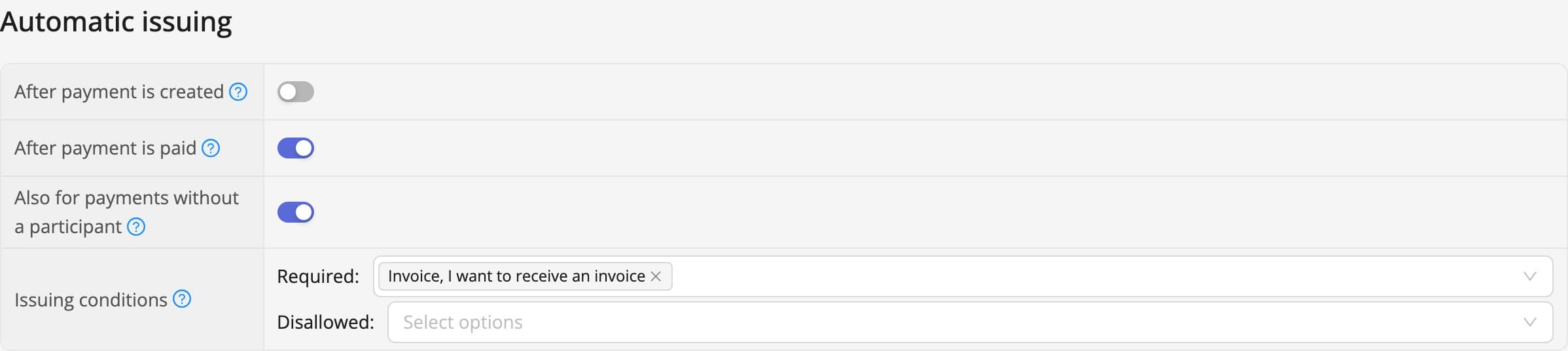
Invoices for payments without a participant need the Full invoices module, which you switch on in the Modules tab. Whether a document is issued on its own is up to the invoice template. Go to Settings, the Invoices tab, open a template and find the Automatic issuing section. A proforma is usually issued After payment is created and an invoice After payment is paid. When either switch is on, a third one appears below them, Also for payments without a participant. That is the one that extends automatic issuing to the payments this guide describes.
New events have this switch on in the proforma and invoice templates, but automatic issuing itself is off there, so no document is issued until you turn it on. A template's Issuing conditions do not apply to payments without a participant. The buyer never filled in a form, so the invoice always covers the whole payment.
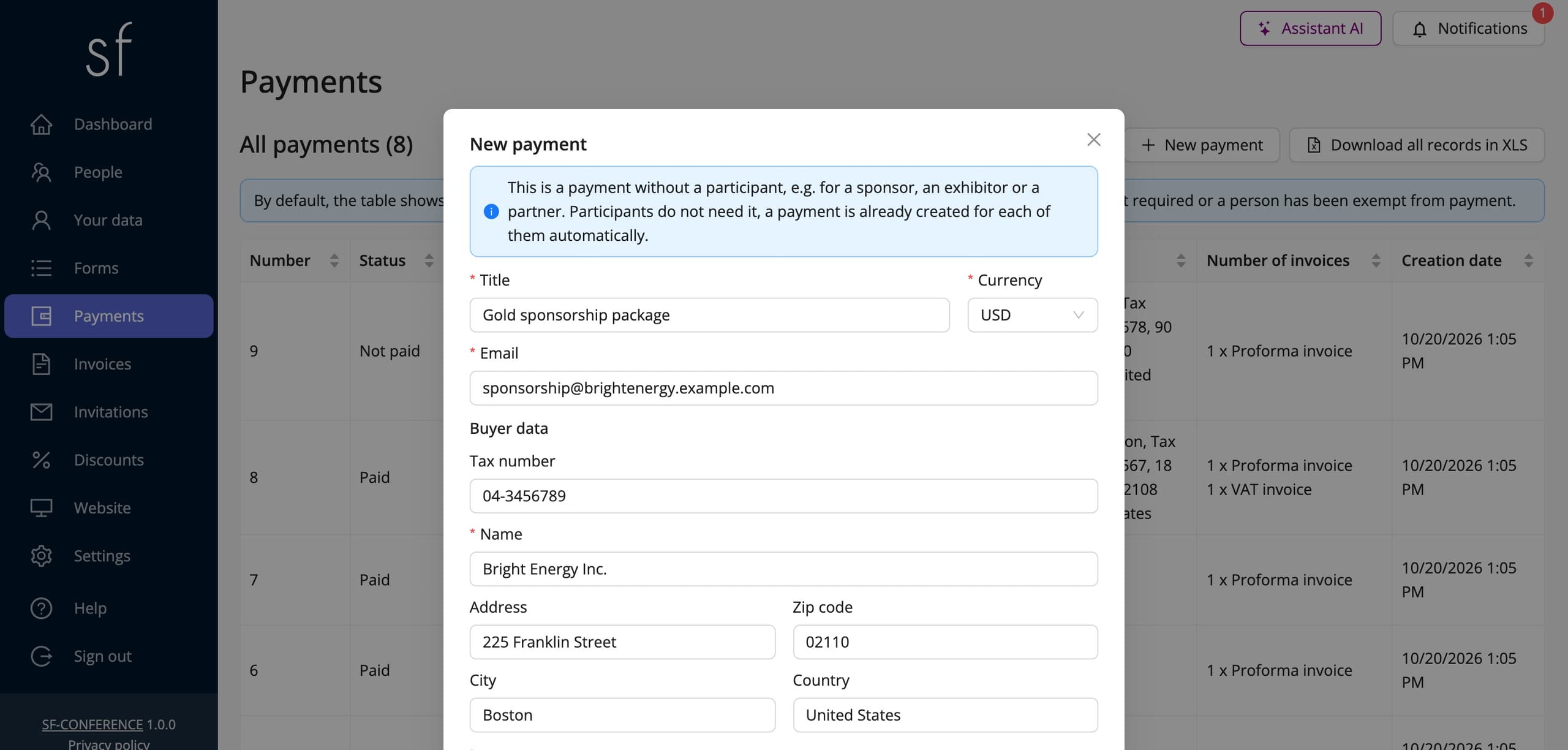
Creating the payment and the buyer data
Open Payments in the panel's side menu and click New payment above the table. In the window you enter a Title, for example Gold sponsorship package, and a Currency, one of the event's currencies. The Email field is the buyer's address: the payment link and the issued invoices go there. If the event has several languages, you also choose the Language the buyer will get the emails and see the payment page in.
In the Buyer data section enter the company name, the tax number and the address. Only the Name is required, so you can bill a private person too. The buyer data goes onto the proforma and the invoice exactly as you save it.
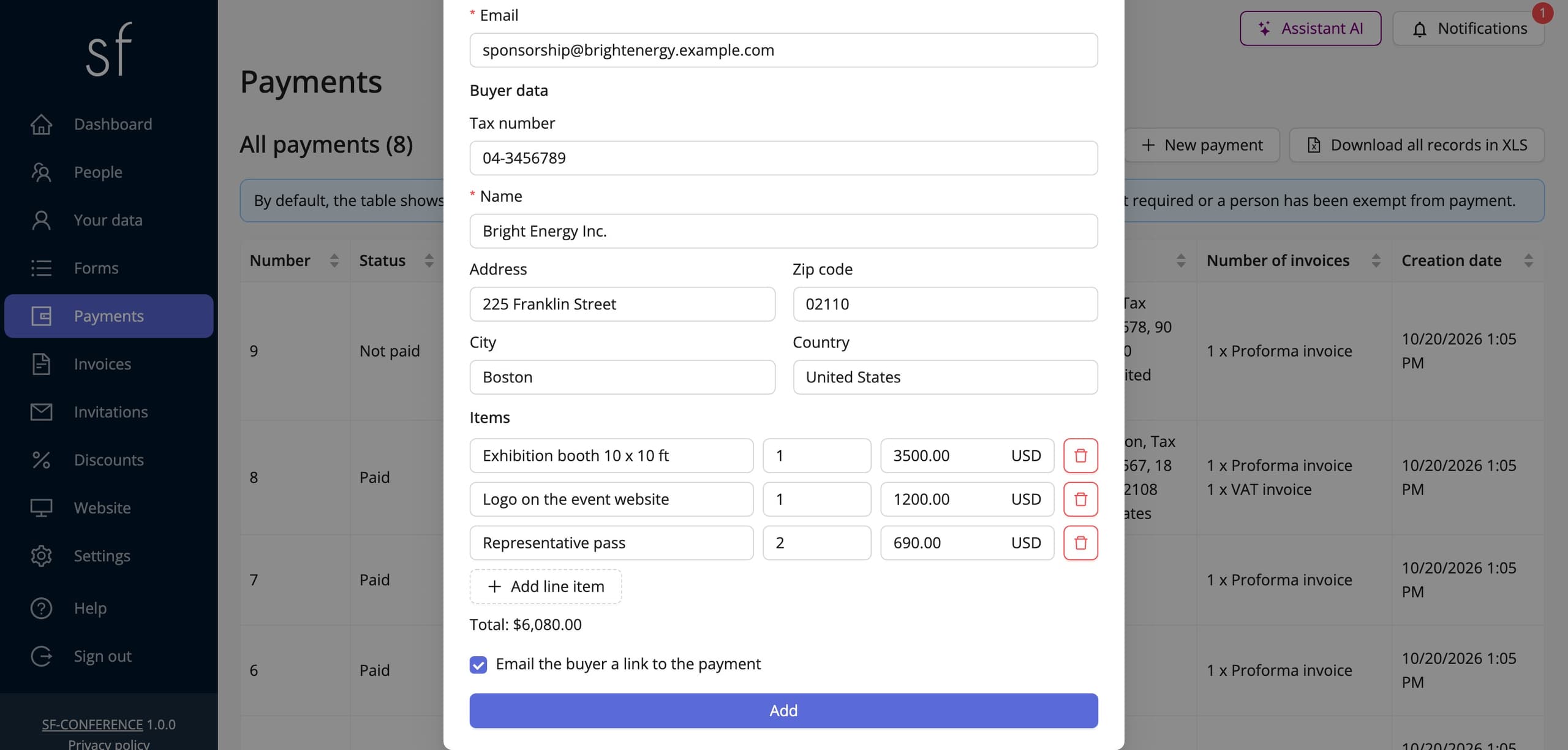
Line items and the amount
The amount comes from the Items section. Each row is an Item title, a Quantity and a unit price, net or gross depending on how prices are set for the event. You add more rows with Add line item, and the Total shows below them. Item titles go onto the invoice unchanged, so write them the way the sponsor's accounts team should see them, for example Exhibition booth 10 x 10 ft.
Below the line items, leave Email the buyer a link to the payment checked, and after you click Add the buyer receives a Payment request email with the title, the amount and the link. If neither transfers nor online payments are available in the chosen currency, the window warns that the buyer will only see the payment details.
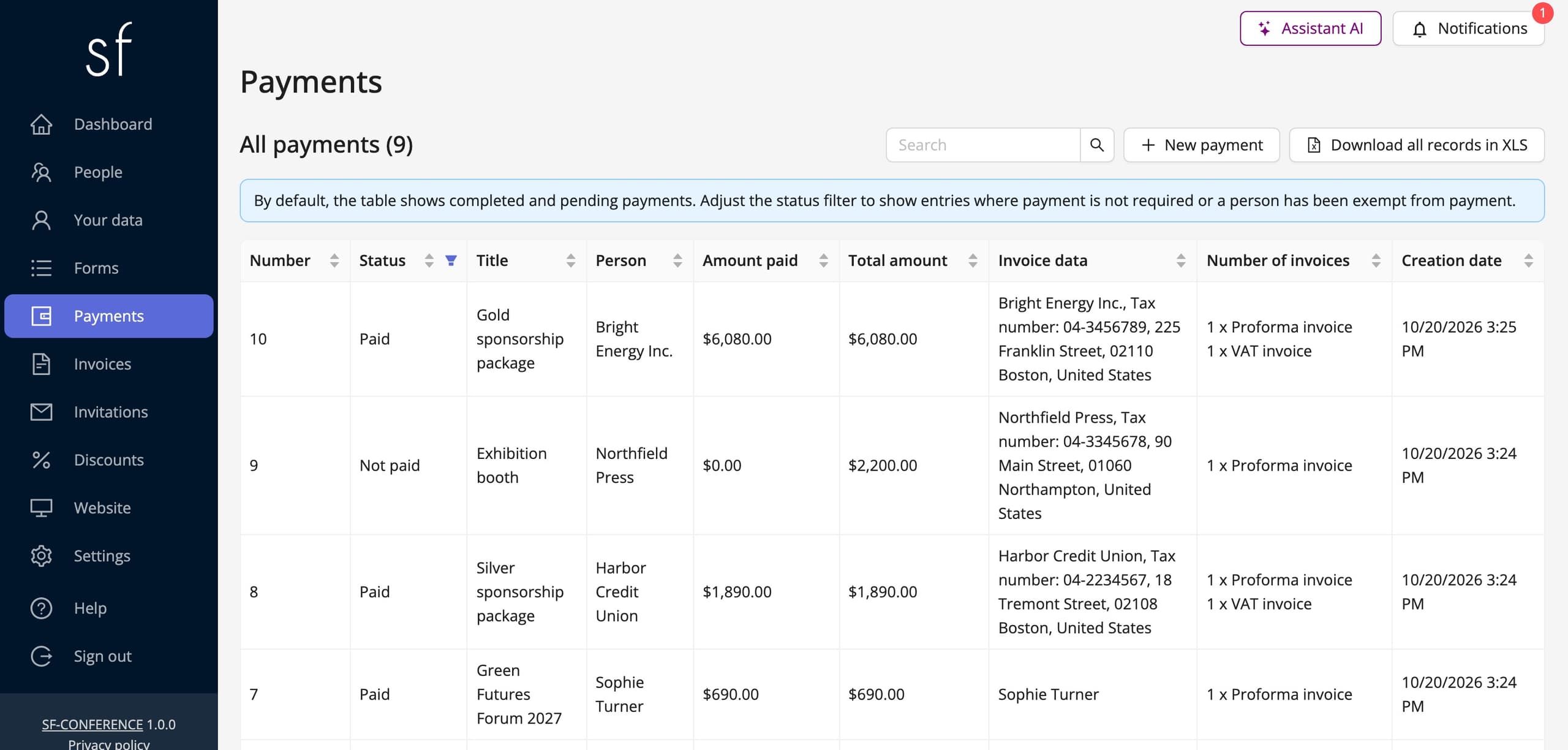
The payment list and the payment link
The new payment joins the All payments table, next to the attendees' registration fees. The Person column shows the buyer name and the Status column whether it has been paid. You can search the table and download it as XLS together with all other payments.
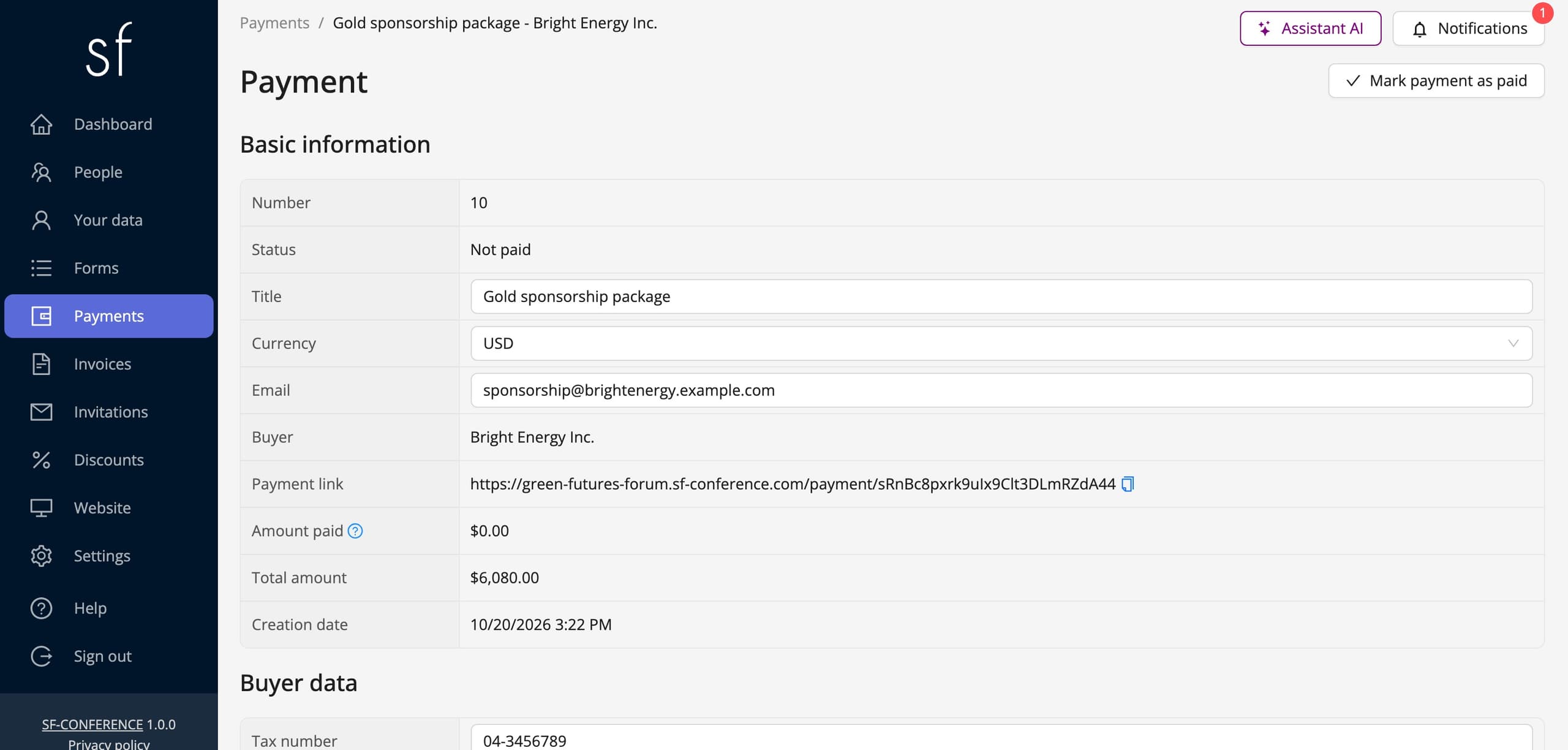
Clicking a row opens the payment page. In the Basic information section you will find the Buyer and the Payment link with a copy icon. The email with the link goes out only once, when the payment is created, so if the buyer cannot find it or asks for the link at another address, copy it from here and send it yourself. The link works without logging in and leads to this one payment only.
What the buyer sees
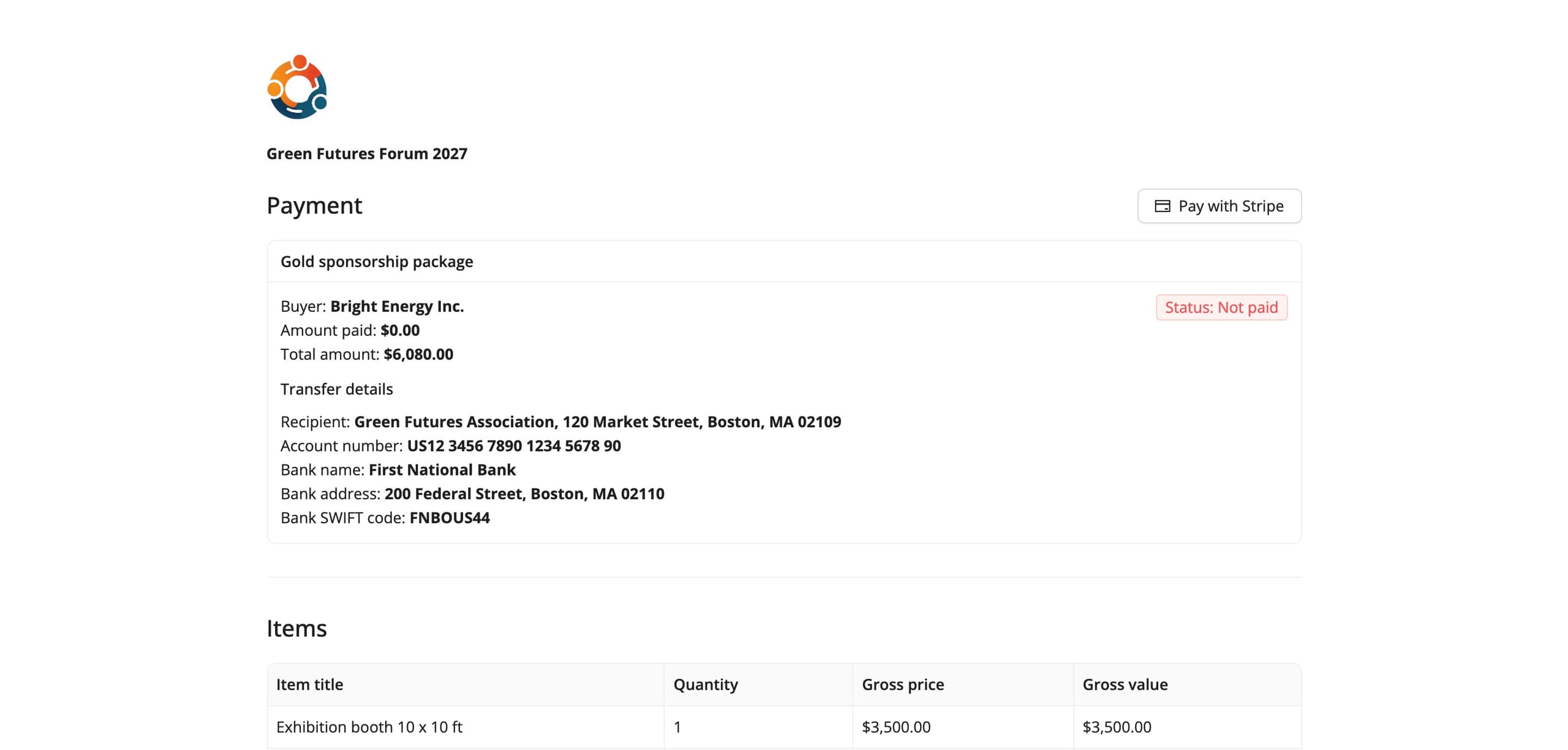
The link opens the payment page. Its card shows the title, the buyer name, the status and the amounts paid and due, plus the Transfer details when transfers are available for the event. The online payment button sits above the card, on the right. Below, the Items table breaks each line item down, and the Invoices section lists the issued documents with a Download invoice in PDF button.
With Stripe payments the buyer sees a Pay with Stripe button. When no method is available in the payment's currency, the page asks the buyer to contact the organizer.
Recording the payment
An online payment settles itself. The status changes to Paid and you get a Payment completed email with the buyer name and a link to the payment in the panel.
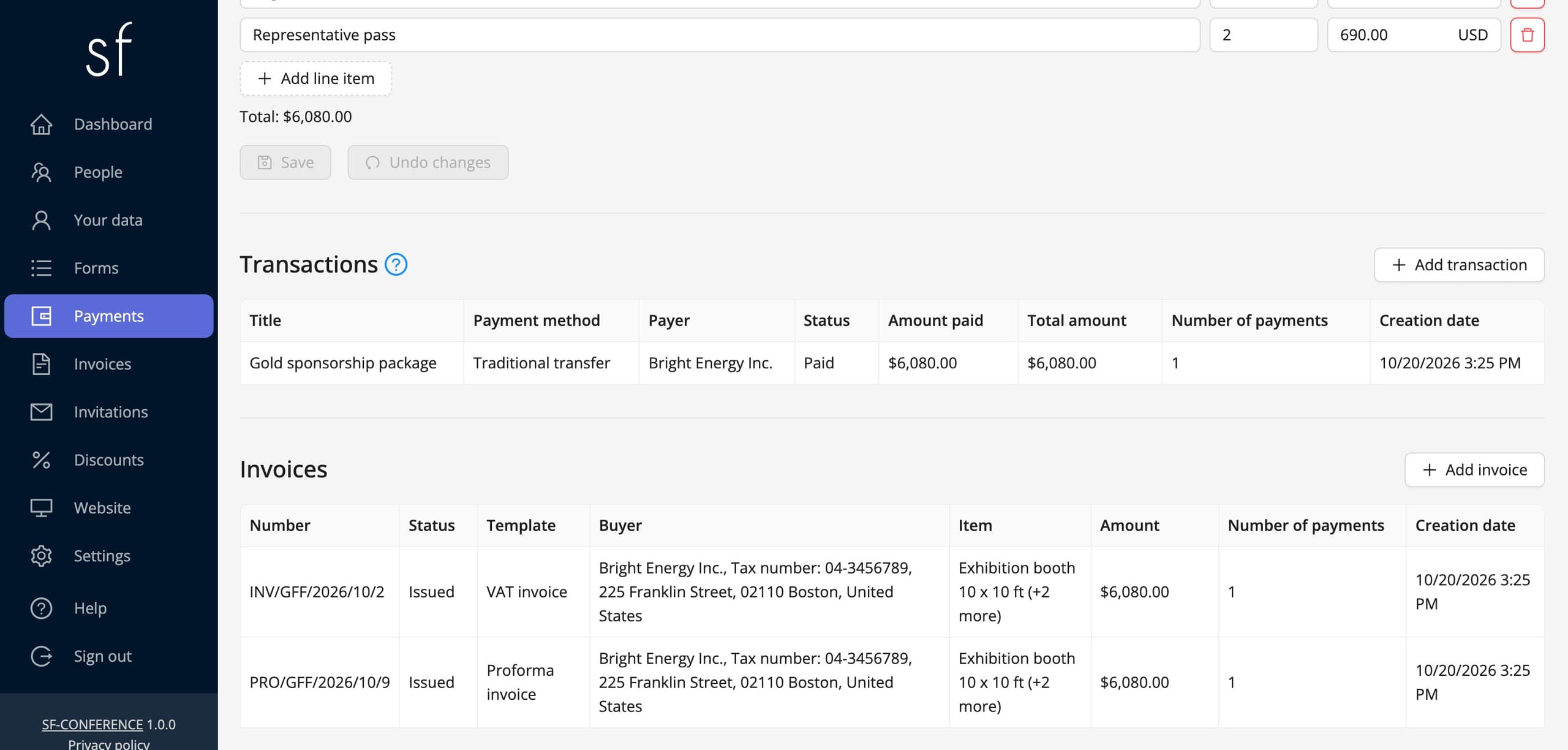
You record a bank transfer on the payment page. Mark payment as paid settles the whole amount, by transfer or in cash. If the buyer paid only part of it, use Add transaction, choose Traditional transfer and enter the amount. The payment gets the Underpaid status, and the payment link then asks only for the remainder.
Invoices for payments without a participant
With the settings described at the start, the proforma is issued as soon as the payment is created, and the invoice once the payment is paid in full, online or by hand in the panel. Each document reaches the buyer in an Invoice issued email with the PDF attached and appears on the page behind the link. You will find them in the Invoices section of the payment page and under Invoices in the side menu, together with the attendees' invoices.
You can also issue a document by hand with Add invoice on the payment page, for example when the template does not issue it automatically. A payment without a participant is always the only payment on its invoice and cannot be combined with attendee fees.
Changing the payment after creating it
You change the title, currency, buyer data and line items on the payment page and save them with Save changes. As long as nothing has been paid, changing the amount, the currency or the buyer data issues a new proforma. The previous one stays in the panel, and the buyer sees only the newest one behind the link. Changing just the title issues no document.
Once an invoice is issued, the system no longer corrects anything on its own. If the invoice no longer matches after you change the line items or the buyer data, issue a correction with Add invoice: choose a correction template and the invoice you are correcting. The correction will carry the current buyer data and line items.
The emails to the buyer
All three emails are in Settings, the Email tab, in the Payments and invoices without a participant group: the payment request with the link, the email with the invoice for the buyer and the organizer's notice of an online payment. You edit them like any other email, and the Buyer name, Payment title and Payment amount variables fill in the details of each payment.
Payments without a participant in short
Set up automatic issuing in the proforma and invoice templates once, together with the Also for payments without a participant switch. After that, billing a sponsor takes a minute: New payment, the buyer data, the line items and Add. The buyer gets the link and the proforma, pays online or by transfer, and the invoice is issued on its own after payment. How sponsors and exhibitors fit into a whole trade conference is covered on the industry conferences page.
See all instructions
Complete event management on a single platform. An event website, attendee registration and a full set of organizer tools.
2026 © SF-LABS sp. z o.o. All rights reserved
Entered into the register of entrepreneurs of the National Court Register kept by the District Court for Kraków-Śródmieście in Kraków, 11th Commercial Division of the National Court Register, under KRS number 0000886671. Share capital amount: PLN 5,000.