How to collect payments and issue invoices
The conference fee is usually the first reason an organizer stops collecting registrations in a spreadsheet. Payments have to be taken, matched to registrations, documented, and you need to know who still has not paid. In the SF-CONFERENCE system all of that happens against the attendee’s registration: the amount follows from what they chose in the form, and the documents are issued from their details.
Below we go through the configuration in order: currencies and tax, bank transfer, online payments, and then invoices, the numbering, the templates and automatic issuing.
Currencies, tax, and net or gross prices
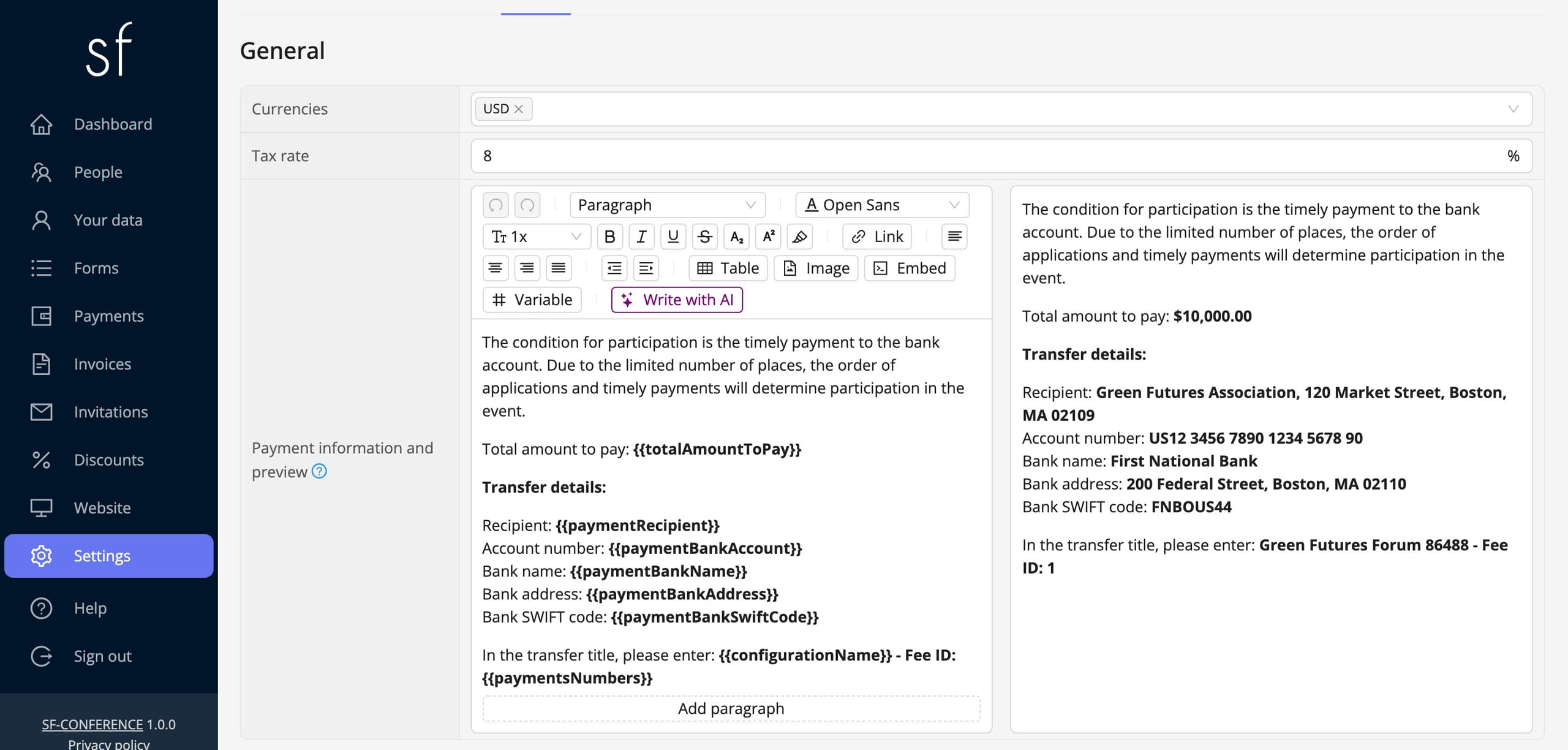
It all starts under settings in the panel’s side menu, in the payments tab. The currencies field decides what the attendee pays in; there may be several, and then every price in the form is given separately in each of them. There is no automatic conversion here and that is deliberate. The price for an overseas attendee is rarely a straight exchange-rate calculation.
Next you set the VAT rate or, where exempt, the reason for the VAT exemption. Separately you decide whether the prices entered on form fields are net or gross: the gross prices toggle changes the meaning of every amount in the system, and show only gross hides the split into net and tax from the attendee. It is worth setting this at the start, before you enter any prices. Changing it later means recalculating every option.
Bank transfer
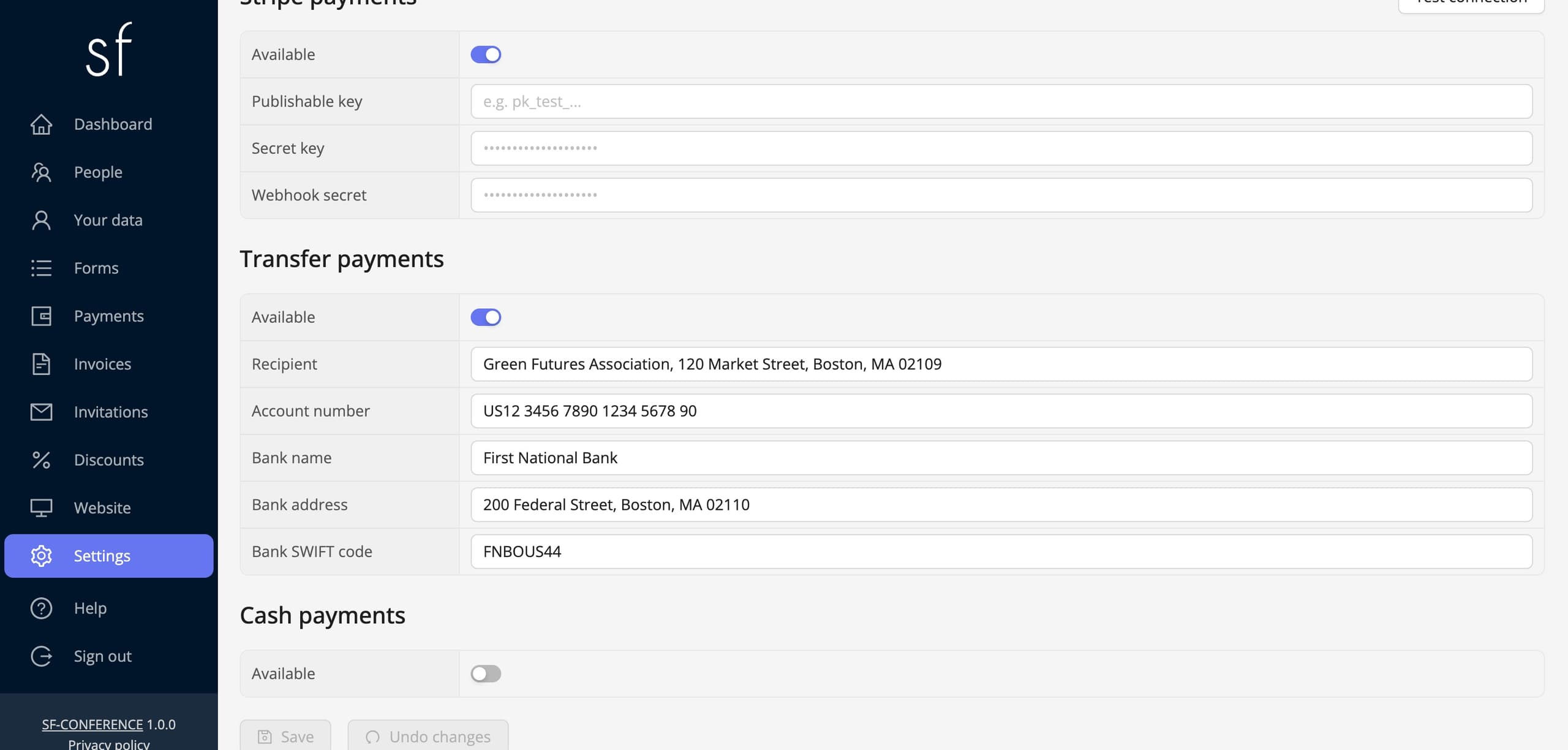
The simplest method needs no integration at all. In the payment information section you fill in the transfer details: the recipient, the account number, the bank’s name and address, and the SWIFT code. Those details reach the participation summary page and the registration confirmation message, and in the transfer title the system suggests a payment identifier, which is what lets an incoming payment be matched to a registration later.
Payments arriving by transfer are marked under payments. Until they are marked, the registration counts as unpaid, which is visible both in the panel and on the attendee’s side.
Online payments
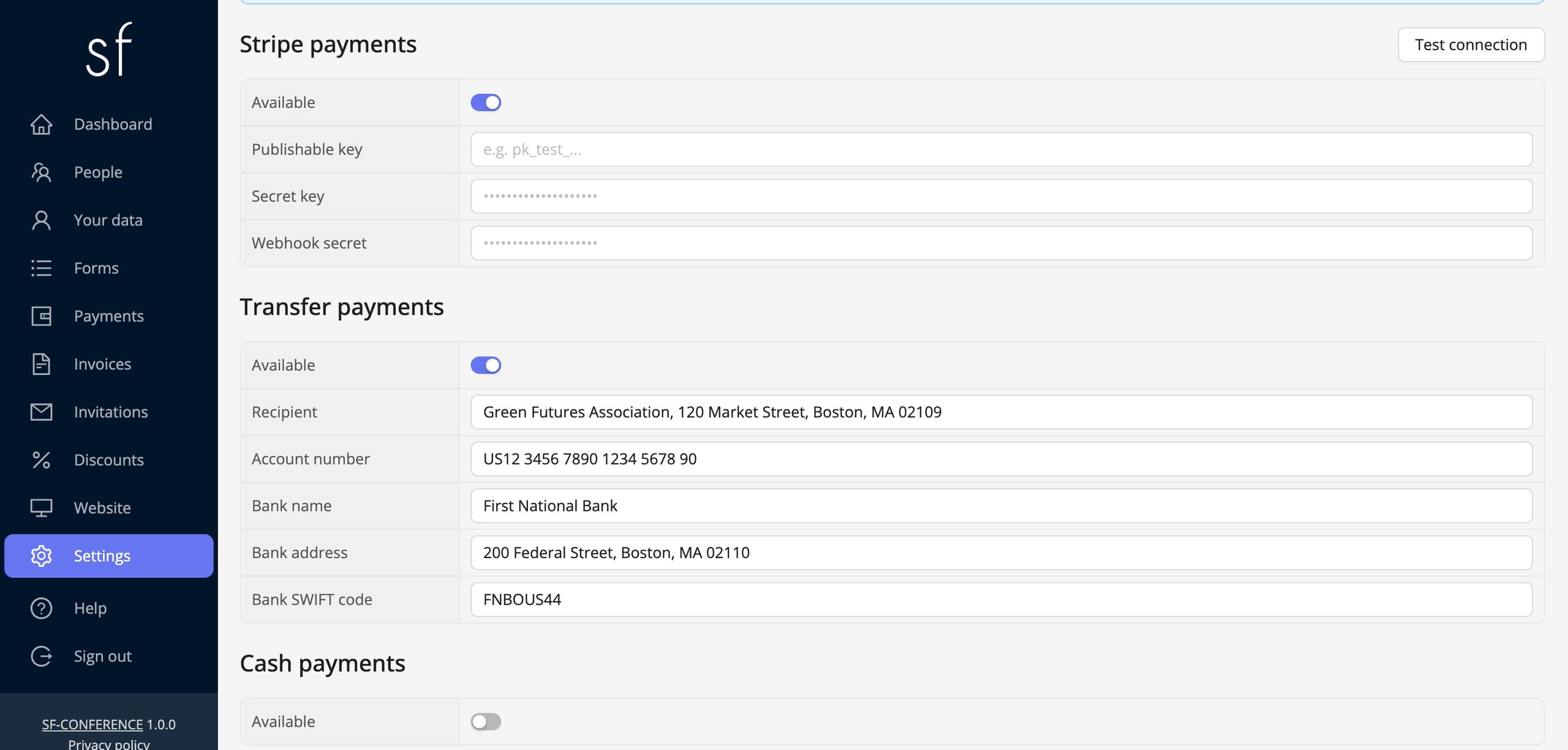
In the same tab you will find the online payment operator section. For events settled outside Poland that operator is Stripe: an Available toggle and below it fields for the publishable key, the secret key and the webhook secret, all copied from your Stripe dashboard.
Once the details are in, use the test connection button at the top of the tab. It checks the configuration before the first attendee tries to pay, and that is a far better moment to catch a typo in a key than a message from someone whose payment failed.
If you want the attendee to pay straight after submitting, switch on payment in form on the registration form’s page. With two or more methods enabled the attendee picks how to pay while still in the form, and after submitting lands directly on the payment page. The building the registration form guide covers this in more depth.
Invoice numbering
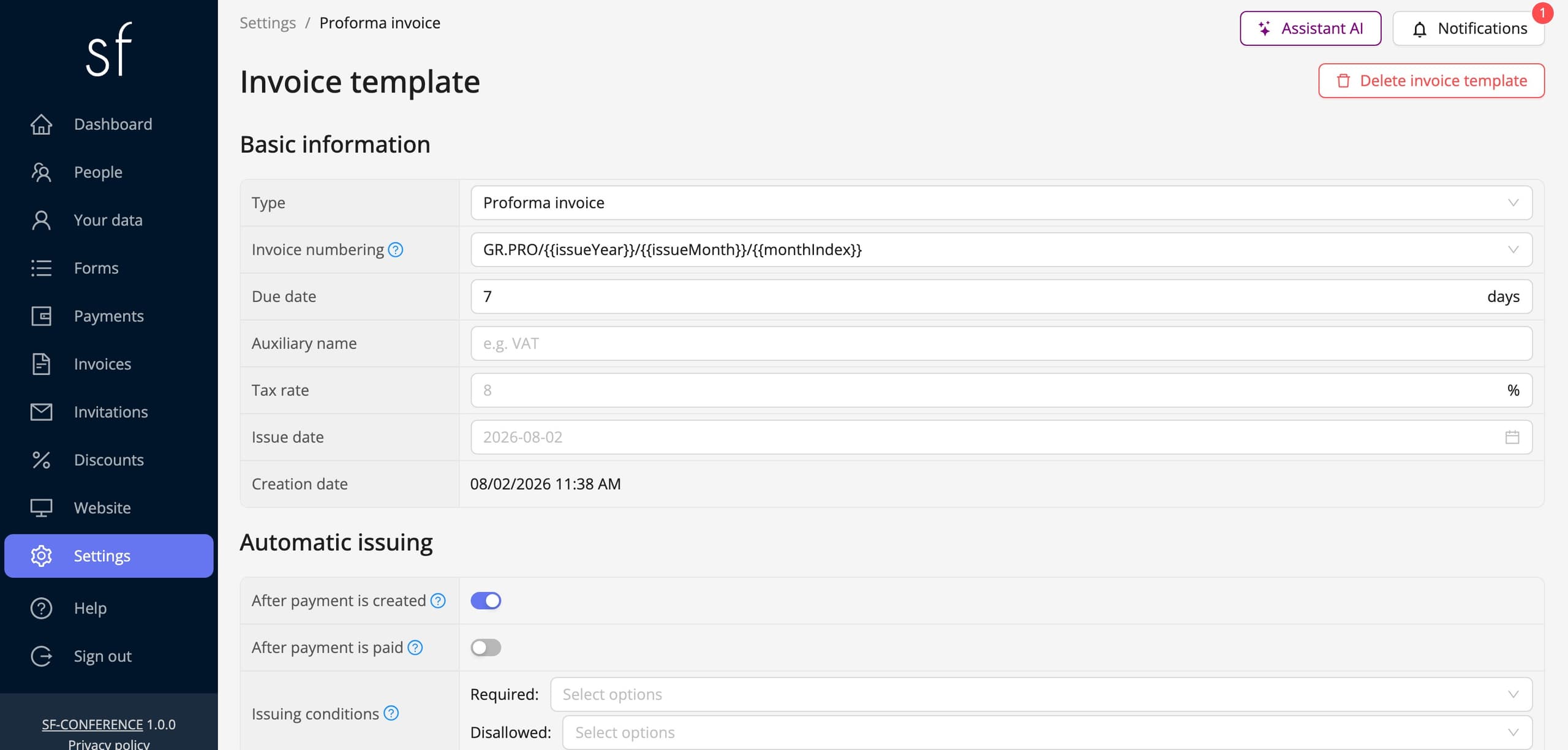
Invoices are a separate module. You switch it on in the Modules tab and configure it in Settings, in the Invoices section. Start with the Invoice numbering, because every invoice template has to point to a numbering.
You never type invoice numbers in by hand. The system assigns them when a document is issued: it takes the pattern of the numbering set in the template, fills in the issue date and the next number, counted from the documents already issued in that numbering. When you issue an invoice by hand, the window shows the Next available issue number before you confirm.
A new event comes with four numberings ready to use: INV for invoices, PRO for proforma invoices, CM for credit memos and RCP for receipts. The document prefix is followed by the first letters of the words in the event name, the year and month of issue, and the running number within the month. So the first invoice of the Green Futures Forum issued in October 2026 gets the number INV/GFF/2026/10/1, and the first proforma PRO/GFF/2026/10/1.
Each template points to one numbering, but one numbering can serve several templates. The running number then counts the documents from all of them together, so they form one continuous series. A proforma should still have a numbering of its own. It is not an invoice but a request for payment, so if it shared a numbering with invoices, it would break the continuity of their series.
You add a numbering of your own with Add invoice numbering. You build it from parameters: the year, month and day of issue, and a running number within the day, month, year or since the event began. You also set how many digits each of them takes. That way you can mirror the numbering your accounts team already uses instead of adapting to the system.
Invoice templates and automatic issuing
An Invoice template describes one kind of document. The options include a Proforma invoice, an Invoice, advance and final invoices, and correction documents. On a template's page you choose the Invoice numbering its numbers come from, and set the Due date, tax rates, how the Issue date and the Delivery/Service date are worked out, and the content of the document itself.
The two toggles deciding when the document is created matter most, though. After payment is created issues it at the moment the registration is accepted. That is how a proforma usually works, since it is the basis for paying. After payment is paid waits for the money and only then issues the document. That is how a VAT invoice usually works.
On top of that come the issuing conditions, the answers from the form at which the document should be created at all. The commonest use is the "I want to receive an invoice" question: the VAT invoice template then applies only to the people who ticked it. A freshly created event has automatic issuing switched off, so until you turn it on no document is produced.
For an invoice to carry the buyer’s details, the form fields have to be marked with the right properties, the company name, tax number, address, postcode, city and country each have their own property prefixed with invoice. The system then knows which answers to copy onto the document.
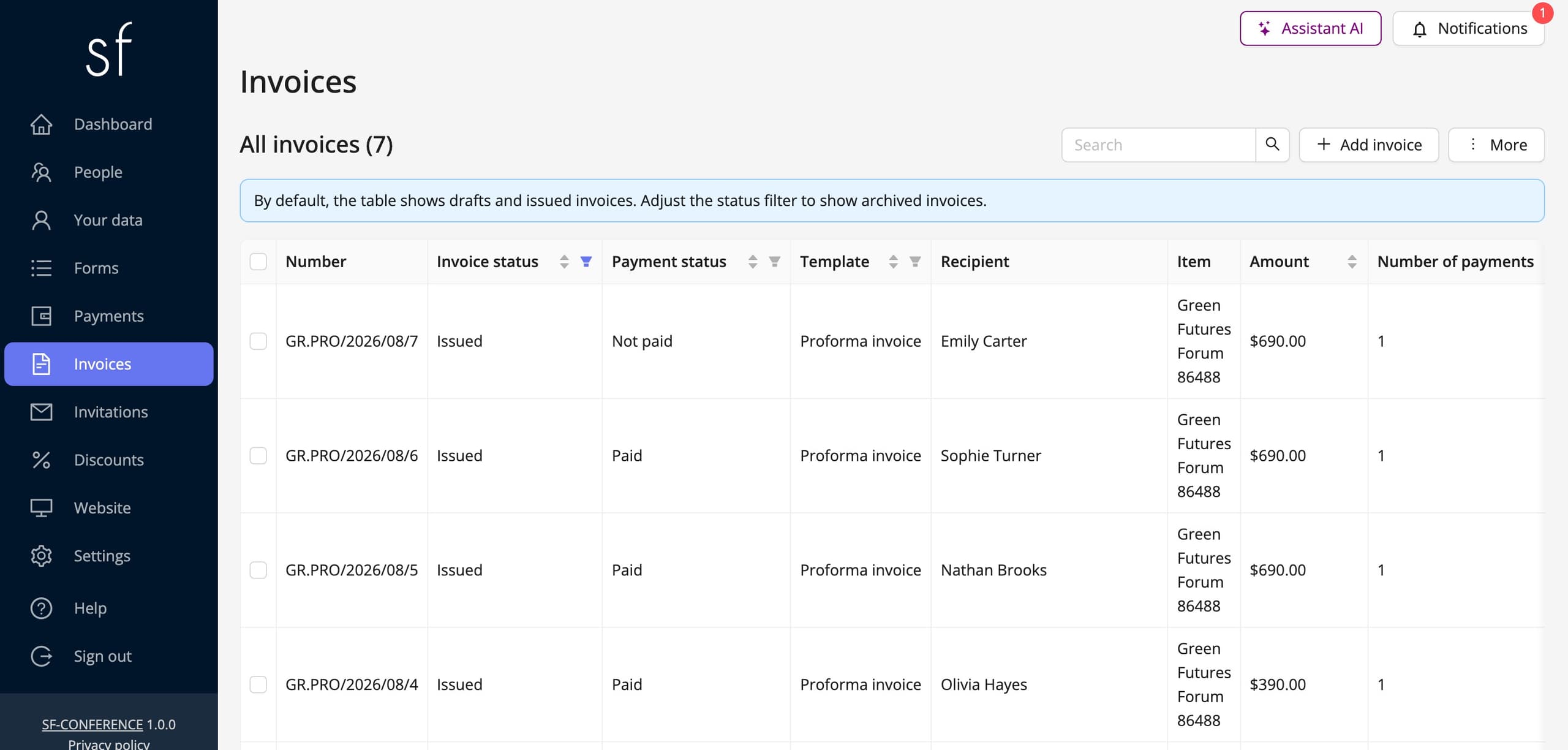
You can see the result under Invoices in the side menu. Every document there has its number, the template it came from, an amount and a status, and from the list you can download it as a PDF or resend it to the attendee.
Where the attendee finds their documents
Issued documents reach the participation summary page, the same one where the attendee sees their registration details and payment status. So they need not write asking for an invoice or wait for someone to dig it out of a mailbox. In the panel all the documents live under invoices, with a preview and a file download.
Currencies, issuing conditions and later payments
A payment gateway is not required for any of this: a bank transfer works with no integration at all. You only fill in the transfer details and mark payments by hand under Payments. You can also sell in several currencies at once; you set them in the Payments tab, and then give every price separately in each of them. Rates are never converted automatically, so the amounts are exactly what you typed.
An invoice need not be produced for everyone. A template carries issuing conditions based on answers from the form, so the document is created only for a given answer, after ticking a “I want to receive an invoice” field, for example. If an attendee buys something after registering, a separate payment appears, independent of the registration fee, that is how workshop sign-ups run through a custom form behave, and documents are issued against it from the same templates.
Someone who never registers can pay too, a sponsor or an exhibitor for example. You create a payment with their data and line items, and they pay through a link. The guide to payments without a participant describes it.
Payments in short
The order is always the same: currencies and tax first, then the payment methods, and finally the numbering and invoice templates with their issuing conditions. The amounts come from the prices set on the form fields, and the buyer’s details from the fields marked with the invoice properties, which is why it is worth having a finished registration form before you start configuring invoices.
See all instructions
Complete event management on a single platform. An event website, attendee registration and a full set of organizer tools.
2026 © SF-LABS sp. z o.o. All rights reserved
Entered into the register of entrepreneurs of the National Court Register kept by the District Court for Kraków-Śródmieście in Kraków, 11th Commercial Division of the National Court Register, under KRS number 0000886671. Share capital amount: PLN 5,000.