How to add a conference discount code
A student rate, a discount for association members, a code for a media partner, a reduction for returning attendees who register early. In the SF-CONFERENCE system all of that is handled by discounts. There are two kinds and they differ in one thing: whether the attendee has to type anything. A discount code is entered by the attendee during registration or at payment. A field discount applies automatically, based on what they chose in the form.
Below we go through both: where to find them, how to set the size of the reduction and the usage limit, how to restrict a discount to chosen participation options, and where to check how many times a code has been used.
Turning the module on and where discounts live
Discounts are a module, so they have to be turned on first. Under settings in the panel’s side menu, in the modules tab, you will find the discounts toggle. Once it is on, a new entry of the same name appears in the side menu.
The discounts view splits into two tabs. Discount codes are reductions the attendee types in by hand, and field discounts are reductions granted automatically. Each tab has its own table and its own add discount button.
A discount code the attendee types in
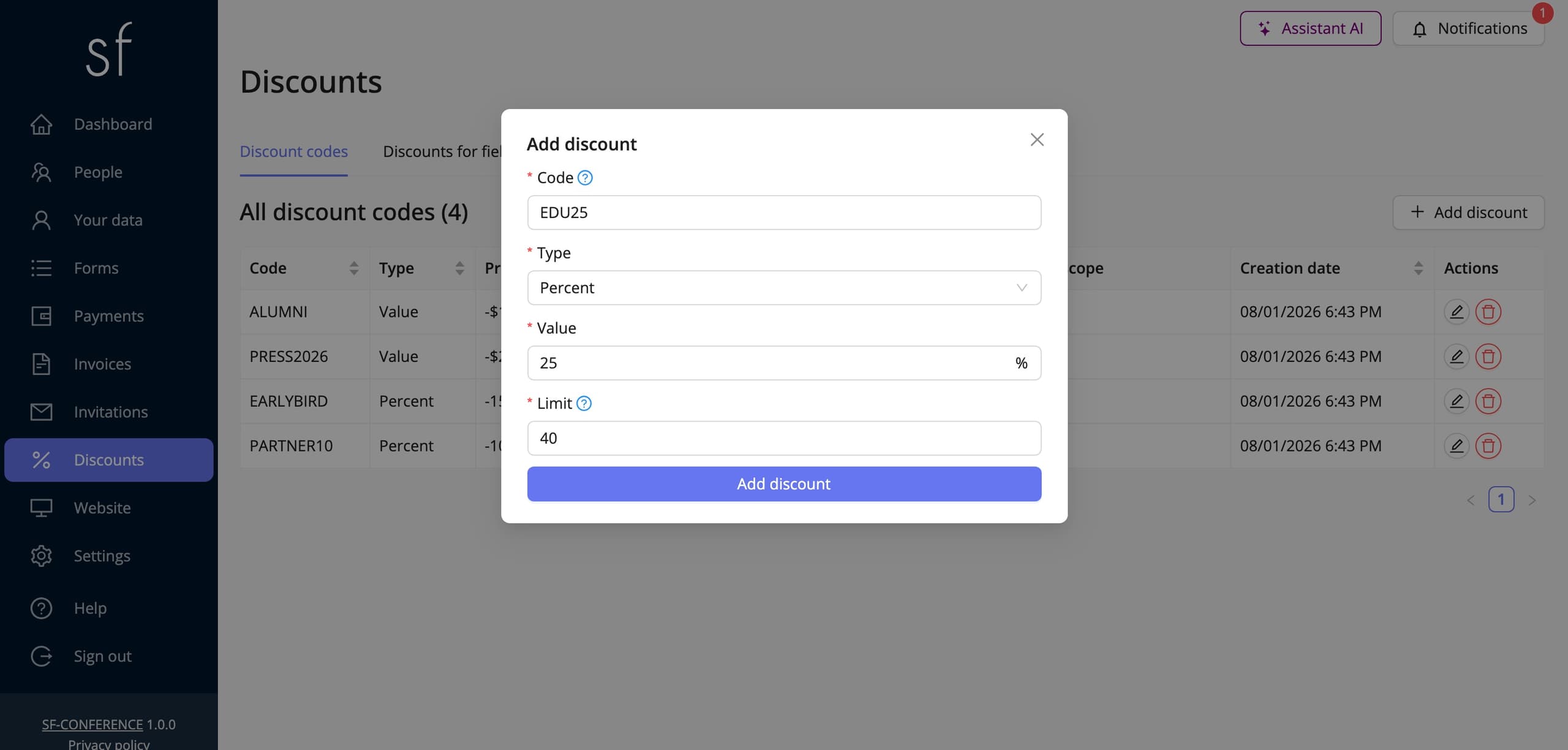
The add discount button in the discount codes tab opens a window with four fields. The code is the string the attendee will type into the form. It is worth being able to dictate it over the phone, so EDU25 beats a random string. Case matters: the code distinguishes lower from upper, so edu25 and EDU25 are two different codes.
Type decides how the reduction is calculated. A percentage discount takes the stated percentage off the amount, a fixed-amount discount subtracts a specific sum, and Fixed price replaces the amount with the value given. You give the value either in per cent or in each currency the event supports. With a fixed-amount discount and a fixed price the figure for zlotys and euros need not be the same conversion.
Limit is the maximum number of times the code may be used. It is a required field, so every code has a pool fixed in advance. Once it runs out the code stops working. That is the simplest way to run a "first fifty people" offer, and also a safeguard in case a code leaks beyond the group it was meant for.
Limiting a discount to chosen options
Once the code is saved its own page opens, and on it an extra availability conditions and discount scope section. There you say when the discount is available at all and what it covers. With no conditions the code reduces the whole amount payable. With conditions you can make a student discount apply only to full participation, and not cover the gala dinner or the accommodation.
The conditions rest on the answers from the registration form, so they work on the same options you defined on the fields yourself. If you do not yet have the fields you want to refer to, look first at the building the registration form guide.
A discount applied automatically
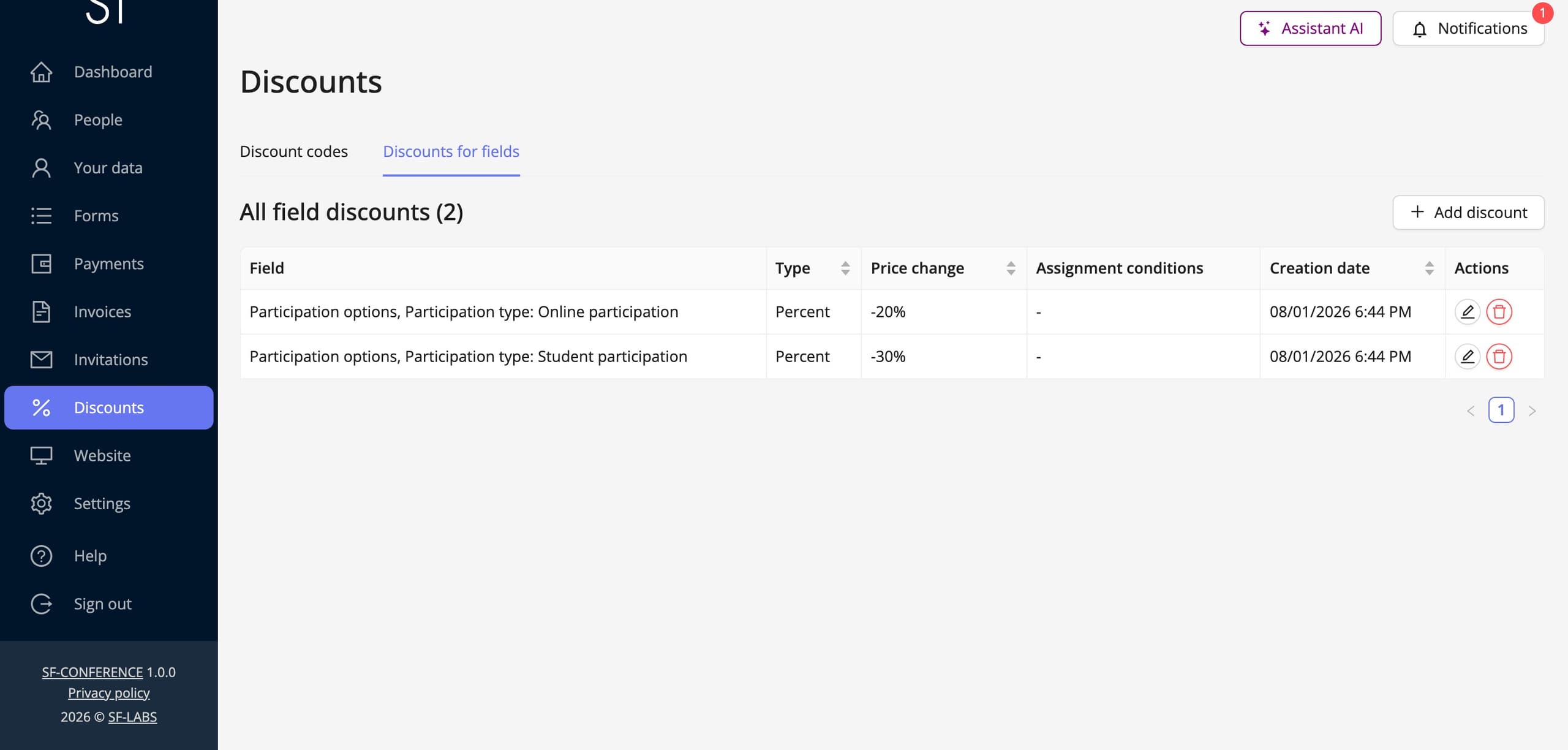
The second tab, field discounts, handles reductions the attendee need never know about. They simply see a lower price. Instead of a code you point at the field whose price the discount changes, and the assignment conditions, the answers at which the reduction should apply.
That is convenient wherever the reduction follows from the registration itself. An association member ticks it in the form and sees the lower fee straight away; someone submitting a paper gets a reduced participation price because they picked the matching option. No codes to send out and no explaining where to type them.
Type, value and limit work exactly as they do for codes. The only difference is in how the discount is granted: a code has to be typed, a field discount applies itself.
Where the attendee enters the code
The discount-code field is not on screen the whole time, and that is a common source of questions. It only appears once the registration has any amount to pay, that is after at least one paid option has been ticked in the form. Until the attendee chooses something that costs money, the form shows neither the payment summary nor the Discount code field, because there is nothing to reduce. The field is also missing when registering from an invitation that does not allow discount codes.
The field sits in the cost summary, below the list of chosen options and above the payment method. The attendee types the code into it and clicks Apply. Typing alone is not enough, so after a moment of inactivity the system shows the warning Remember to apply the discount code. Once applied, the amount recalculates straight away and the attendee sees the price before the discount, the size of the reduction and the amount to pay. A code that is wrong, used up or does not cover the chosen options is rejected with a message, before the registration is even sent.
The code can also be given later. An attendee who has sent their registration and not yet paid will find the same field on the participation summary page, next to the payment. A field discount appears nowhere here, and that is the point: it applies itself, and the attendee simply sees a lower price.
How many times a code has been used
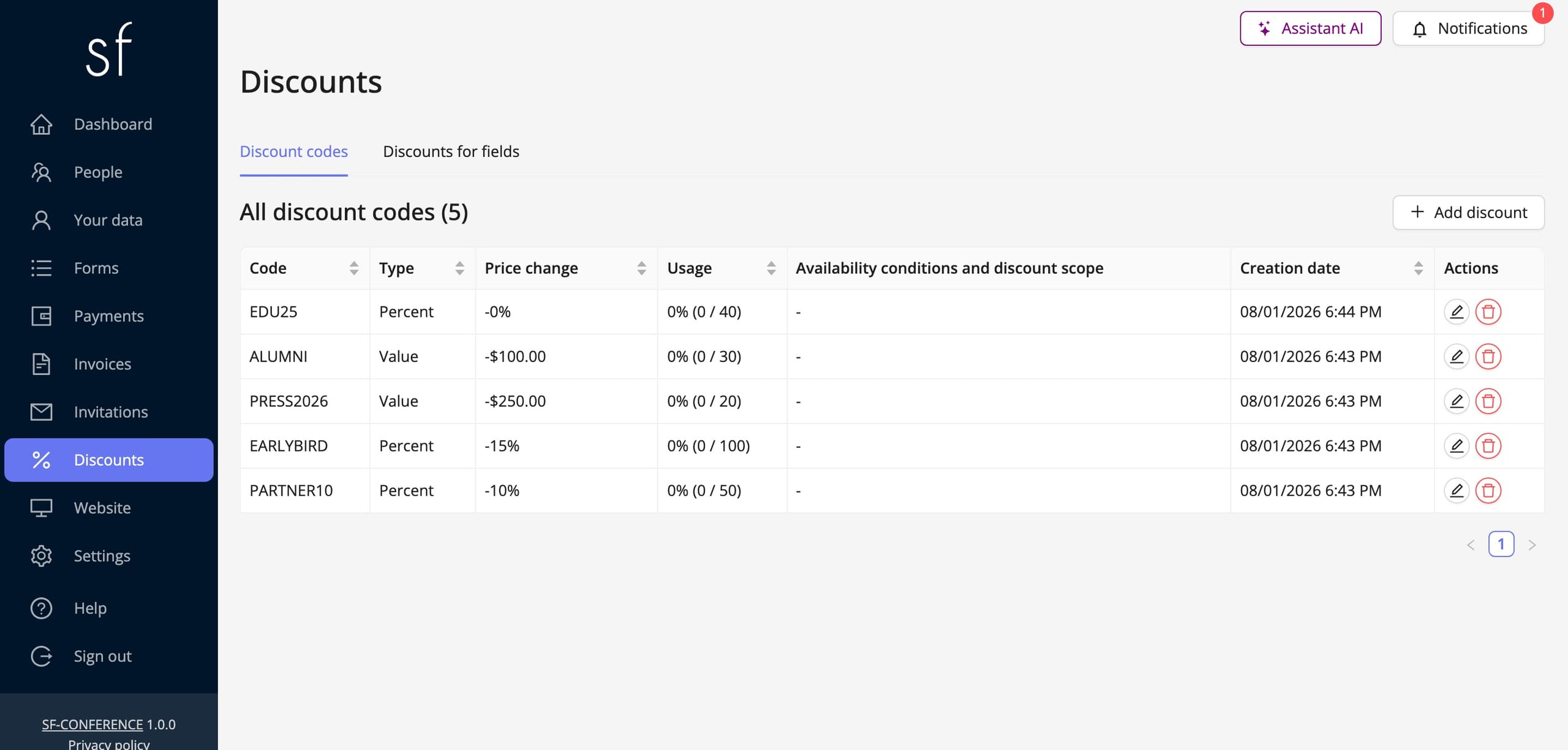
The table in the discount codes tab shows the number of uses next to the limit for every code, so how much of the pool is left is visible at a glance. A code that has run out stops being accepted, and the attendee gets a message instead of a reduction.
The discount also shows against the registrations themselves: in the people table, in the group of payment-detail columns, there is a column with the code that was used, and the same data reaches the attendee export in the XLS file. Settling up a promotion therefore needs no guessing at how many people took it up.
Combining discounts and the scope of a reduction
One code applies to one payment, but field discounts work independently of codes, so a reduction applied automatically can sit alongside a code typed by hand. Nor does the code have to be given at the moment of registration: on the participation summary page, next to an unpaid payment, there is a button that applies one, and the total amount is recalculated at once.
By default a discount reduces the whole amount, together with accommodation and extra activities. The availability conditions and discount scope section lets you narrow it to chosen options, though, so a reduction can be limited to the conference fee alone. The extreme case is a percentage discount of a hundred per cent, i.e. free entry, but if the reduction is meant for named individuals, invitations are usually handier, since they carry a discount of their own and are tied to an email address.
Discounts in short
A discount code is typed in by the attendee, a field discount applies itself. Beyond that both are set up identically: type, value, usage limit and an optional narrowing to chosen options. It all happens within the same payment, so the reduction shows on the invoice and in the settlement. If the reduction is meant for specific people, see the guide to sending invitations.
See all instructions
Complete event management on a single platform. An event website, attendee registration and a full set of organizer tools.
2026 © SF-LABS sp. z o.o. All rights reserved
Entered into the register of entrepreneurs of the National Court Register kept by the District Court for Kraków-Śródmieście in Kraków, 11th Commercial Division of the National Court Register, under KRS number 0000886671. Share capital amount: PLN 5,000.