How to run workshop sign-up through a custom form
Workshops alongside a conference usually have several slots, with a dozen or so places in each, and are often paid for. Sign-up is best opened only once the attendee is already registered. In the SF-CONFERENCE system that is what a custom form is for, a form the attendee gets after registering, on their participation summary page. They do not type in their details again and do not create a new account. The answers are added to their registration, so you can see at once who signed up for which slot.
The Date and time slot field handles the choice of time: a calendar with a schedule, in which every slot has its own number of places. Once the places run out, the slot is no longer available, and full days are marked in the calendar. Below we go all the way: creating the form, setting the price, laying out the workshop schedule, sending attendees the link, signing up from their side and the list of sign-ups in the panel.
Where to find custom forms
Go to the Forms entry in the panel’s side menu. The view is split into three tabs. Standard forms are created by the system and that is where the Registration form lives. External forms have their own address and serve people outside the attendee list. Workshop sign-up belongs to the third tab, Custom forms. These are the only forms an attendee sees only after registering.
You can have as many custom forms as you like and each works on its own, so workshop sign-up, a dinner menu choice and a named survey sit comfortably side by side.
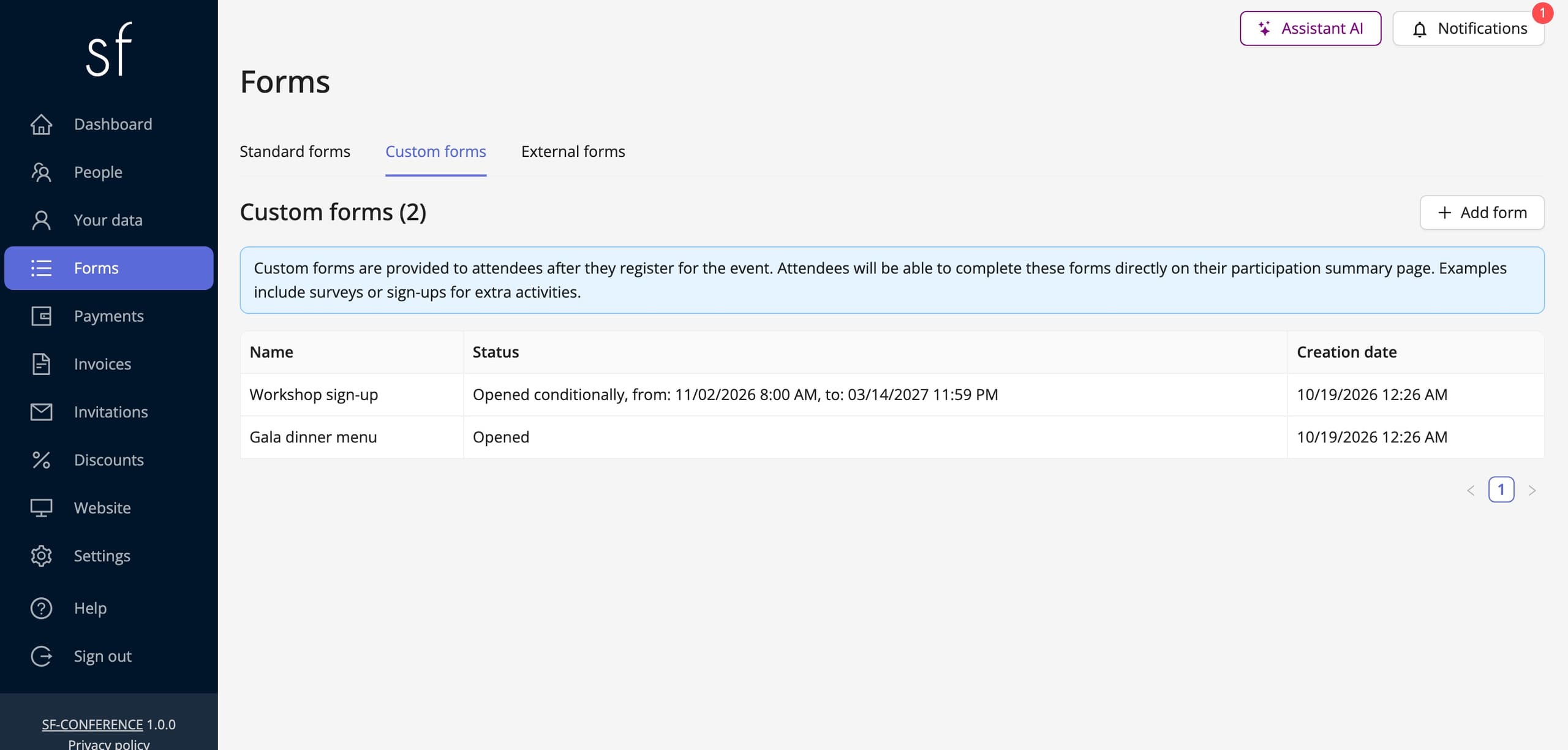
Creating the sign-up form
The Add form button above the table opens a window in which you give a Name, Workshop sign-up for example. The attendee sees it as the heading of a section on their summary page. You give the name in every language of the event.
Once saved, the system opens the form’s page. It is built the same way as the registration form’s page: the settings of the whole form at the top, the sections and fields table below. Everything the guide on editing the registration form says about fields, options and conditions applies here too.
When people can sign up
In the Basic information section the Form status field decides whether sign-up is open. Opened means no time limits, Closed pauses sign-up, and Opened conditionally lets you give From and To dates, for example from the opening of registration to the day before the conference.
Set the status straight away. A freshly created custom form is open, and its section appears on every attendee’s summary page as soon as you add the first field. Until you have finished laying out the schedule, keep it closed. The three content editors below handle the introduction above the fields, the text above the submit button and the message shown once sign-up has closed.
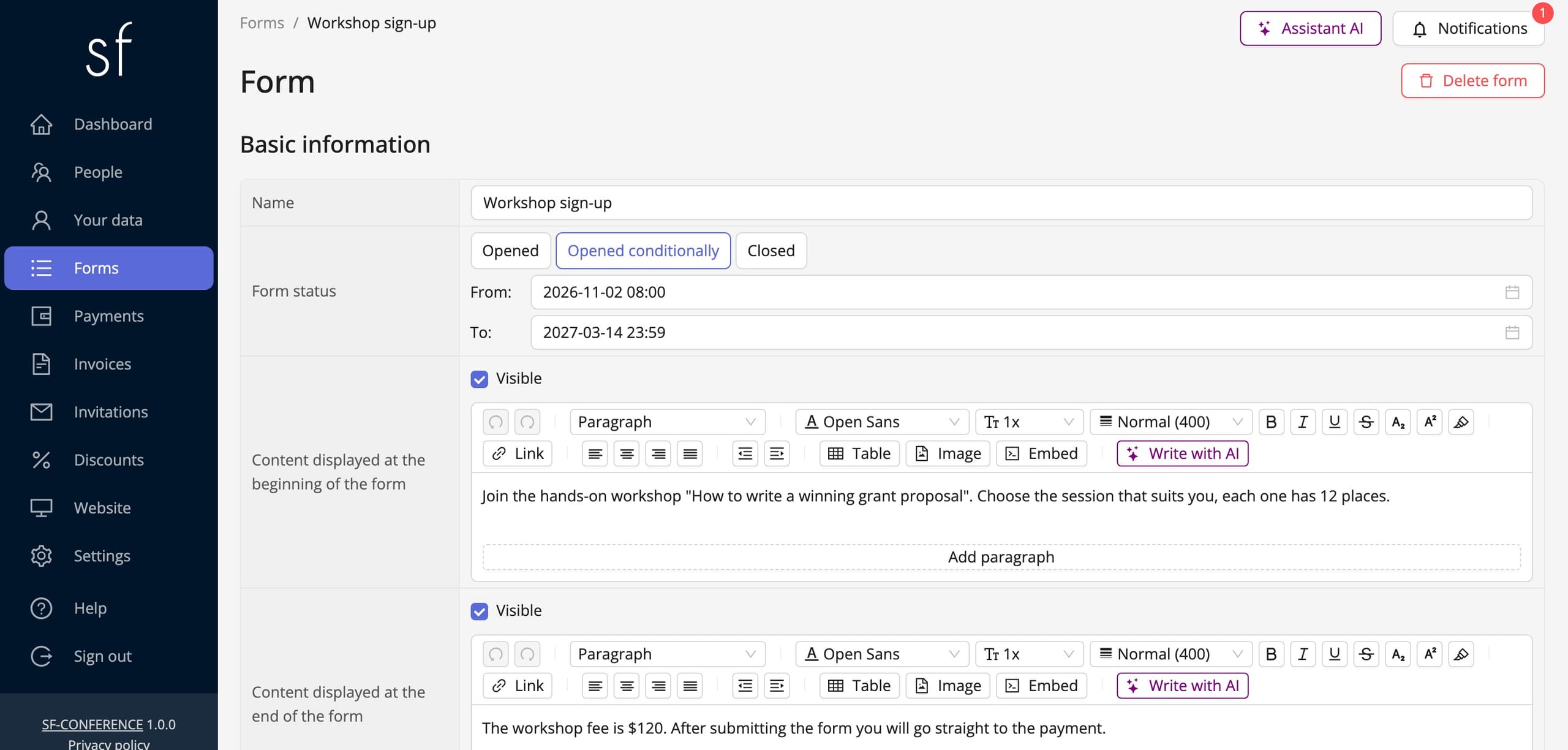
Paid workshops
A custom form has a Payment details section of its own. The Base gross price is added for everyone who submits the form, so for a single paid workshop it is the simplest place for its price. The Payment title describes the transfer and the invoice, and Show detailed costs breaks the summary down into items.
The Payment in form toggle moves the payment method choice into the sign-up window itself, so the attendee lands on the payment page straight after submitting. The amount raised this way is a separate payment, independent of the registration fee, so the attendee pays for the workshop even if they settled their registration earlier. Free workshops simply leave this section empty.
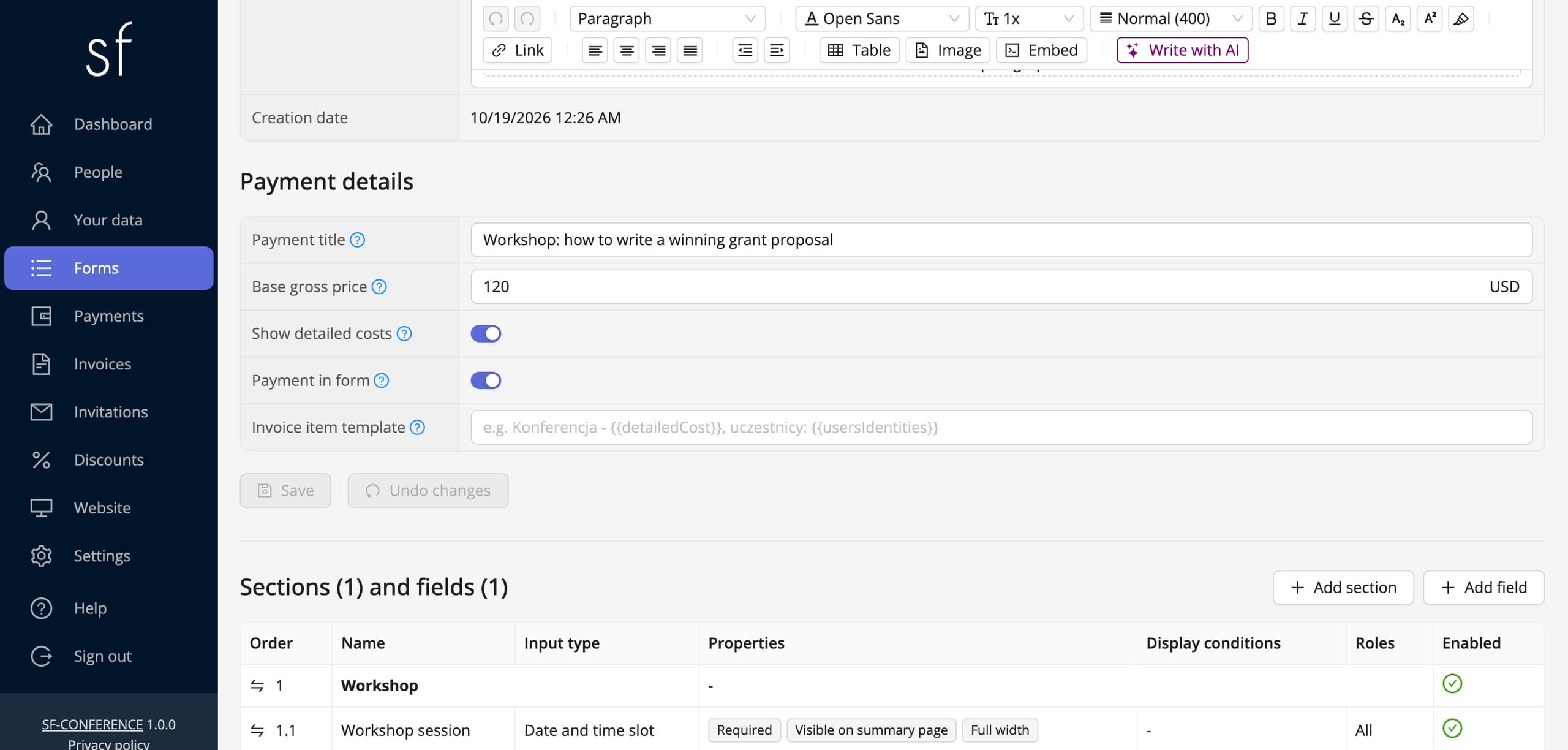
The Date and time slot field
Below the settings sits the Sections and fields table. Start with the Add section button, Workshop for example, and then click Add field. In the window pick the Input type Date and time slot, give a Name, Workshop slot for example, and choose the section. Once saved, the system opens the field’s page. In its option settings you will find the Availability section, in which you lay out the schedule.
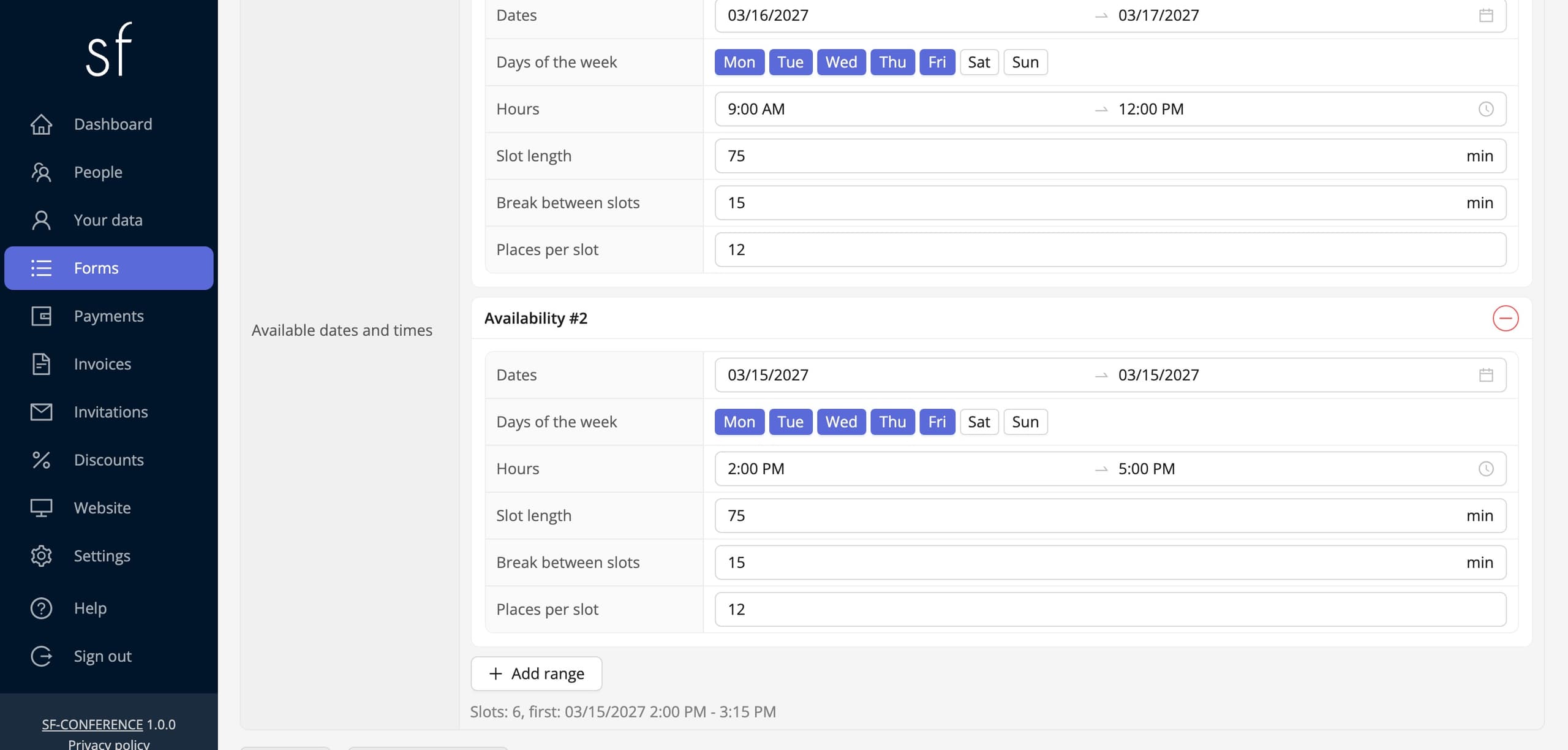
The schedule is made of ranges, and you add each one with the Add range button. A range has six settings: Dates, from when to when, Days of the week on which the workshop runs, Hours within which the slots fall, Slot length in minutes, Break between slots and Places per slot. The system splits the hours into slots by itself and shows how many it made. A range from 9:00 to 12:00 with 75-minute slots and a fifteen-minute break gives two slots a day, at 9:00 and at 10:30.
There can be several ranges when the workshop has different hours on different days, for example mornings on the conference days and an afternoon the day before. If two ranges produce the same slot, its places add up. For a paid workshop you can also give the price directly in the field’s option settings, in the Gross price field, instead of in the form’s base price.
If you run several different workshops, add a select field with their list and a separate Date and time slot field for each of them, and give each slot field a condition so that it shows only once its workshop is chosen. Conditions work here the same way as in the registration form.
Sending attendees the sign-up link
A custom form has no address of its own. Attendees fill it in on their own participation summary page, and each of them has that page to themselves. That is why the sign-up invitation is sent as a message in which the system substitutes each person’s own link.
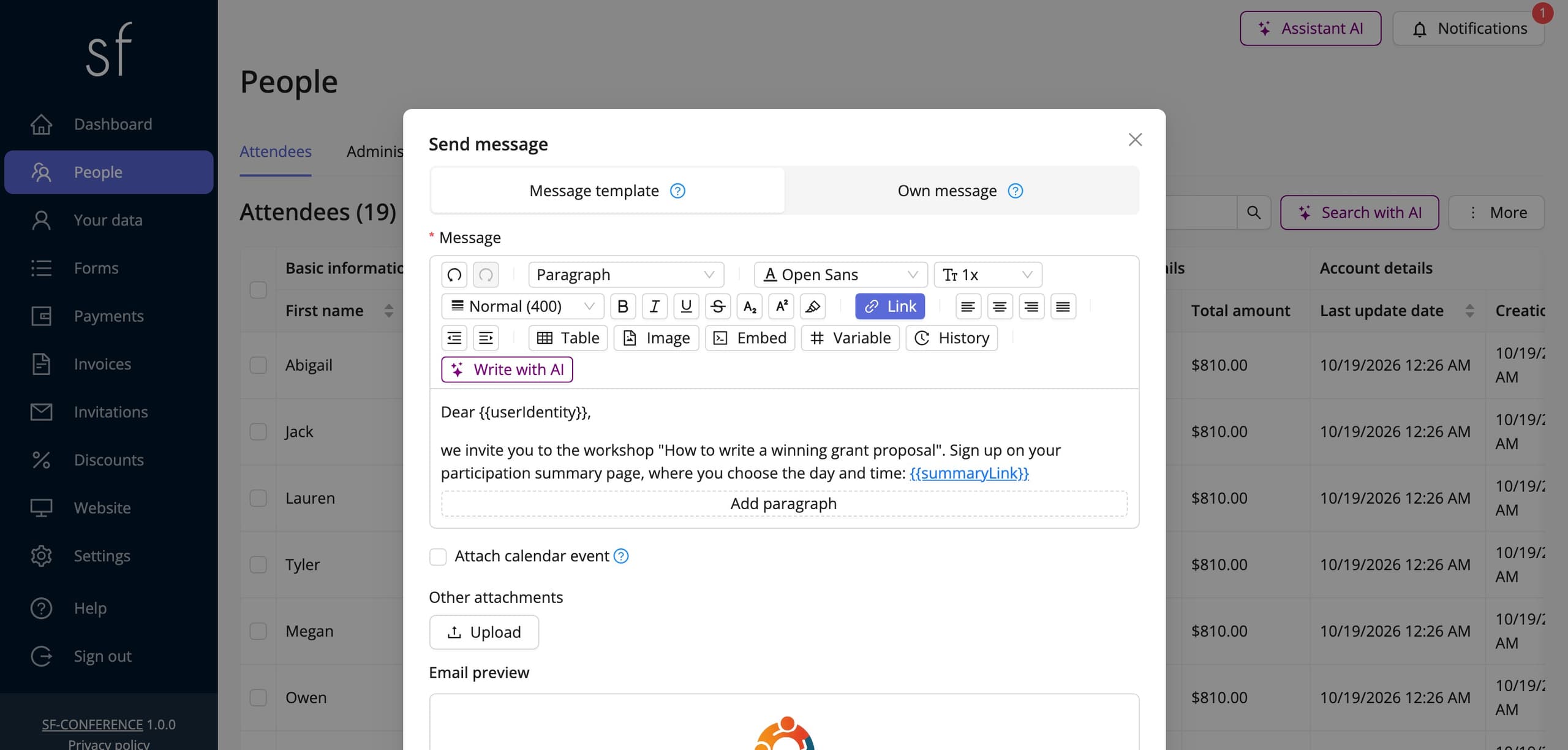
Go to the People entry, tick the attendees and click Send message to selected attendees, or with nothing ticked Send message to all attendees. On the message editor toolbar click the variables button and choose Participation summary link. Every recipient gets a link to their own page, opening without a login, so the road from email to sign-up is a single click. Before sending to everyone, check the message with the Send test message to yourself button.
How an attendee signs up for a workshop
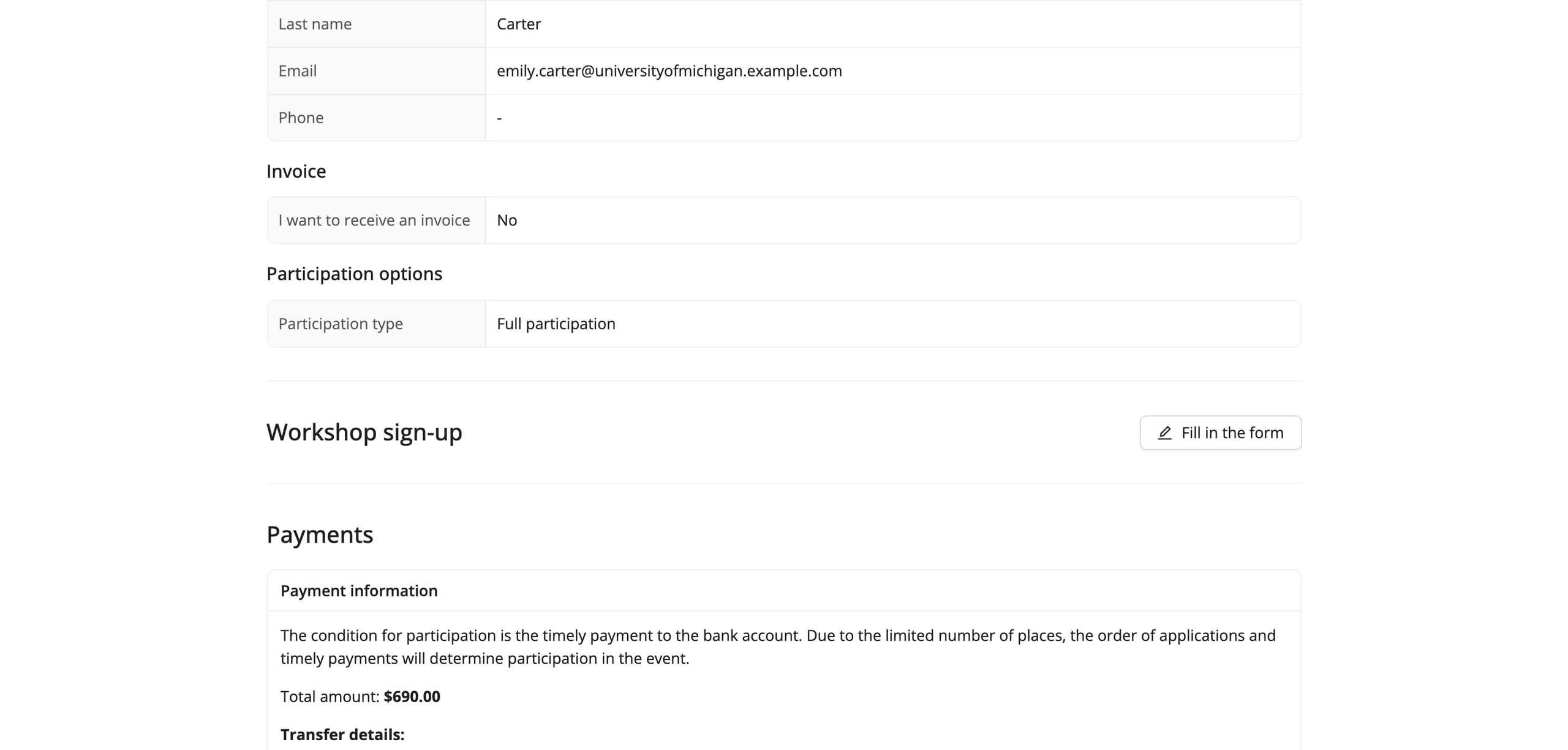
Clicking the link takes the attendee to their participation summary page. Below their registration details they see a section with the form’s name and a Fill in the form button.
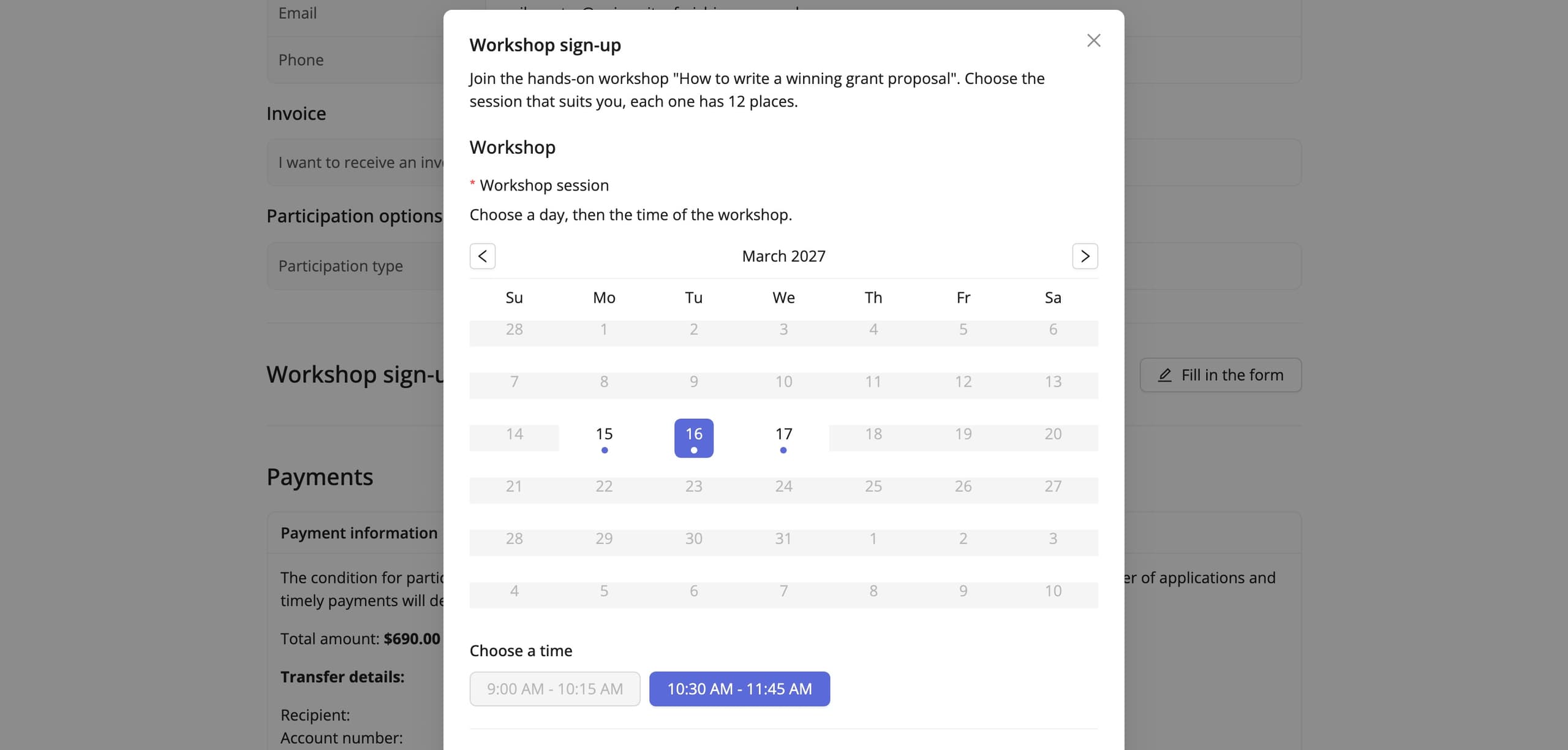
The button opens a window with a calendar. Days with free slots are highlighted, and days on which the places have run out are marked as full. Choosing a day shows the slot times, and those with no free places are disabled. The attendee picks a time and submits the form. If the workshop is paid and payment in the form is switched on, they go straight to paying.
Once submitted, the section shows the chosen slot, and the button changes to Update the form. As long as sign-up is open, the attendee can switch to another free slot or cancel with the Clear the form button, and the freed place goes straight back into the pool.
The list of sign-ups in the panel
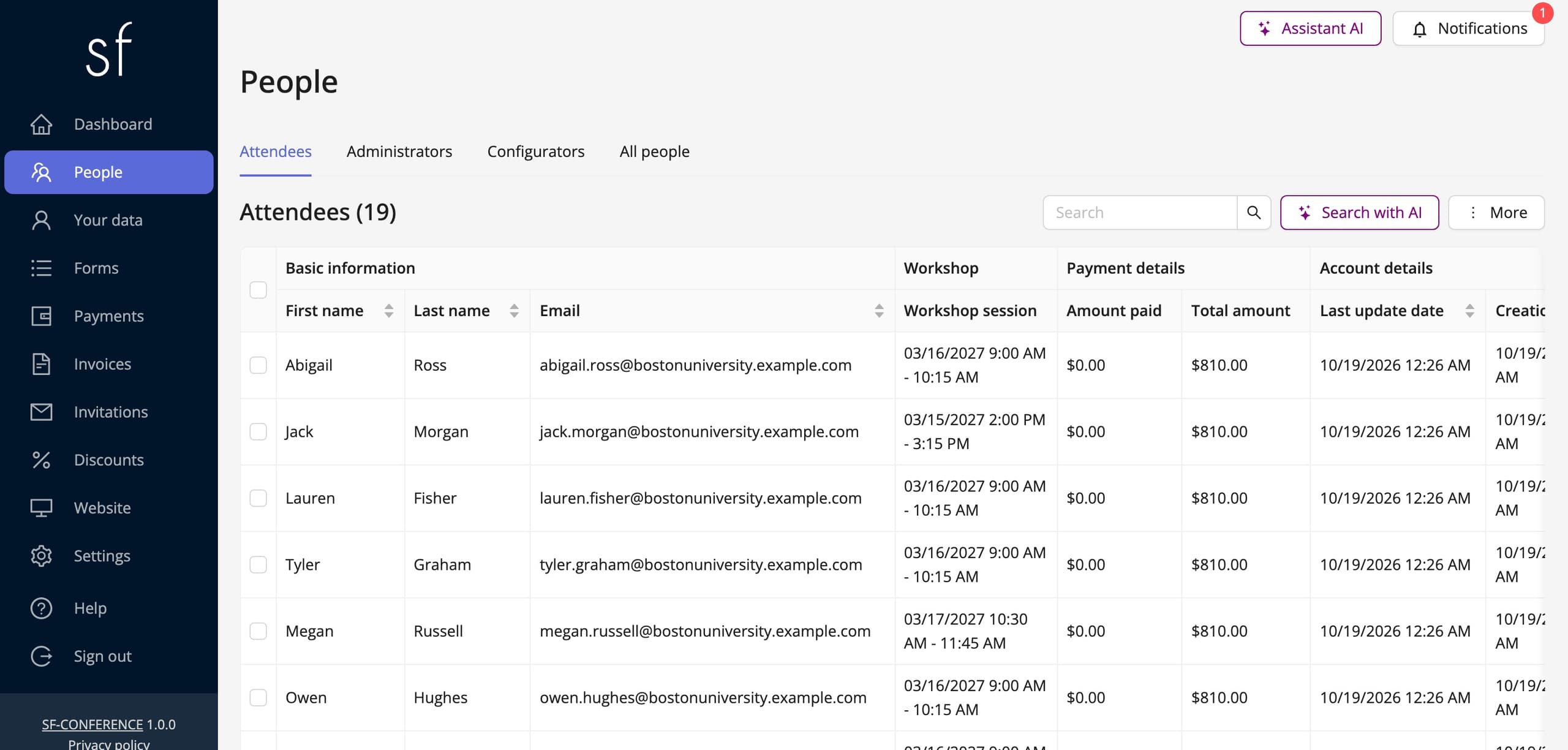
Sign-ups do not go to a separate module. They are added to the attendee’s registration, so in the table under the People entry the chosen slot shows up as a column with the date and time, grouped under the section name. Which columns are visible is set with the Edit people table view button.
On a single person’s page the sign-up form has a section of its own, in which an administrator can book the attendee onto a slot or move them, for example after a phone call. The Download all attendees in XLS and Download selected attendees in XLS buttons save the list together with the workshop slots, because the export always covers the fields of every custom form. Sorted by slot, the spreadsheet is a ready list for the trainers.
The same form for a named survey
A custom form works wherever an answer has to be tied to a particular attendee: a menu choice, an arrival time or a named survey that a certificate depends on. You then build the questions from the types you know from the registration form, and read the answers in the people table. If the survey is meant to be anonymous, an external form is the better choice, described in the guide on running an attendee survey.
Workshop sign-up in short
Workshop sign-up comes down to five steps: create a custom form, set the sign-up window and the price, add a Date and time slot field with the schedule and the number of places, send a message with the Participation summary link variable and read the list of sign-ups in the people table. The system itself makes sure that no slot gets more people than it has places. More on working with the attendee list is in the description of participant management.
See all instructions
Complete event management on a single platform. An event website, attendee registration and a full set of organizer tools.
2026 © SF-LABS sp. z o.o. All rights reserved
Entered into the register of entrepreneurs of the National Court Register kept by the District Court for Kraków-Śródmieście in Kraków, 11th Commercial Division of the National Court Register, under KRS number 0000886671. Share capital amount: PLN 5,000.