How to collect entries with an external form
Before registration opens there is usually something to collect from people who are not on the attendee list yet: talk proposals from speakers, ideas for session topics, entries from partners, or votes on the programme. In the SF-CONFERENCE system that is what an external form is for, a form with an address of its own, filled in without registering, without an account and without logging in.
The difference from the other forms is who sees them and when. The registration form creates an attendee. A custom form goes to someone who has already registered, on their own participation summary page. An external form creates an account for nobody. The answers land in a separate entries table, and what becomes of them is your decision.
Below we walk the whole path on the example of collecting talk proposals before a conference: creating the form and giving it an address, laying out the questions, what the submitter sees, reviewing the entries in the panel, accepting or rejecting them, and moving an accepted person onto the attendee list.
Where to find external forms
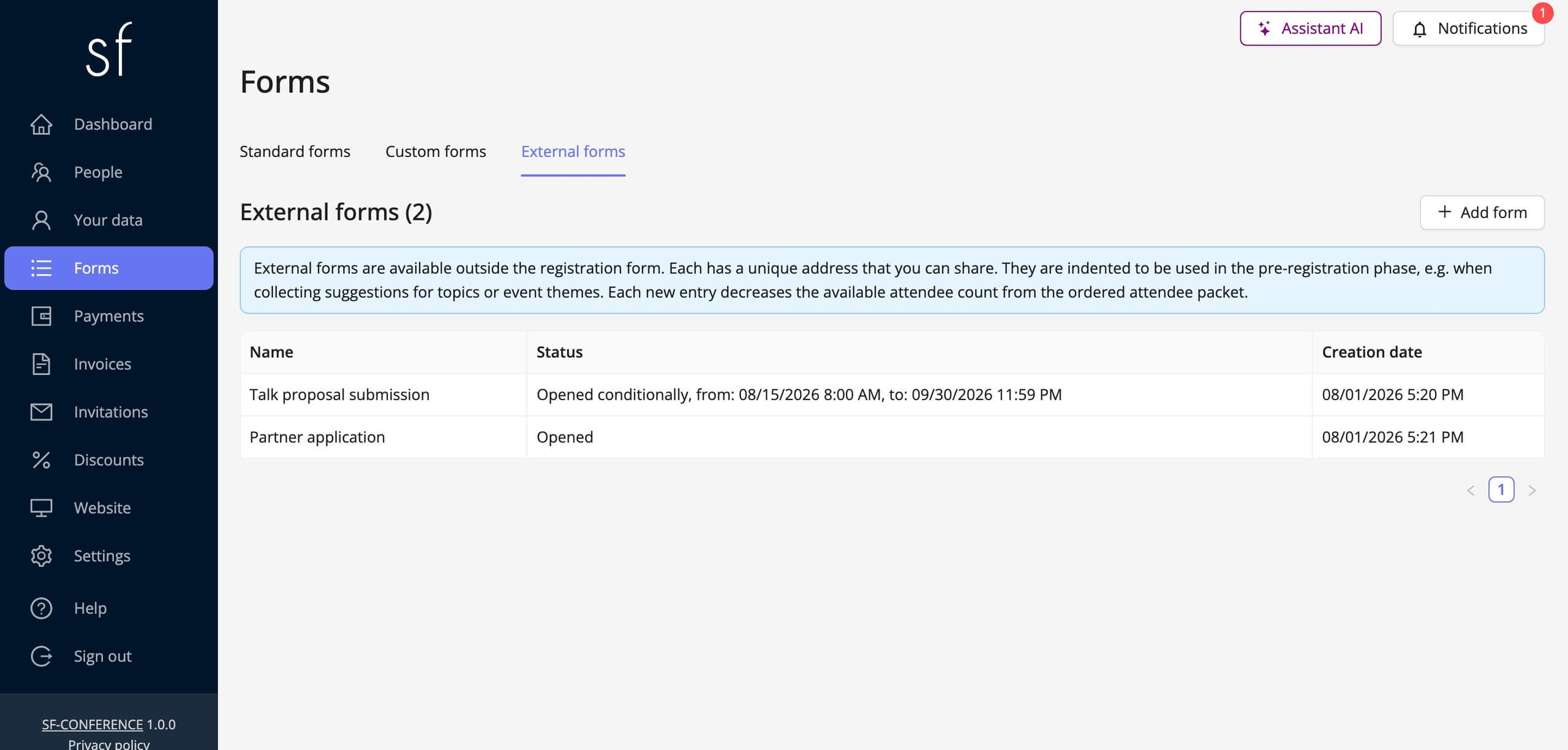
Go to the Forms entry in the panel’s side menu. The view is split into three tabs: Standard forms with the registration form, Custom forms for people already signed up, and External forms. The last one is the right one here. The tab lists the forms created together with their status and creation date; clicking a row opens the form’s page.
You can have as many external forms as you like and each works independently, so collecting talk proposals, a workshop call and a survey about expectations of the programme sit happily side by side, each under its own address.
Creating the form and its address
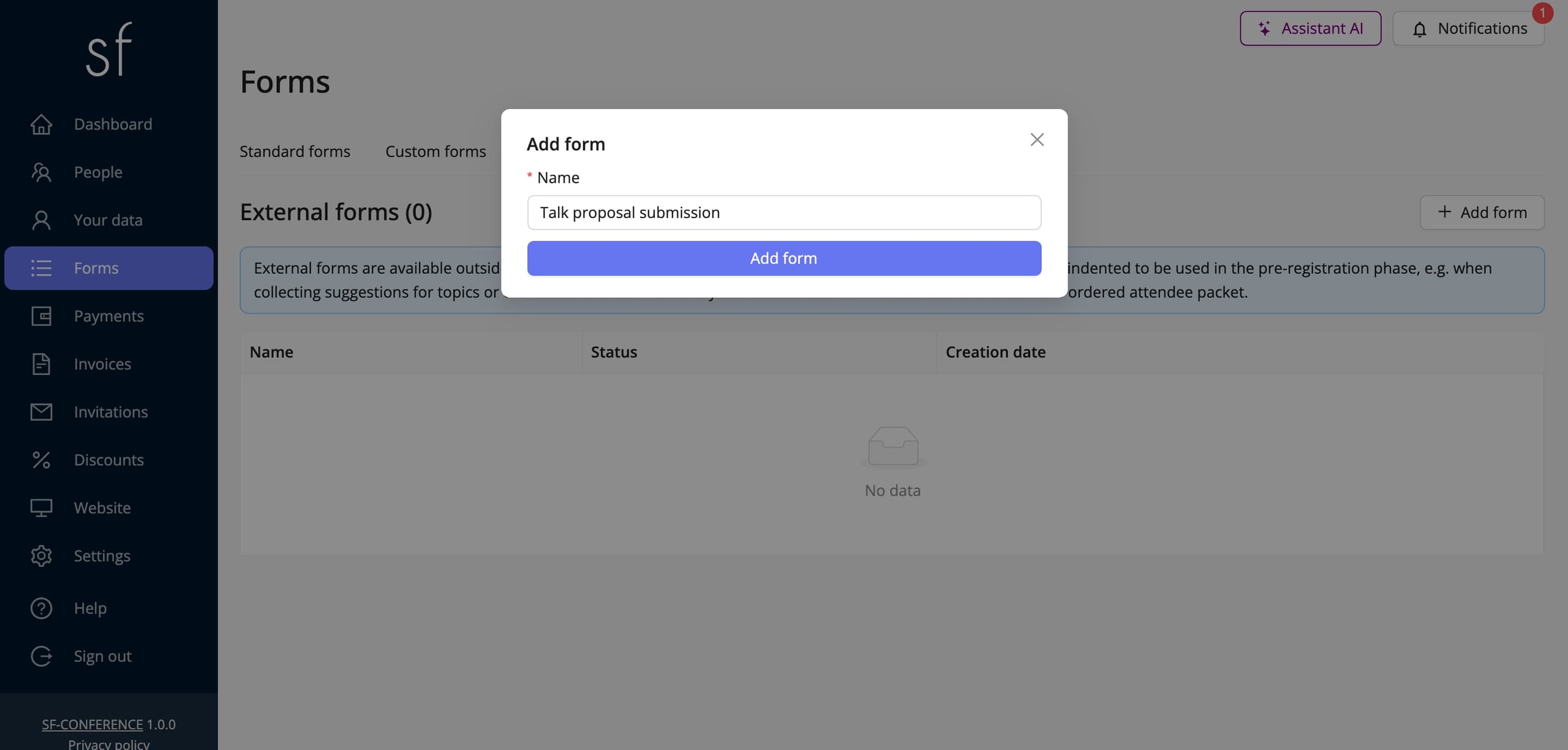
The Add form button above the table opens a window in which you give a Name, Talk proposal for example. It is the name the submitter sees as the heading of the page, so it is worth saying plainly what it is about. You give the name in every language of the event.
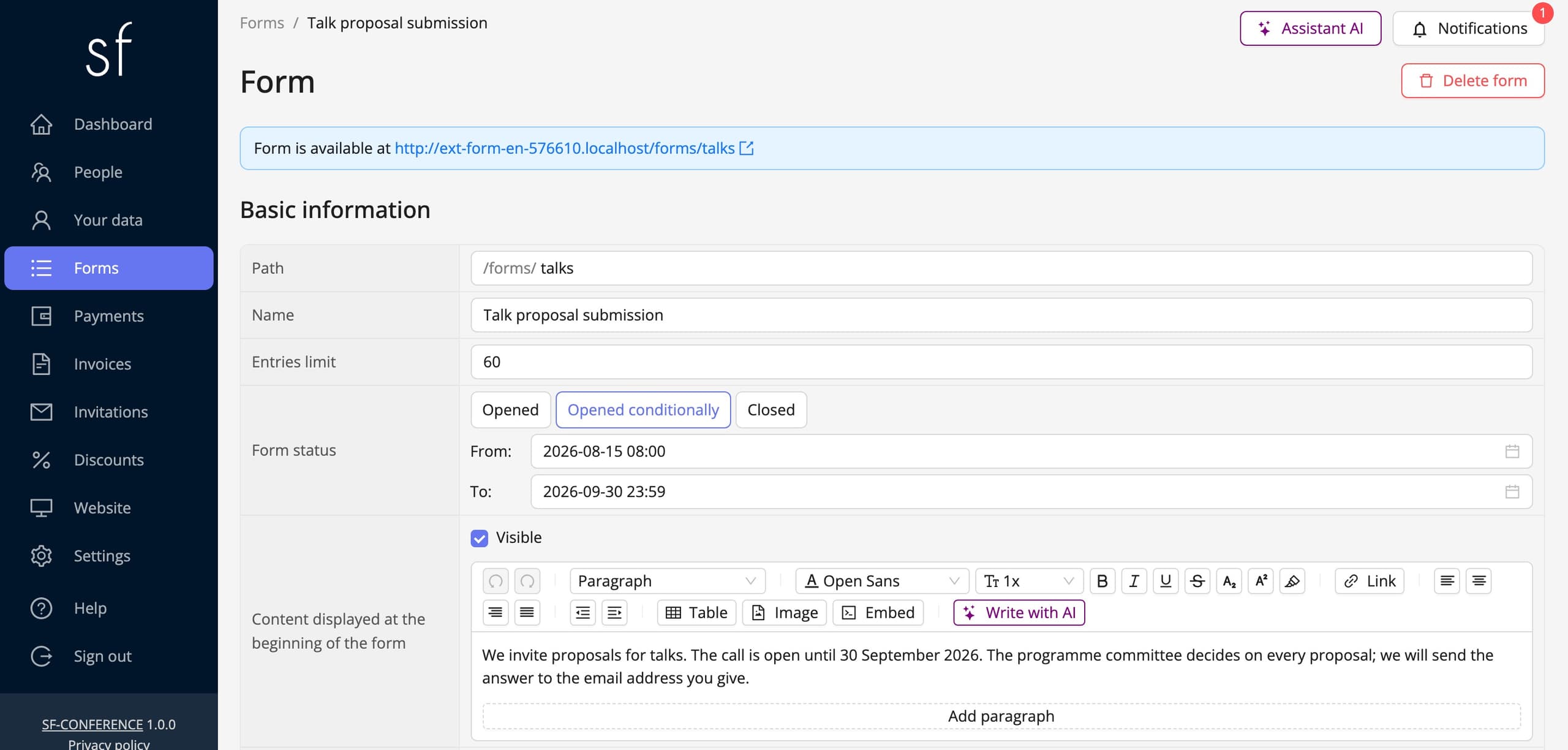
What sets an external form apart from the rest is the Path field on the form’s page. Into it you type a short, readable fragment of an address, talks for example, and the system builds from it a full address of the shape /forms/talks in your event’s domain. The finished link is shown in a blue box at the top of the page, next to the words Form is available at. That is the link you paste into a mailing, onto the event website and into social media.
The same page holds the remaining conditions of the call. Form status decides whether the form accepts entries at all: Opened, Closed or Opened conditionally with a start and end date. That last option is simply the deadline of the call, after which the form closes itself. Entries limit caps their number. Three text fields - Content displayed at the beginning of the form, Content displayed at the end of the form and Content displayed when the form is closed - carry the introduction to the call, a closing note above the submit button, and the message for latecomers respectively.
The questions in the form
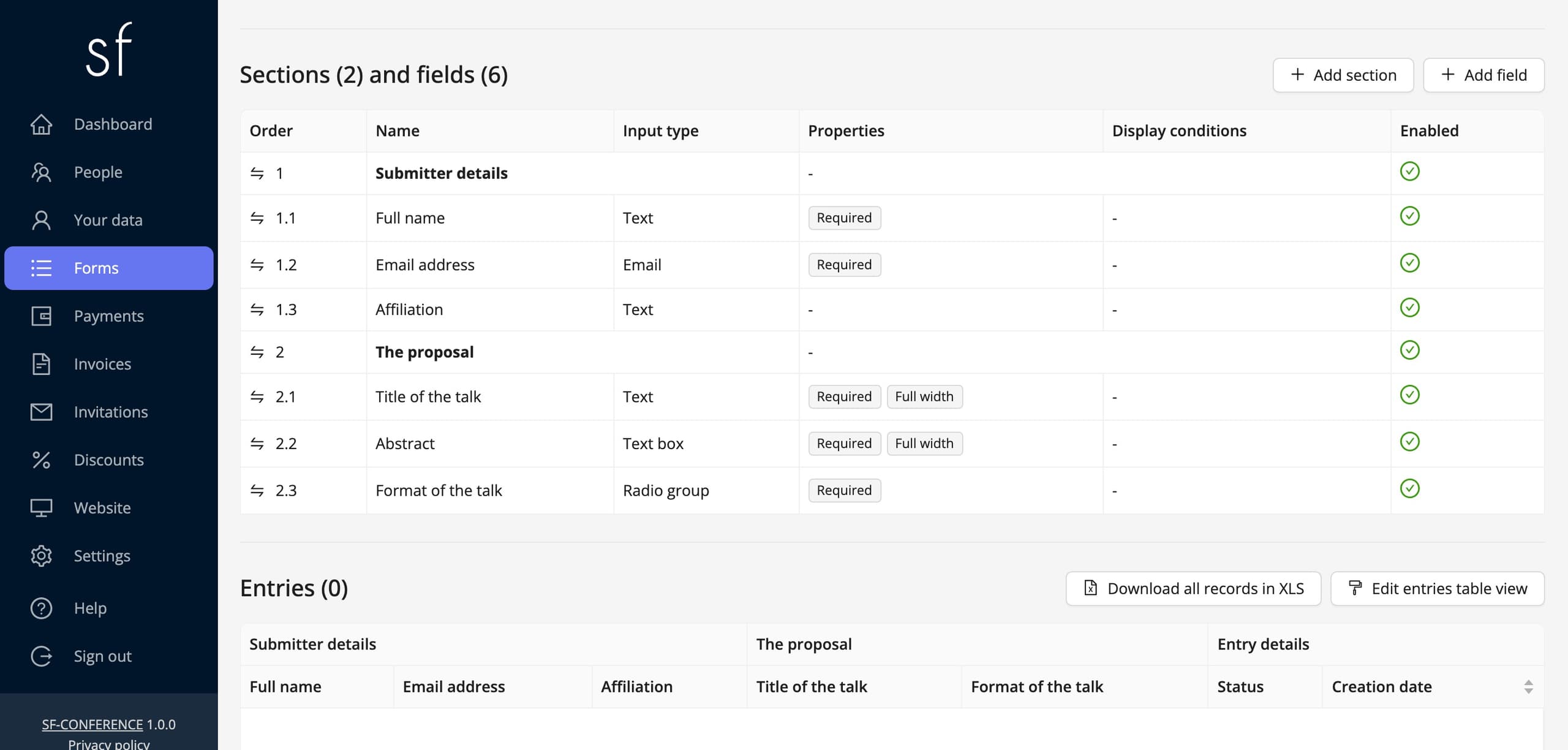
Further down the page sits a table of sections and fields, the same one that drives the registration form. Everything said about fields, options, dependencies and prices in the editing the registration form instruction applies here as well.
For a talk proposal the set of questions is usually short: the first and last name, an email address, an affiliation, the title of the talk, an abstract in a multi-line field, the format of the talk as a select (lecture, workshop, poster) and possibly consent to being recorded as a checkbox. You can split the questions across sections - contact details in one, the proposal in another - and mark the ones an entry makes no sense without as required.
One field deserves separate attention: a field of the email address type. It is how the system knows where to send the confirmation of an entry and the decision that follows, and where to take the login from if you decide to move the submitter onto the attendee list. Without that field the form still works. It simply becomes anonymous, which is covered below.
What the submitter sees
At the address you gave, an ordinary form page opens, with the event’s logo and background, the opening content, the questions, and the consents defined in the event settings. The submitter creates no account, confirms no email address and logs in nowhere. They fill the fields in and click Submit form, and the form is protected from bots by reCAPTCHA. Once it is sent they see a fixed system message confirming that the entry has been saved.
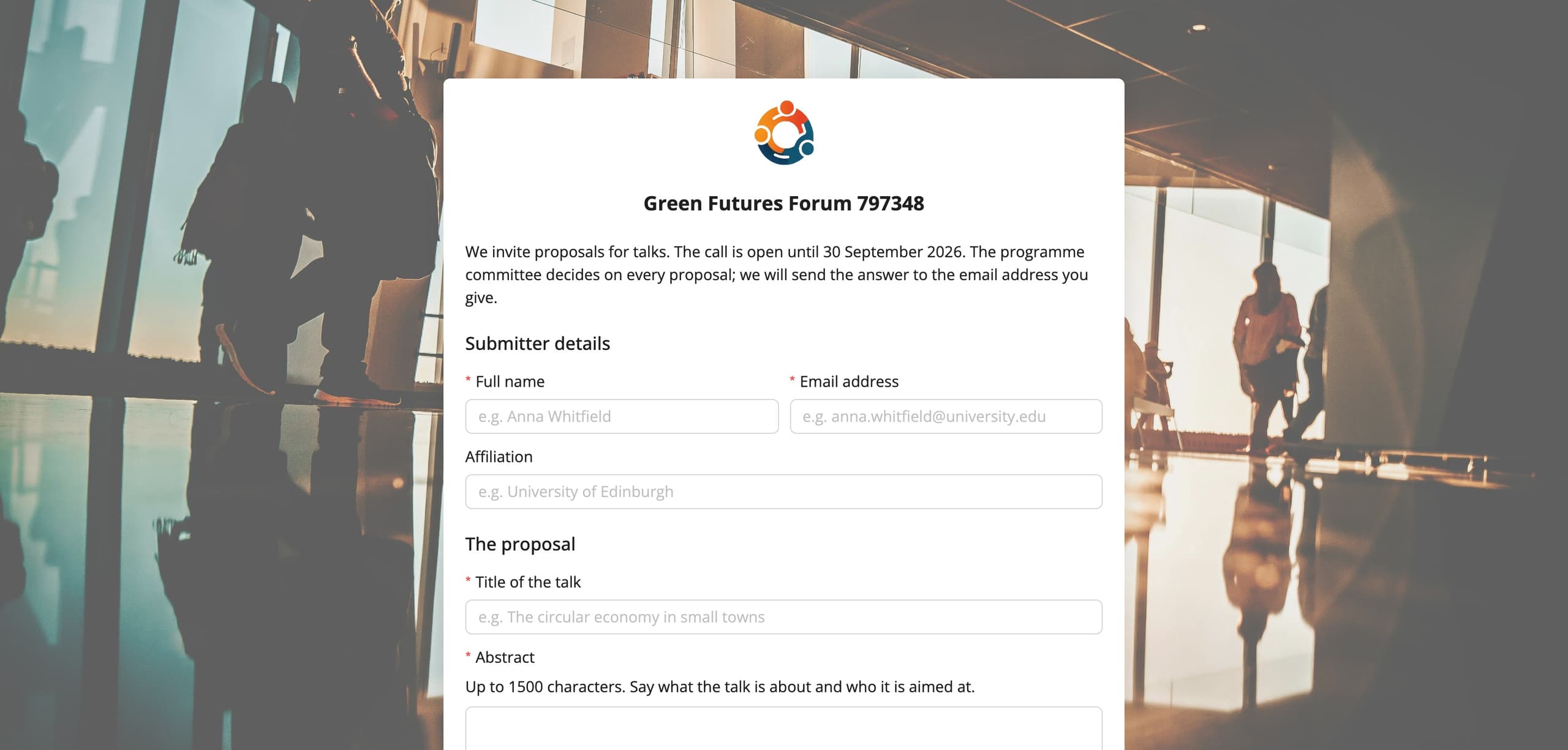
If the form carries a field with an email address, the submitter receives a message with a confirmation and a copy of their answers. Either way a notification about the new entry goes to the organizer, so nobody has to watch the panel to know that something has arrived.
Entries in the panel
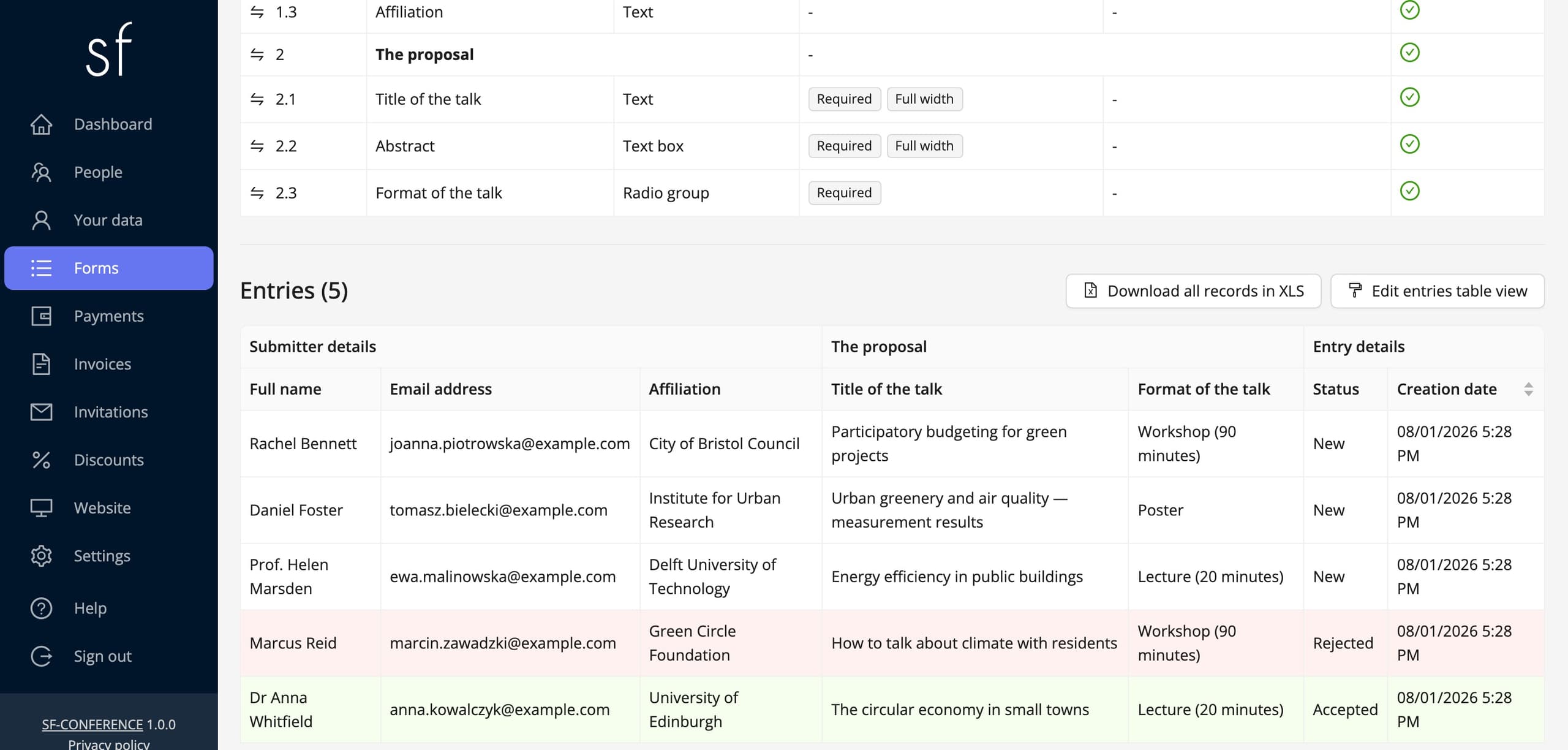
Everything that has arrived is on the form’s page, in the Entries section below the fields table. Each row is one entry, and the columns are grouped under the section names, exactly like the questions. Which answers are visible in the table is set with the Edit entries table view button. On longer forms it is worth leaving just the surname, the title of the talk and the format, and reading the rest after opening a row.
The Download all records in XLS button saves the full set of entries to a spreadsheet, together with the answers, the consents and the dates. The most convenient form if a programme committee reviews the proposals outside the system. Clicking a row opens the page of a single Entry with all its answers, its consents, and an Entry details section.
Accepting and rejecting an entry
In the Entry details section every record carries a Status with three values: New, Accepted and Rejected. Fresh entries are new; once you have decided you change the status and save. Accepted and rejected rows are picked out in colour in the table, so it is clear at a glance how many proposals are still waiting.
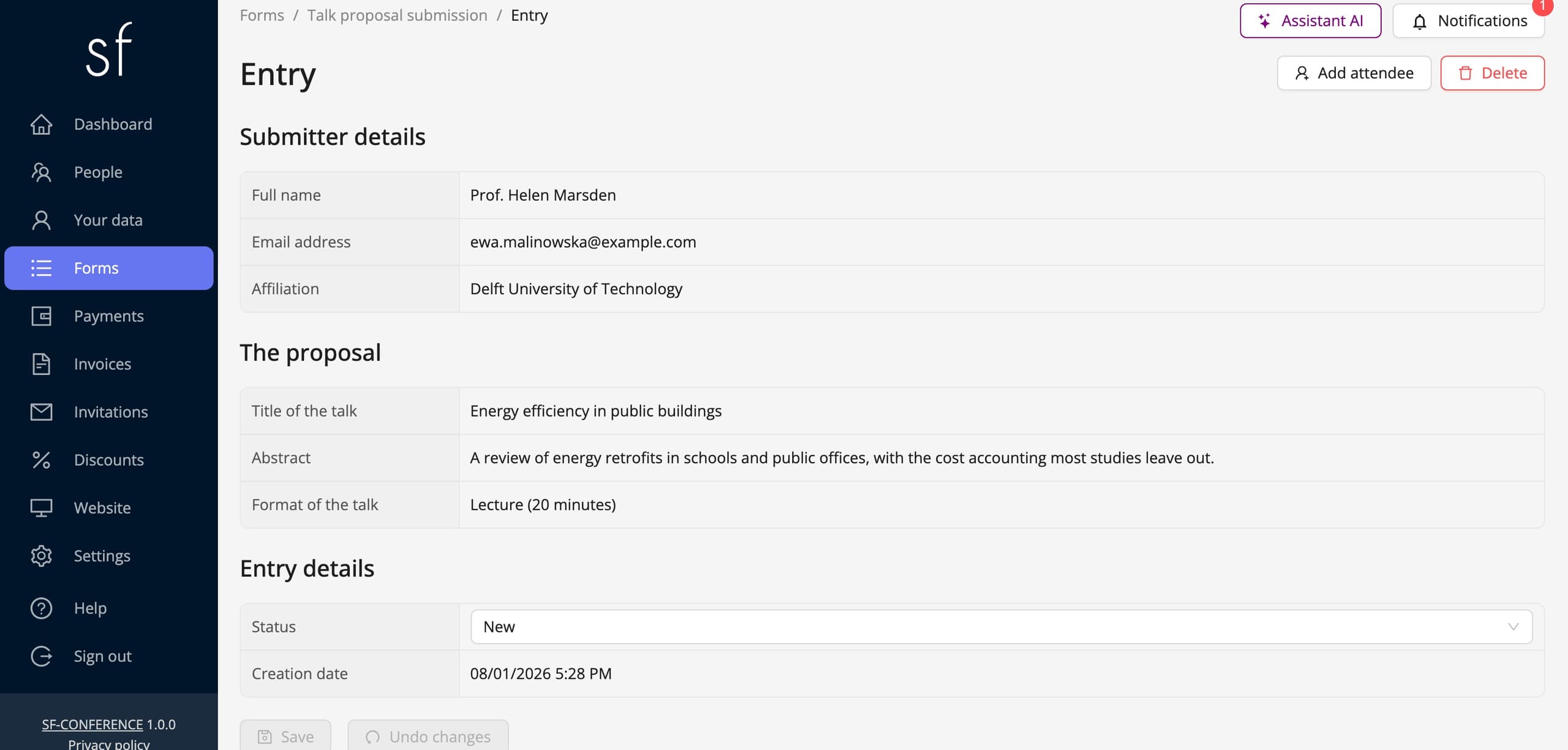
Changing the status is not merely a note for the team. If the form collects an email address, the system sends the submitter a message about the decision, a separate one for acceptance and a separate one for rejection. The wording of both, like that of the confirmation sent right after an entry arrives, is changed in the panel’s Settings, in the message templates, in the category covering external forms.
From an entry to an attendee
A speaker whose proposal you accepted should eventually land on the attendee list. They do not have to fill the registration form in from scratch for that. The entry page carries an Add attendee button, which opens the ordinary create-attendee window with the answers copied across from the entry. The system matches them field by field, so the first name, last name, affiliation and email address are already in place, and the email address becomes the login of the account being created. You complete whatever was not in the entry, and save.
From that point on you are dealing with an ordinary attendee: they appear under the People entry, have a payment, and can be sent an invoice, a badge and a certificate. The entry itself stays in the form’s table together with its status, so the history of the call does not disappear. There is more about adding people by hand in the adding an attendee instruction.
An anonymous survey, tied to no one
An external form is also the simplest way to run a survey whose answers are not meant to be tied to a particular person. Simply leave out the field with the email address, and any other question asking about identifying data. The entry is then saved as the answers alone, tied to no account and no registration. That works well for studying expectations before the event, for a vote on session topics, or for a rating you want given honestly.
The price of anonymity is obvious: without an email address the system sends neither a confirmation nor a decision, and you have no way to ask for details. The guide on running an attendee survey covers such a survey from the questions to the export of the answers. If the answers have to be tied to particular attendees, the right tool is a custom form, described in the guide on workshop sign-up through a custom form.
Worth keeping in mind
Every entry from an external form reduces the pool of attendees from the packet you ordered, exactly as an ordinary registration does. On a publicly open form it is therefore worth setting an Entries limit, and once the call is over switching the Form status to Closed. Or setting the deadline up front by choosing Opened conditionally. A closed form still works at its address: it shows the content you prepared for that case, so a late speaker learns what happens next instead of hitting an empty page.
The external form in short
Collecting entries before registration comes down to five steps: create an external form, give it a path and a deadline, lay out the questions, share the address, and then judge the entries as they arrive by their status and move the accepted people onto the attendee list. It all happens in the same system as the rest of the event, so talk proposals never live in a spreadsheet of their own that would then have to be reconciled with the attendee list.
See all instructions
Complete event management on a single platform. An event website, attendee registration and a full set of organizer tools.
2026 © SF-LABS sp. z o.o. All rights reserved
Entered into the register of entrepreneurs of the National Court Register kept by the District Court for Kraków-Śródmieście in Kraków, 11th Commercial Division of the National Court Register, under KRS number 0000886671. Share capital amount: PLN 5,000.