How to prepare attendee badges
A badge is the name tag with the first and last name that an attendee wears at the event. In the SF-CONFERENCE system you design one template, and the system generates from it a badge for every person on the list: all at once in one PDF file for printing before the event, or one at a time, reprinted at the reception desk. Unlike a ticket or a certificate, a badge is never sent to anyone. In fact it is the organizer's own tool.
This instruction walks through enabling the module, the badge's format and template, and both ways of printing.
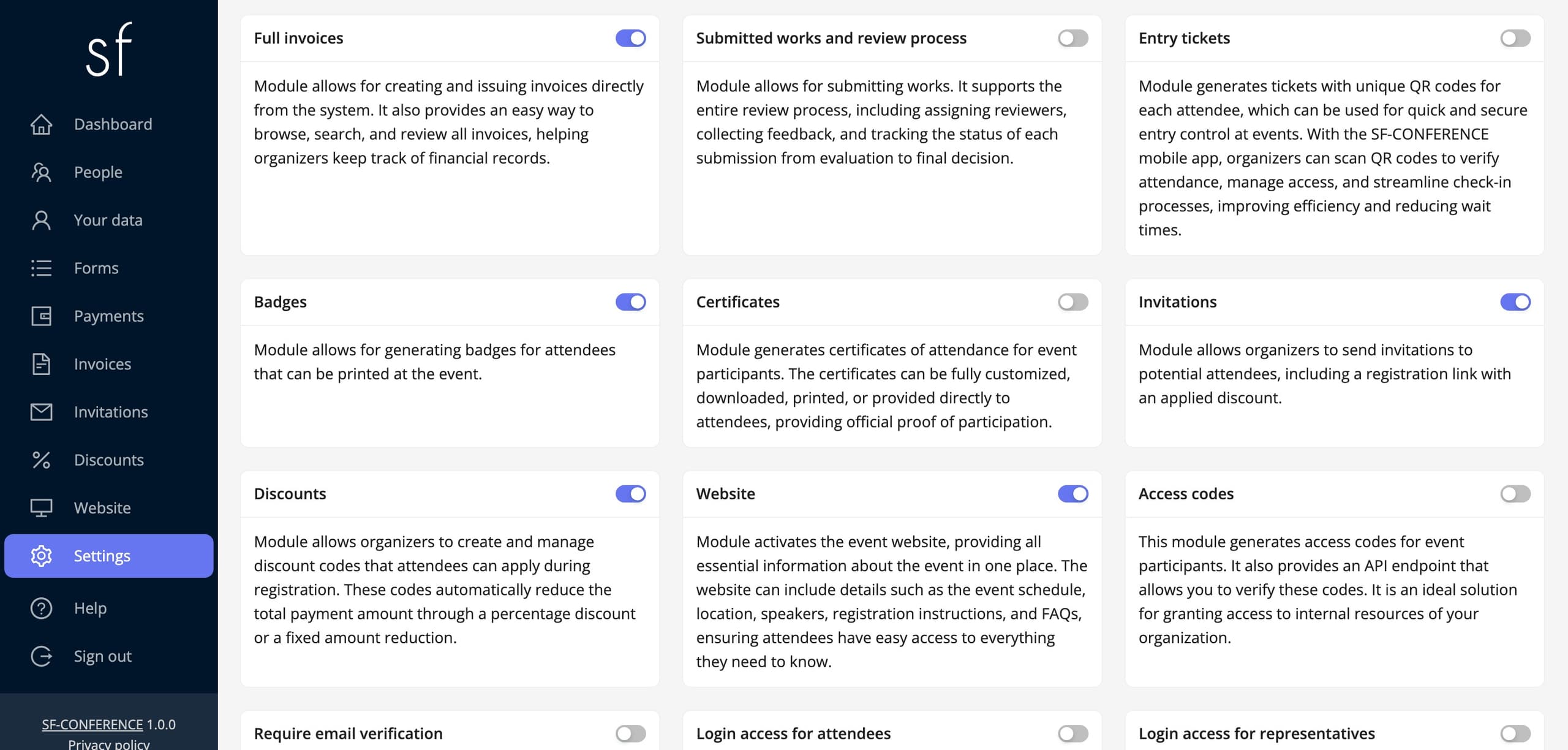
Enabling the badges module
In the Settings entry in the panel's side menu, on the Modules tab, flip the switch on the Badges card. Once saved, a new Badges tab appears in the settings, and download buttons on the people list.
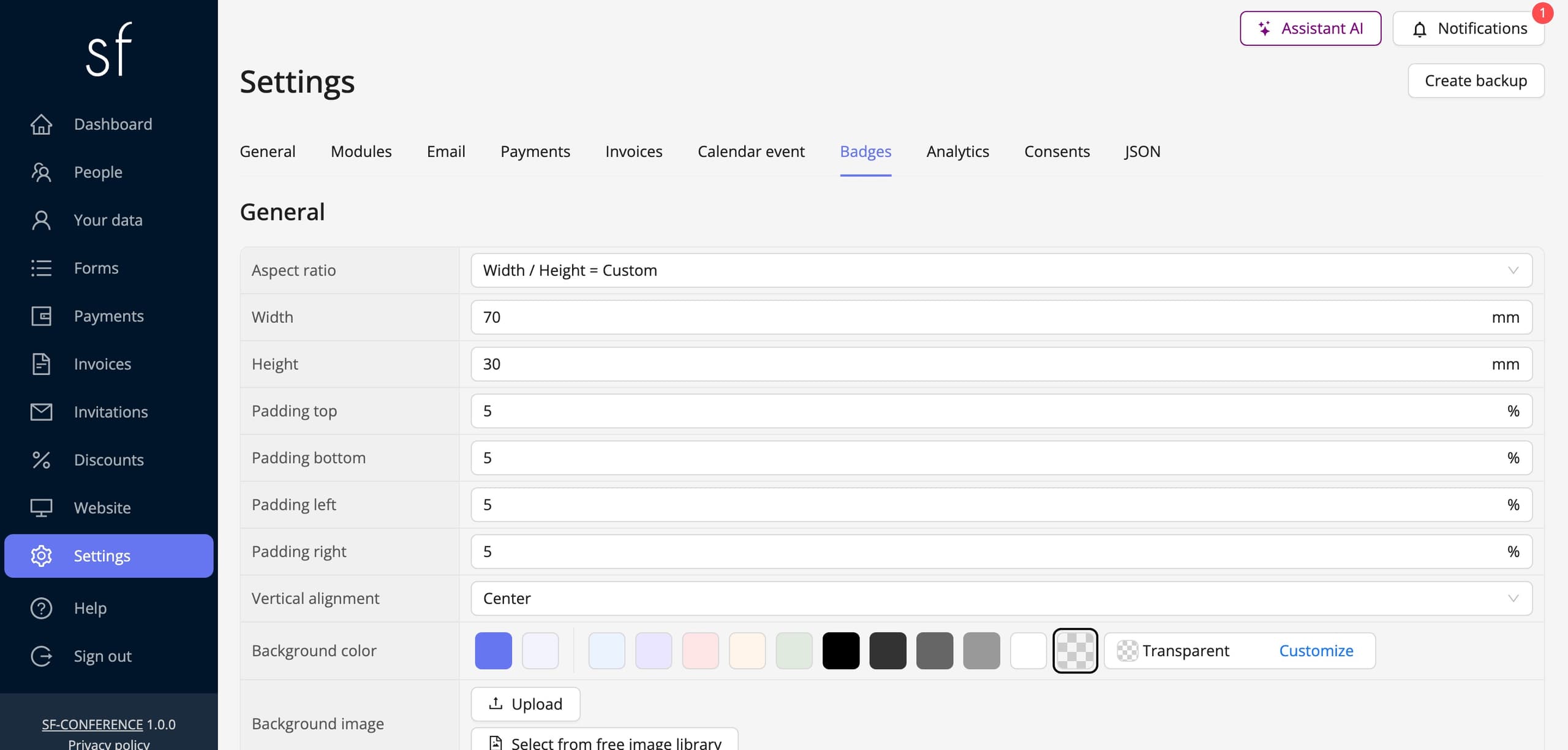
The badge format
The Badges tab starts with the General section and the document's dimensions. Aspect ratio and Width in millimetres set the format: a fresh event starts from a landscape 70 by 30 millimetre tag, easy to match to holders or a label printer, and a custom ratio reveals a separate Height field. Four paddings in per cent keep the content away from the edges, Vertical alignment places it at the top, the centre or the bottom, and Background color and Background image handle the look, for example a stripe in the event's colour or artwork with the logo.
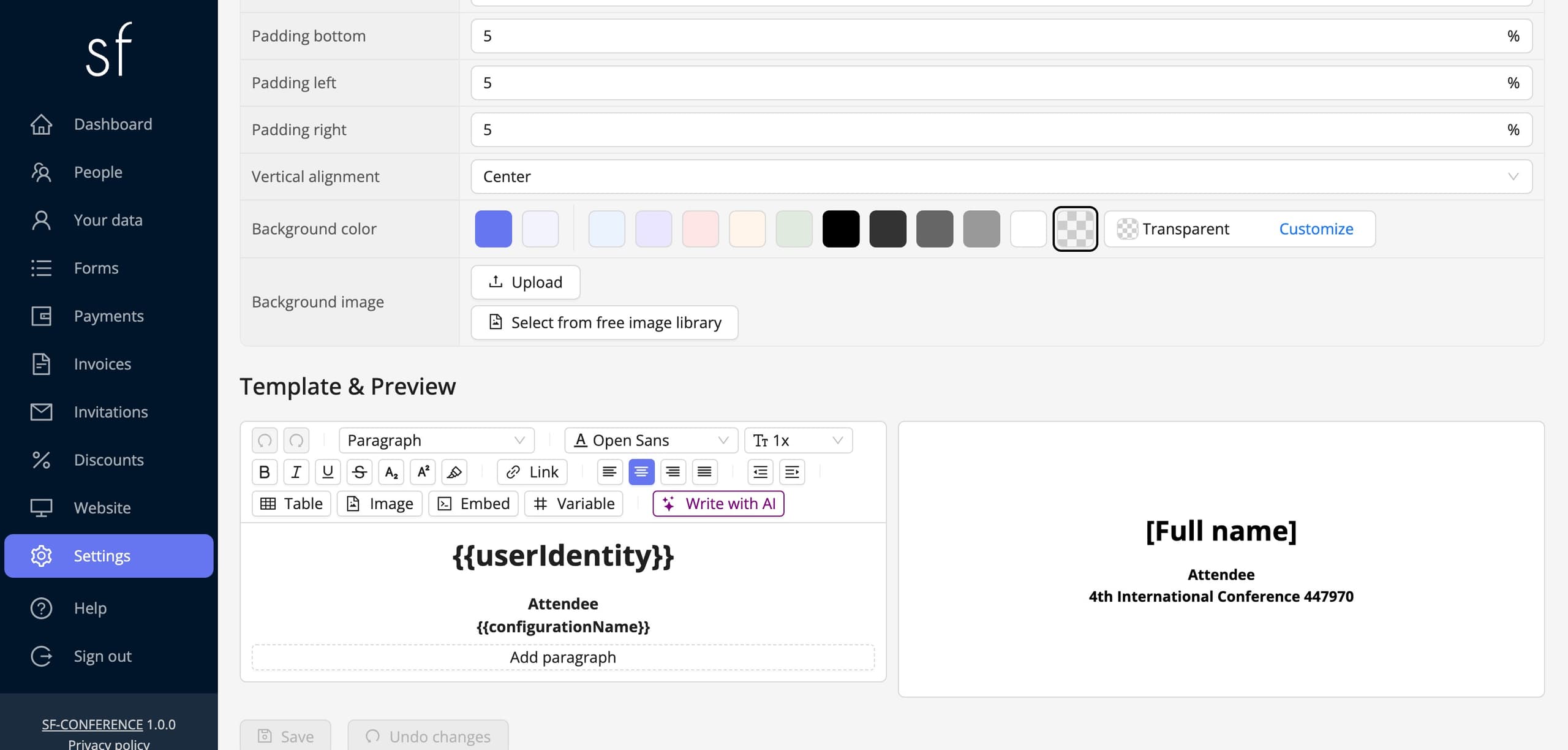
The badge template
The Template & Preview section is a content editor with a live-refreshed preview. A fresh event already has a sensible starting point: the first and last name in large type, the role and the event name underneath. The Variable button inserts fields substituted separately for each person: Person full name, Event name, and also Person field value, that is the answer from any form field, for example the company or the participation type. The conditional variant shows a fragment of content only to people with a particular answer, so a speaker gets a different wording than an attendee, from one template.
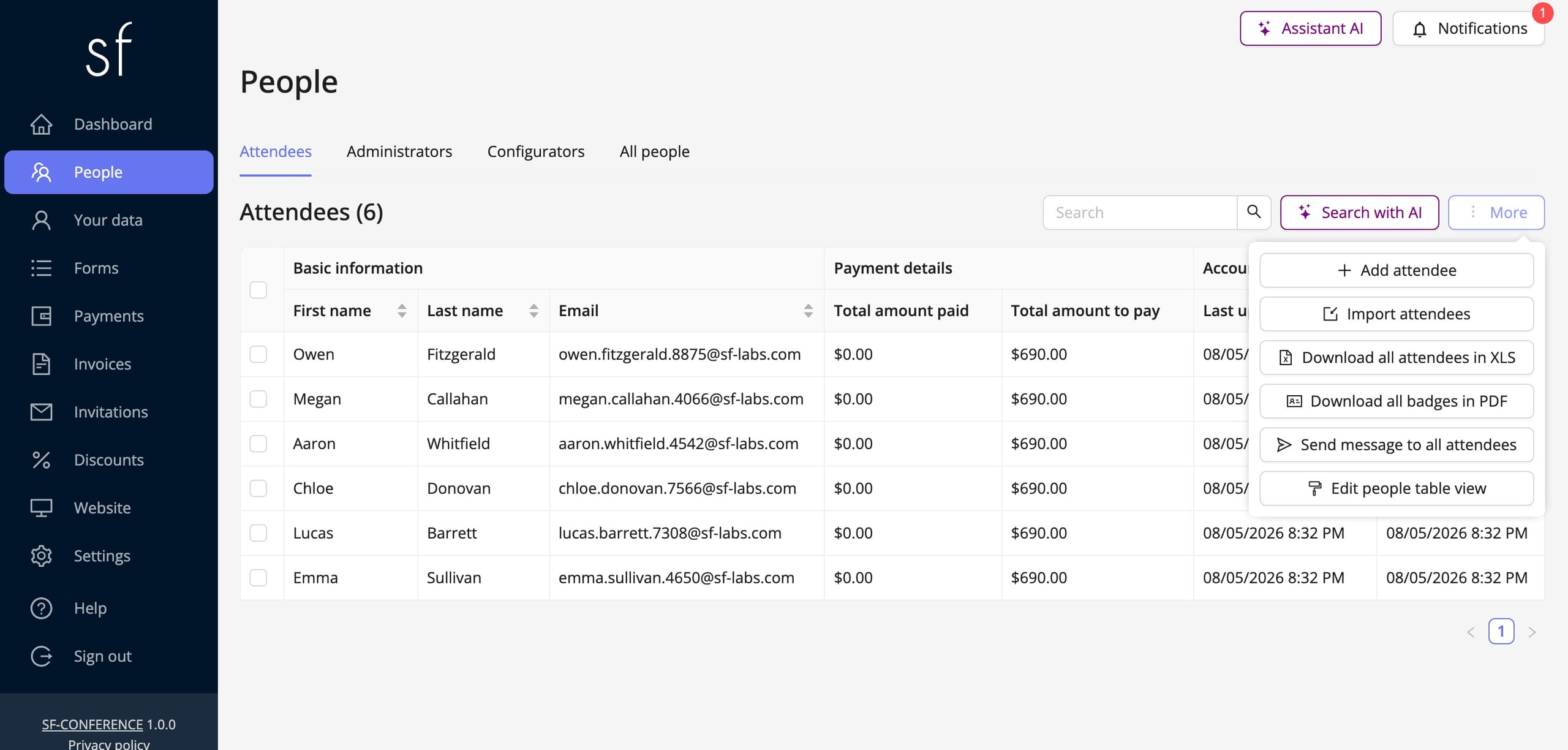
Printing: all at once or one at a time
Before the event you print everything in one go. In the People entry, under the More button, sits Download all badges in PDF: one file with every person's badge, ready for printing and cutting. Once rows are ticked the button turns into Download selected badges in PDF and honours the table's filters, so reprinting, say, just the speakers is easy.
On the day of the event a single badge is always at hand. Every person's page carries a Download badge button, and when scanning entry tickets the verification window has Download badge and Print badge buttons, so the reception desk prints the tag right after the scan, on a printer connected to the same computer. Late registrations and typos in last names stop being a problem: you fix the data and print on the spot. Scanning is covered by the entry tickets and scanning at the entrance instruction, and organizing the desk by the how to organize an in-person event guide.
See also
How to add an attendee
Add an attendee manually from the panel, without waiting for them to register through the registration form.
How to issue certificates to attendees
Design a participation certificate with a background and variables, and attendees download it themselves from the summary page.
How to enable entry tickets and scan them at the entrance
Tickets with a unique QR code for every attendee, scanned at the entrance with the mobile app or a USB scanner.

Complete event management on a single platform. An event website, attendee registration and a full set of organizer tools.
2026 © SF-LABS sp. z o.o. All rights reserved
Entered into the register of entrepreneurs of the National Court Register kept by the District Court for Kraków-Śródmieście in Kraków, 11th Commercial Division of the National Court Register, under KRS number 0000886671. Share capital amount: PLN 5,000.