How to issue certificates to attendees
After an event comes a wave of requests for participation certificates, and the worst way to handle it is generating files by hand and e-mailing them one at a time. The SF-CONFERENCE system does it differently: you design one template, and every attendee gets their own PDF certificate, with their own first and last name, downloadable from their private participation summary page. Nobody sends anything one by one.
This instruction walks through the whole process: enabling the module, the format and background settings, the content template with its variables and what the attendee sees at the end.
Enabling the certificates module
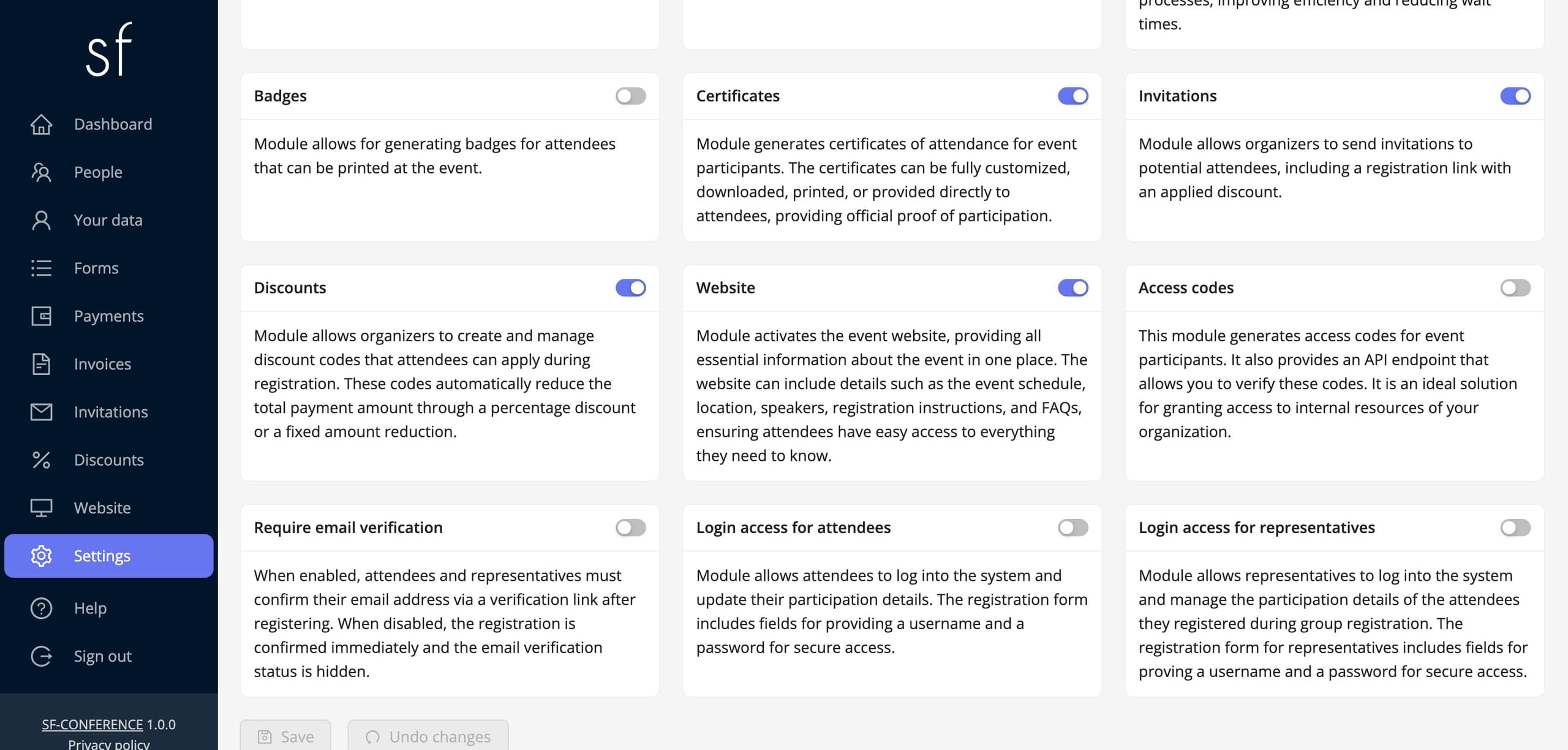
Certificates are a module, and on a freshly created event it is switched off. In the Settings entry in the panel's side menu, on the Modules tab, find the Certificates card and flip its switch. Once saved, a new Certificates tab appears in the settings, and the whole rest of this instruction happens there.
General settings: download, format and background
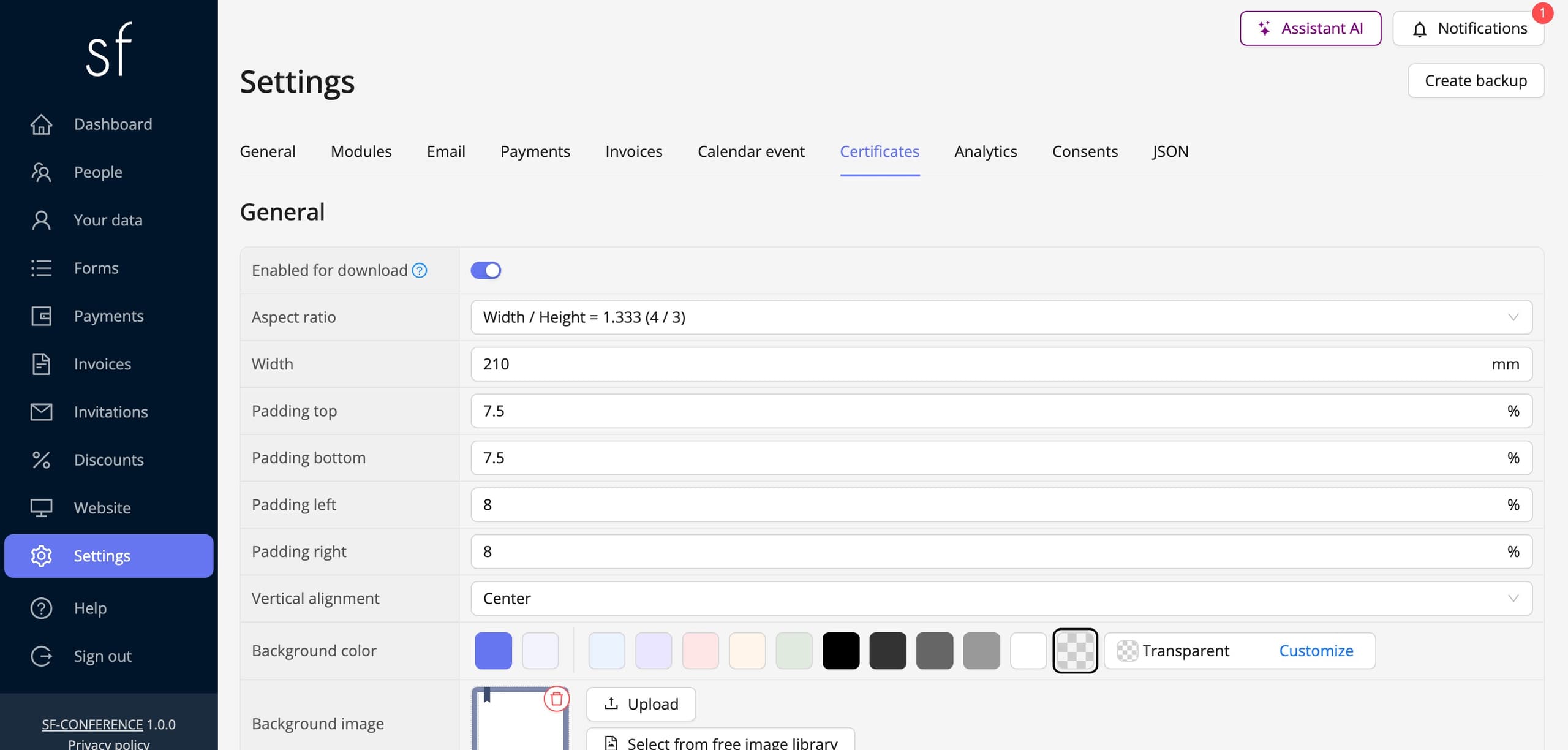
The Certificates tab starts with the General section. The most important control is the Enabled for download switch: once it is on, the certificate appears on every attendee's participation summary page. It is usually left off until the event ends and flipped on just before the thank-you message goes out, about which more in the last chapter.
The rest of the section describes the document itself. Aspect ratio and Width in millimetres set the page format, for example a width of 210 at a 4:3 ratio gives a landscape document close to a classic diploma, and a custom ratio reveals a separate Height field. Four paddings, that is Padding top, Padding bottom, Padding left and Padding right, given in per cent, keep the content away from the edges, which matters when the background carries its own decorative frame. Vertical alignment decides whether the content sits at the top, the centre or the bottom of the page. Background color and Background image handle the look: upload artwork prepared exactly in the document's proportions, and it stretches across the whole page.
The content template and the preview
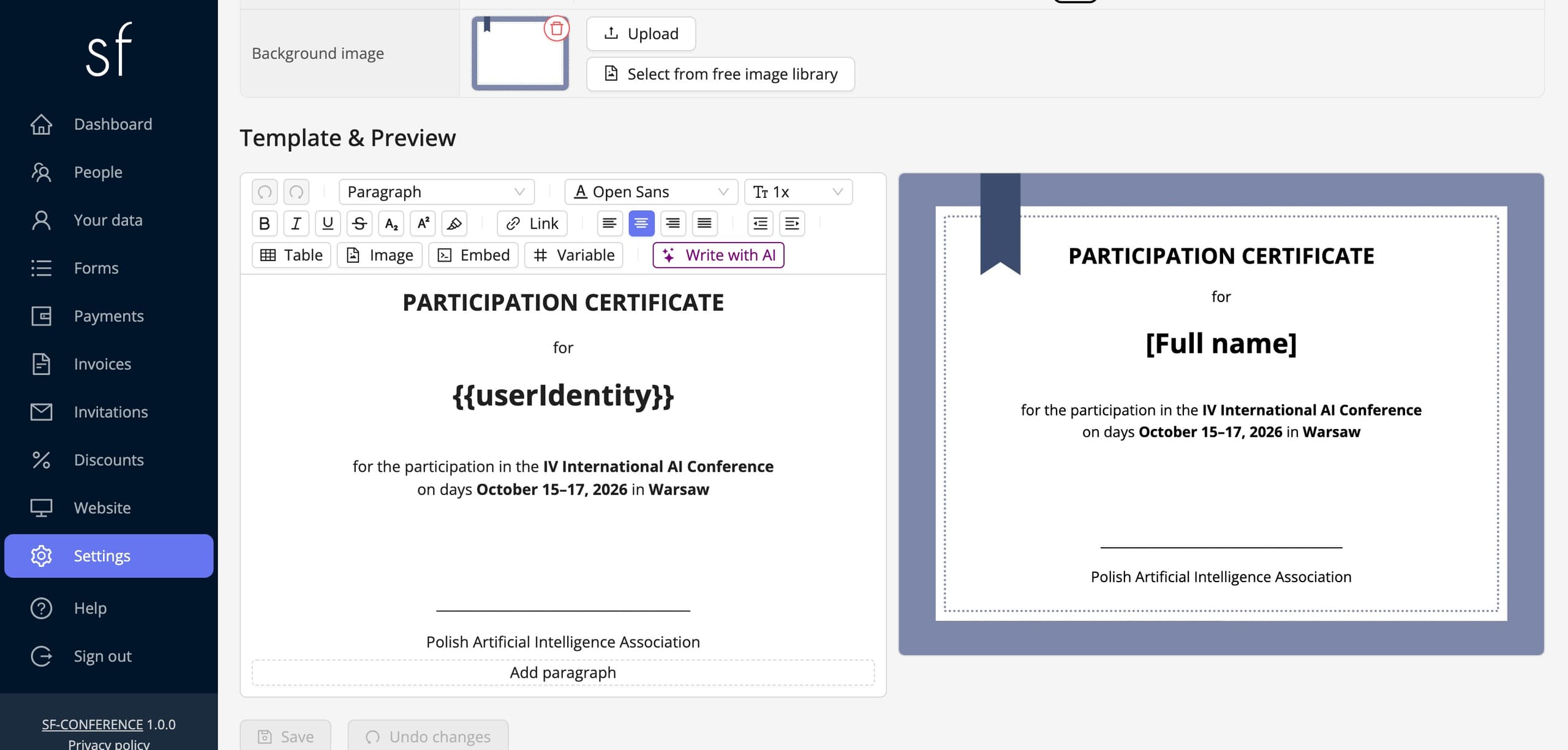
The Template & Preview section is the certificate content editor with a live-refreshed preview, so you see every change straight away against the document. You lay the content out as in an ordinary editor: headings, bold, centre alignment. At an event run in several languages the template has separate content per language, and the attendee receives the certificate in the language in which they registered.
First and last names are not typed in by hand. The Variable button on the editor toolbar inserts fields substituted separately for each attendee: Person full name, Event name, the e-mail address, and also Person field value, that is the answer from any field of the registration form. There is also a conditional variant that shows a fragment of content only to people with a particular answer, so one template can carry one wording for a speaker and another for a listener.
What the attendee sees
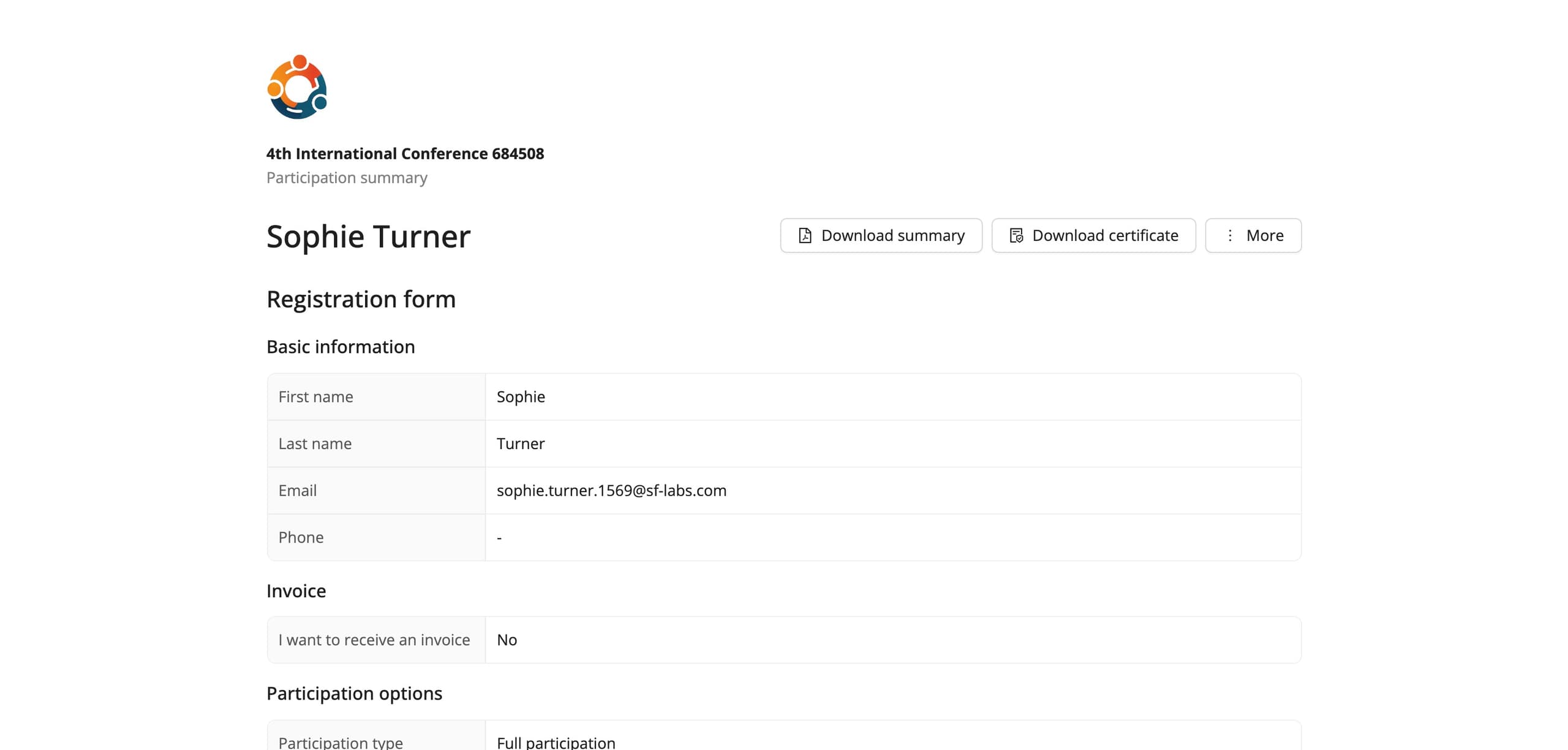
When Enabled for download is on, a Download certificate button appears on the participation summary page, next to the registration, the payment and the invoices. Every attendee has that page at their own address, opening without a login and without a password, so downloading the certificate is a single click.
The downloaded document is a print-ready PDF in the configured format, with the background and the content from the template and the specific person's data in place of the variables.
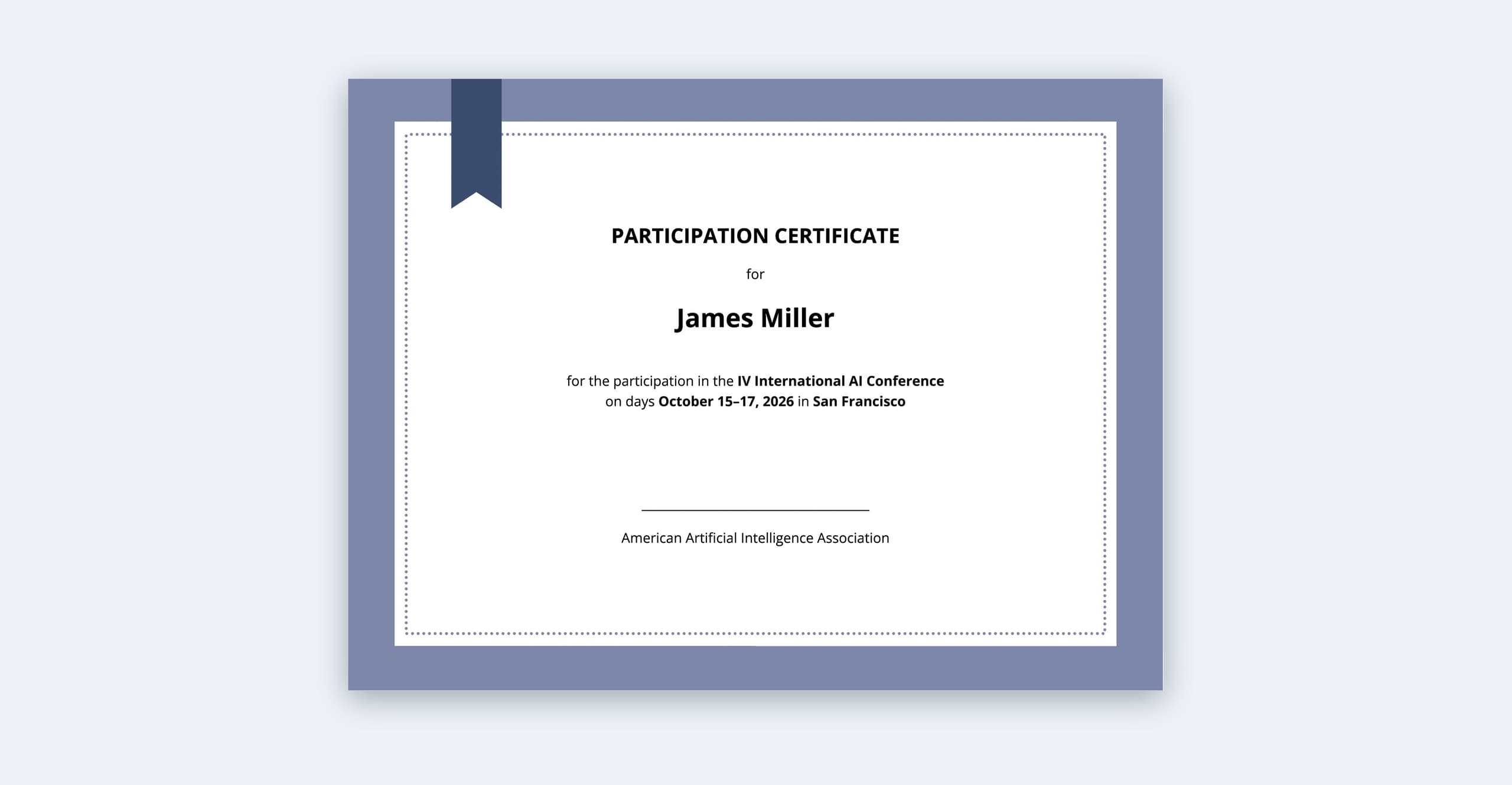
When to enable the download and how to announce it
The proven order is this: prepare the template before the event, but flip Enabled for download on only after it ends. Then from the People entry send a thank-you message in which the Participation summary link variable leads everyone straight to their certificate. The mailing honours the table's selection and filters, so you can limit it, for example, to people with a paid participation.
If the certificate is meant only for people who filled in the evaluation survey, collect it with a custom form, in which you see who answered, following the running an attendee survey instruction, and send the message with the link only to those people. Certificates in the wider context of a whole event are covered by the how to organize a training and how to organize a scientific conference guides.
See also
How to add an attendee
Add an attendee manually from the panel, without waiting for them to register through the registration form.
How to edit the registration form
Add and change fields, set prices, dates and dependencies between answers and decide when registration is open.
How to run a survey among attendees
Collect feedback after the event or open workshop sign-ups. Send attendees a survey and read the answers in the panel.

Complete event management on a single platform. An event website, attendee registration and a full set of organizer tools.
2026 © SF-LABS sp. z o.o. All rights reserved
Entered into the register of entrepreneurs of the National Court Register kept by the District Court for Kraków-Śródmieście in Kraków, 11th Commercial Division of the National Court Register, under KRS number 0000886671. Share capital amount: PLN 5,000.