How to organize a training
A training differs from a conference in scale and rhythm. The group is small, because a dozen or so people is often the maximum at which the trainer still works with everyone. Participation is usually paid by a company, and not the attendee, so the invoice can matter more than the registration itself. And it is almost never about one date: a good training returns monthly or quarterly, in consecutive editions. This guide leads through the whole cycle in the SF-CONFERENCE system: from sign-ups with a seat limit, through payments and invoices for companies, to completion certificates, the survey and launching the next edition.
The format does not matter here: an on-site training is handled the same way as an online course. If the classes take place in a room and you want to control the entrance, add the chapters of the guide about an in-person event. If you run them remotely, sending out the meeting link is described by the guide about a webinar. Here we deal with what is shared and specific to trainings.
What to settle before opening sign-ups
A few decisions fall outside the panel. The programme and its length. The group size, because it becomes the entries limit. The price and what it covers: materials, catering, the certificate. The date, or rather the dates, if you plan editions. Finally two things attendees will ask about anyway, so better to write them plainly in the form: the minimum number of people below which the training does not take place, together with the refund rules, and whether the price is per person or per company.
Creating the event and the training page
You create the training in the system like any event: name, web address, dates, languages and currency. The training page does not have to be large, but three things make a difference on it: the programme laid out point by point, the trainer's profile with a photo and a section with answers to frequent questions. It is assembled from ready-made blocks following the building the event website instruction. At the first edition this work pays back many times over, because the next editions inherit all of it in one move, about which more in the last chapter.
The sign-up form with a seat limit
The training sign-up form should be short: first name, last name, an e-mail address with the contact address property, the consents and the fields with the invoice data. Add the remaining questions, for example about the level of experience or expectations, only when the trainer will really use them while preparing the programme.
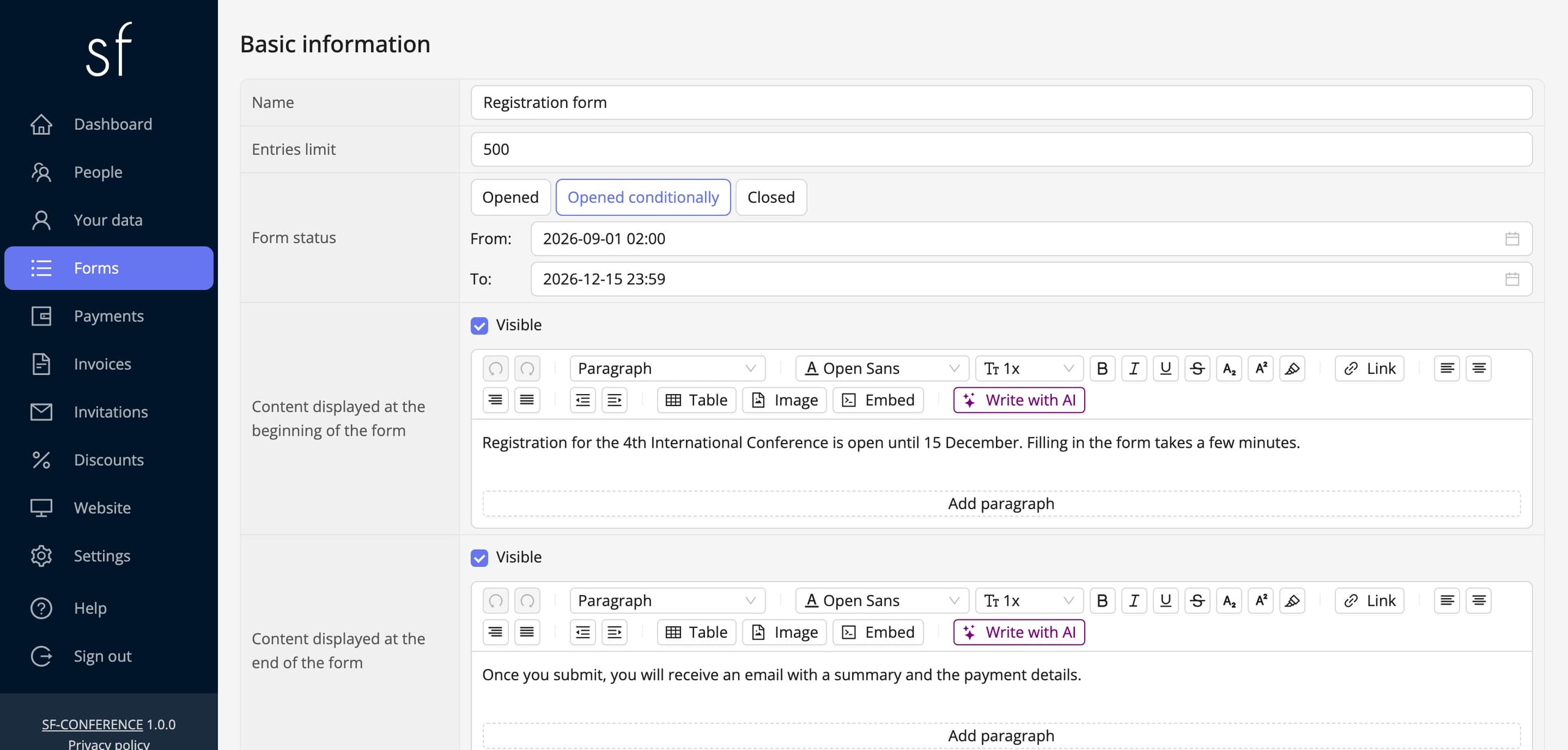
Two settings do the heaviest work here. Set the Entries limit to the group size, and sign-ups close by themselves once it fills up. The Form status set to Opened conditionally with a To date a few days before the classes leaves time to complete the group, issue the documents and make a possible cancellation decision before anyone buys a train ticket. In the Content displayed at the end of the form fit a sentence about the minimum number of attendees and the date the training is confirmed by. The details of fields, prices and the early-bird threshold are covered by the registration form editing instruction.
Company registrations, payments and invoices
Trainings are booked not only by individuals but also by companies sending several employees at once. The system handles that arrangement through representatives: one person, for example the HR department, registers the attendees, and each registered person then has their own row on the list, their own messages and their own certificate. The payment and the invoice stay with the person who registered them, which is where the budget is.
Enabling group registration, fields shared by the whole group and the representatives' login are covered step by step by the accepting group registrations instruction.
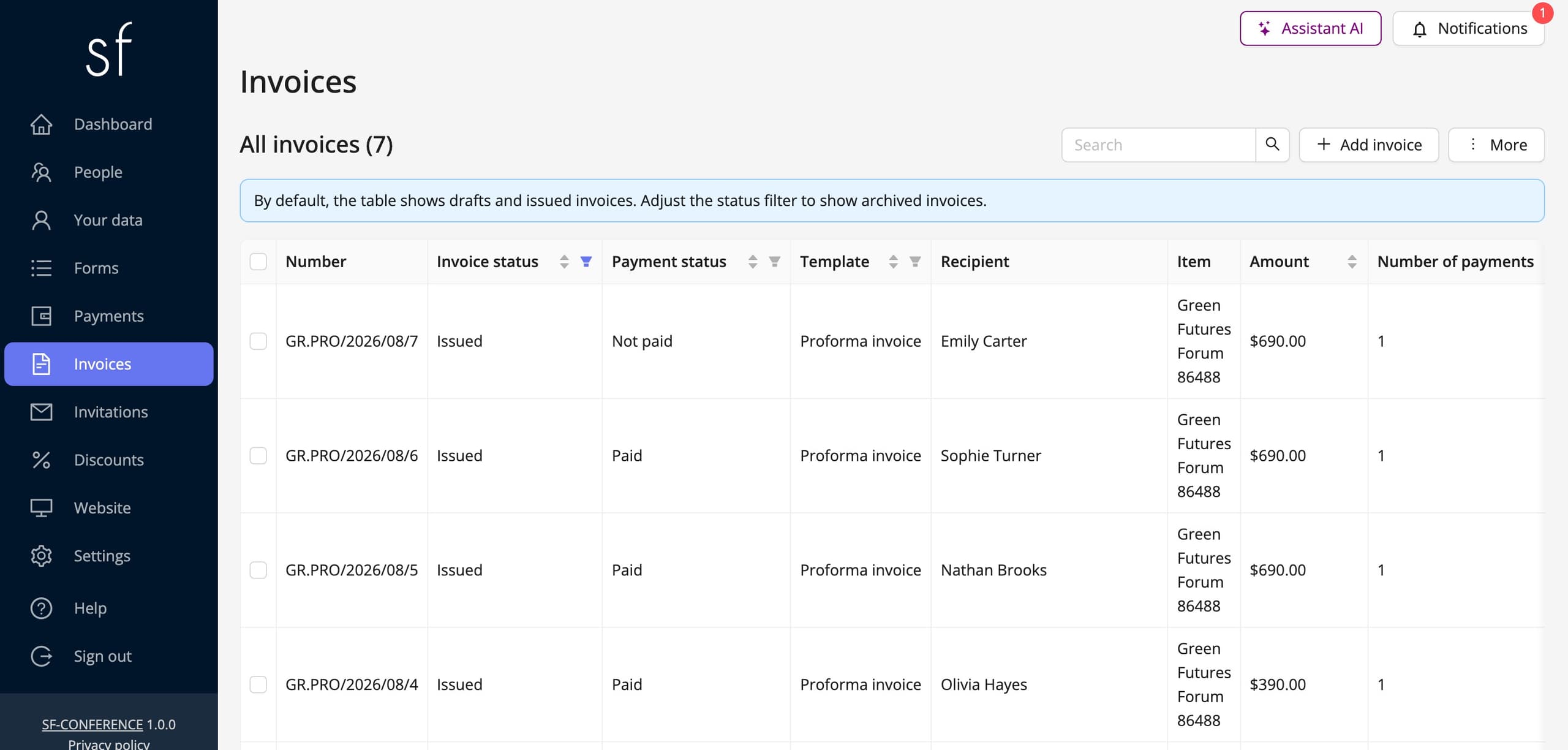
Since the company pays, the form must have fields with the properties with the Invoice prefix: the company name, the tax number and the address. Enable both payment methods. Online payments close individual sign-ups on the spot, and the traditional transfer serves companies that pay against a proforma after internal approval. Automatic proformas and invoices are set up following the collecting payments and issuing invoices instruction, and for regular clients and partners prepare discount codes.
The attendee list and communication before the training
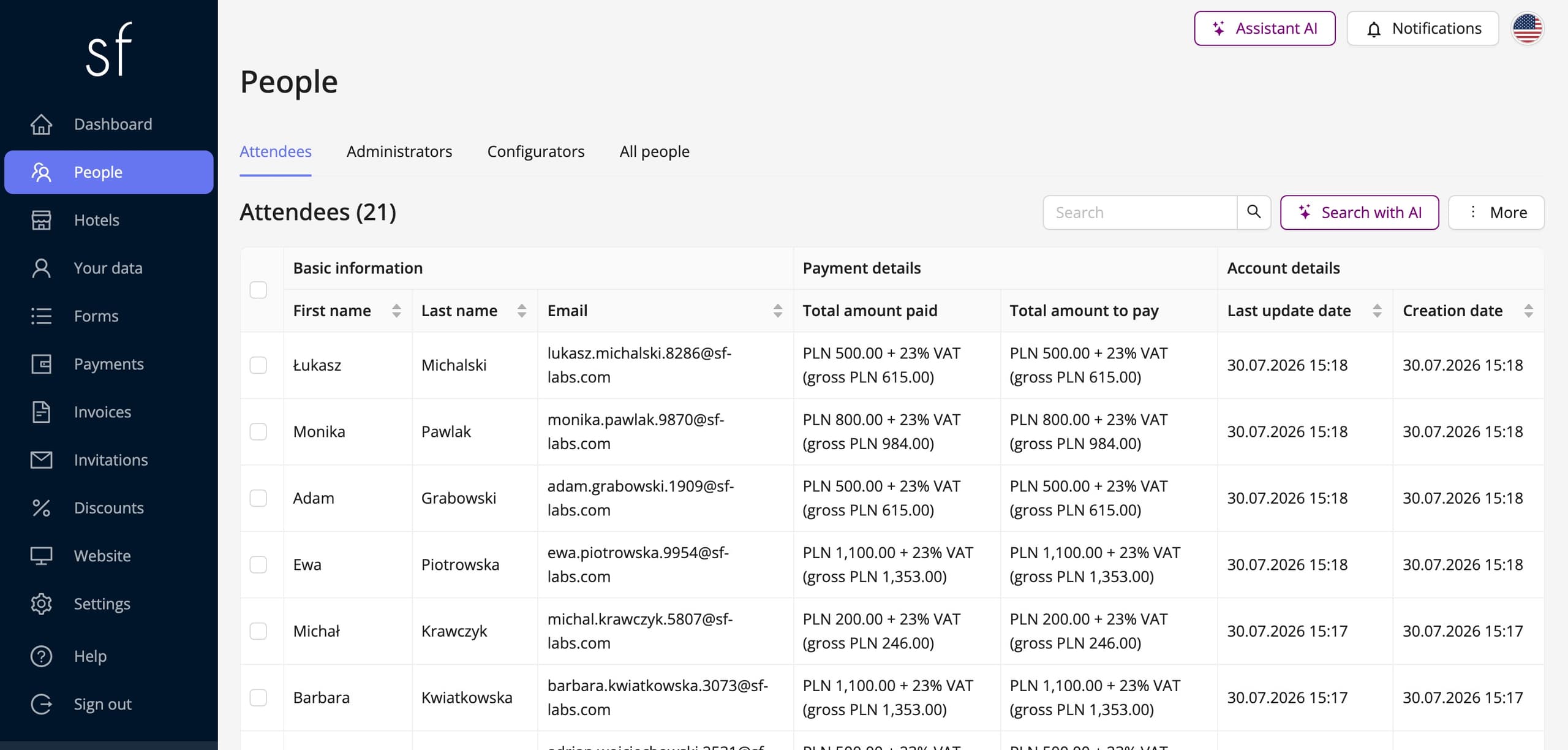
The signed-up land in the People entry: one row per person, the answers as columns, filters on each of them. With a small group this table stands in for a whole CRM: you see who paid, you mark transfers once they are booked, and the registrations that arrived by e-mail or phone you add following the adding an attendee instruction.
A few days before the classes send an organizational message from the same entry: the room address or the meeting link, the hours, the agenda of the day and what the attendee should prepare or install. At computer trainings that last list can save the first hour of class. Before sending to everyone use the Send a test message to yourself button and check that everything opens.
Completion certificates
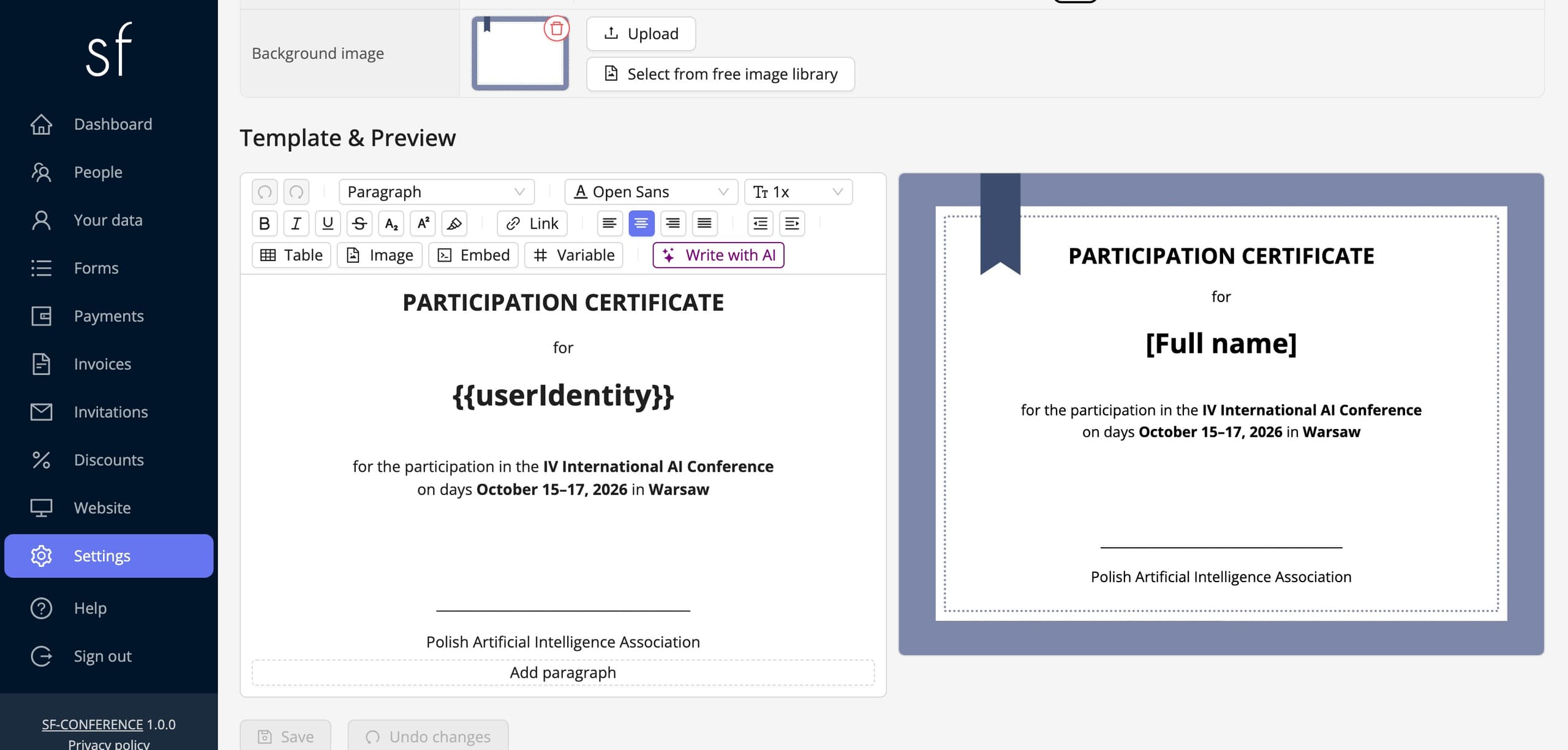
At a training the certificate is part of the product, and not an extra. In the Settings entry, on the Certificates tab, you set the document format, the background and the content in the Template & Preview section, with variables substituting the attendee's first and last name. The Enabled for download switch makes the certificate available on the participation summary page, so nobody sends files one by one.
Enable the download only after the classes end and then send a thank-you message in which the Participation summary link variable leads everyone to their certificate. The mailing honours the selection and the filters, so with a group of a dozen people you can easily limit it to those who were really in the room. If the certificate is to depend on filling in the survey, collect it with a custom form, in which you see who answered, following the running an attendee survey instruction.
The configuration details, from the document format to the variables in the template, are in the issuing certificates to attendees instruction.
The survey and rating the trainer
After the training ask a few questions: a rating of the classes and the trainer on a scale, the most useful part of the programme, what was missing, and a consent to use the opinion in promotional materials. With a named custom form the answers stay with the attendee, and with an external form they are anonymous, which is often fairer when rating a trainer. The answers from consecutive editions add up to a picture of what to improve in the programme.
The next editions of the training
This is where all the work put into the first edition pays back. When creating a new event tick the Copy configuration from another event option and point at the previous edition. The new event takes over the form with its pricing, the payment and document settings, the message and certificate templates and the website, and what remains for you is changing the date and opening sign-ups. Launching the next edition is a quarter of an hour, and not another project.
The best source of sign-ups for a new edition are the attendees of the previous ones. If in the form you collected an optional marketing consent, filter the list by that consent and send an invitation with the date and a discount code for returners. It is the cheapest campaign you will ever run.
A training step by step, in short
- Settle the programme, the group size, the price, the edition dates plus the minimum number of attendees and the refund rules.
- Create the event and build a page with the programme, the trainer's profile and frequent questions.
- Prepare a short sign-up form with the invoice fields, set the Entries limit to the group size and a closing date for sign-ups.
- Enable online payments and the traditional transfer, plus automatic proformas and invoices.
- Keep an eye on the list in the People entry, mark the transfers and add the registrations from outside the form.
- Send an organizational message with the address or the link, the agenda and the list of things to prepare.
- After the classes enable certificates on the Certificates tab and send a thank-you with the participation summary link and the survey.
- Create the next edition by copying the configuration from the previous one, and invite the attendees of earlier editions.
If the training takes place in a room and you want to control the entrance with tickets, reach for the how to organize an in-person event guide, and for a course run remotely for the how to organize a webinar guide.
See also
How to edit the registration form
Add and change fields, set prices, dates and dependencies between answers and decide when registration is open.
How to run a survey among attendees
Collect feedback after the event or open workshop sign-ups. Send attendees a survey and read the answers in the panel.
How to collect payments and issue invoices
Set the currencies, bank transfer and online payments, and let the invoices issue themselves.

Complete event management on a single platform. An event website, attendee registration and a full set of organizer tools.
2026 © SF-LABS sp. z o.o. All rights reserved
Entered into the register of entrepreneurs of the National Court Register kept by the District Court for Kraków-Śródmieście in Kraków, 11th Commercial Division of the National Court Register, under KRS number 0000886671. Share capital amount: PLN 5,000.