How to accept group registrations
Companies rarely send one person to a training or a conference. The registration is prepared by HR or a board assistant: one person who signs up several attendees at once and takes the payment and the invoice on themselves. The SF-CONFERENCE system handles that scenario through group registration: the representative fills in one form, and every registered person gets their own place on the attendee list, their own messages, ticket and certificate.
This instruction shows how to enable group registration, what the form looks like on the registrant's side, how to control which fields are shared by the whole group, and what such a registration looks like in the panel, from start to finish.
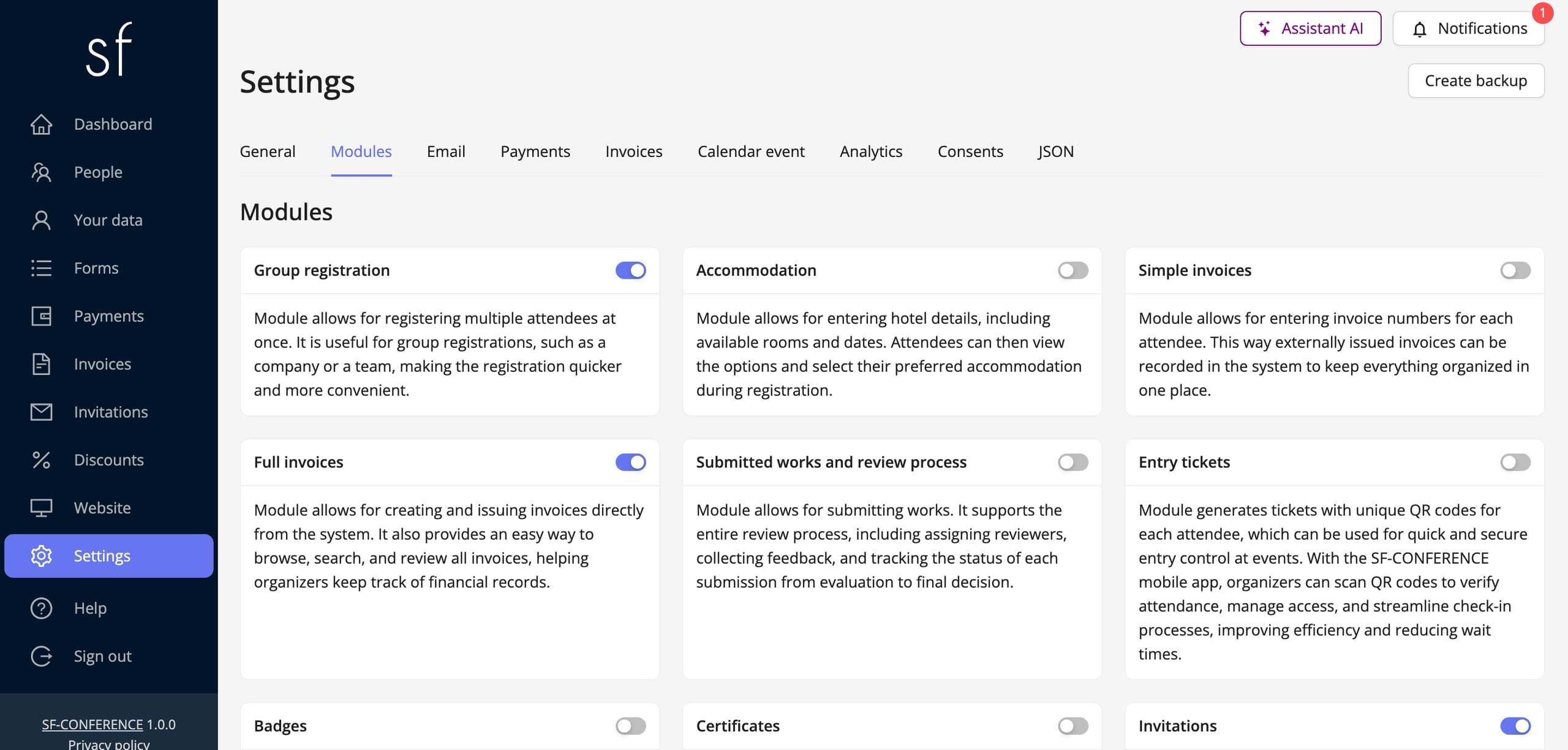
Enabling group registration
In the Settings entry in the panel's side menu, on the Modules tab, flip the switch on the Group registration card. That is the entire configuration: from that moment the registration form opens with a choice between Individual registration and Group registration, and a single attendee signs up exactly as before.
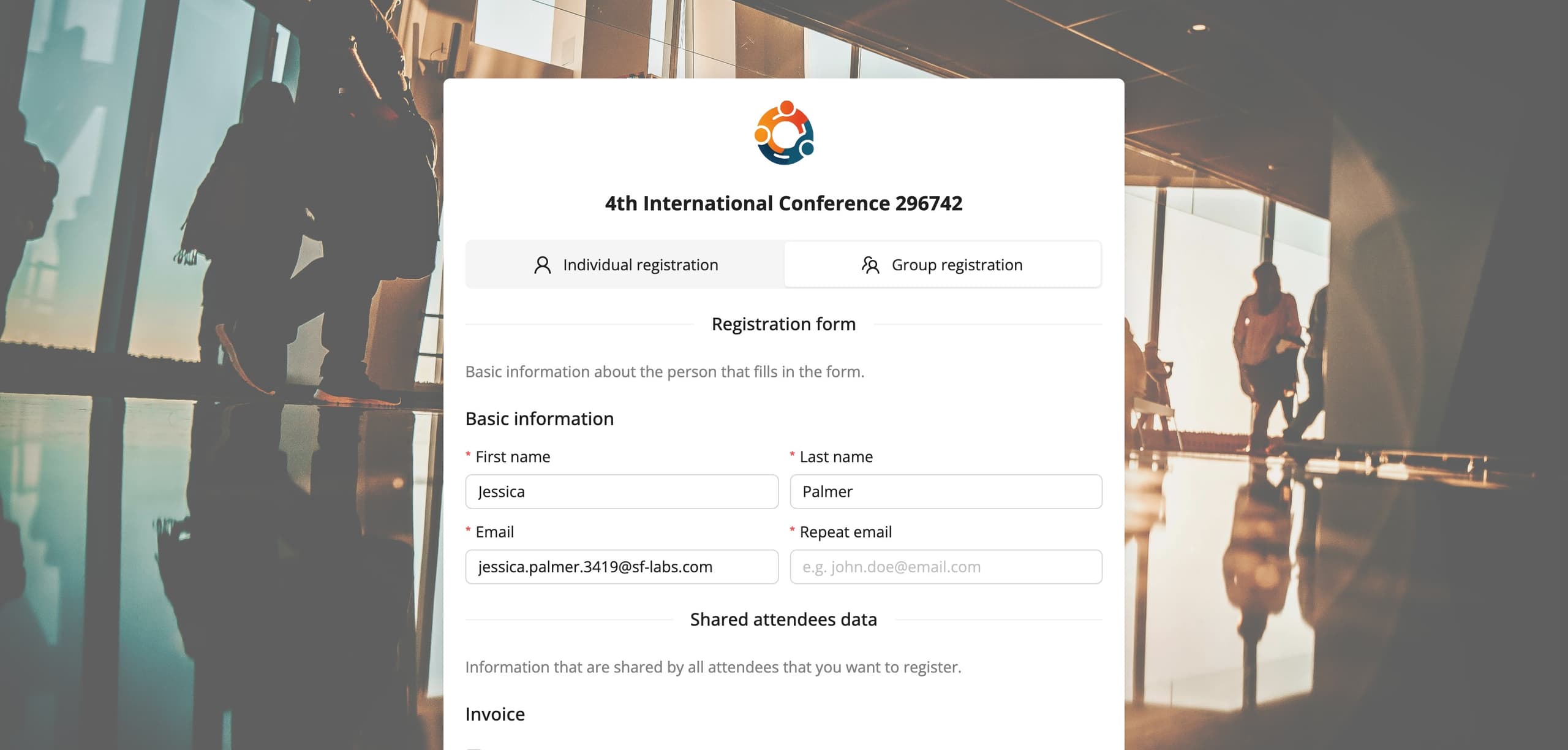
What the group form looks like
Once group registration is picked, the form arranges itself into three parts. First the data of the person filling the form in, that is the representative: first name, last name and the e-mail address the confirmation, the payment and the invoice go to. The representative does not have to attend the event, and an HR department signing employees up usually does not.
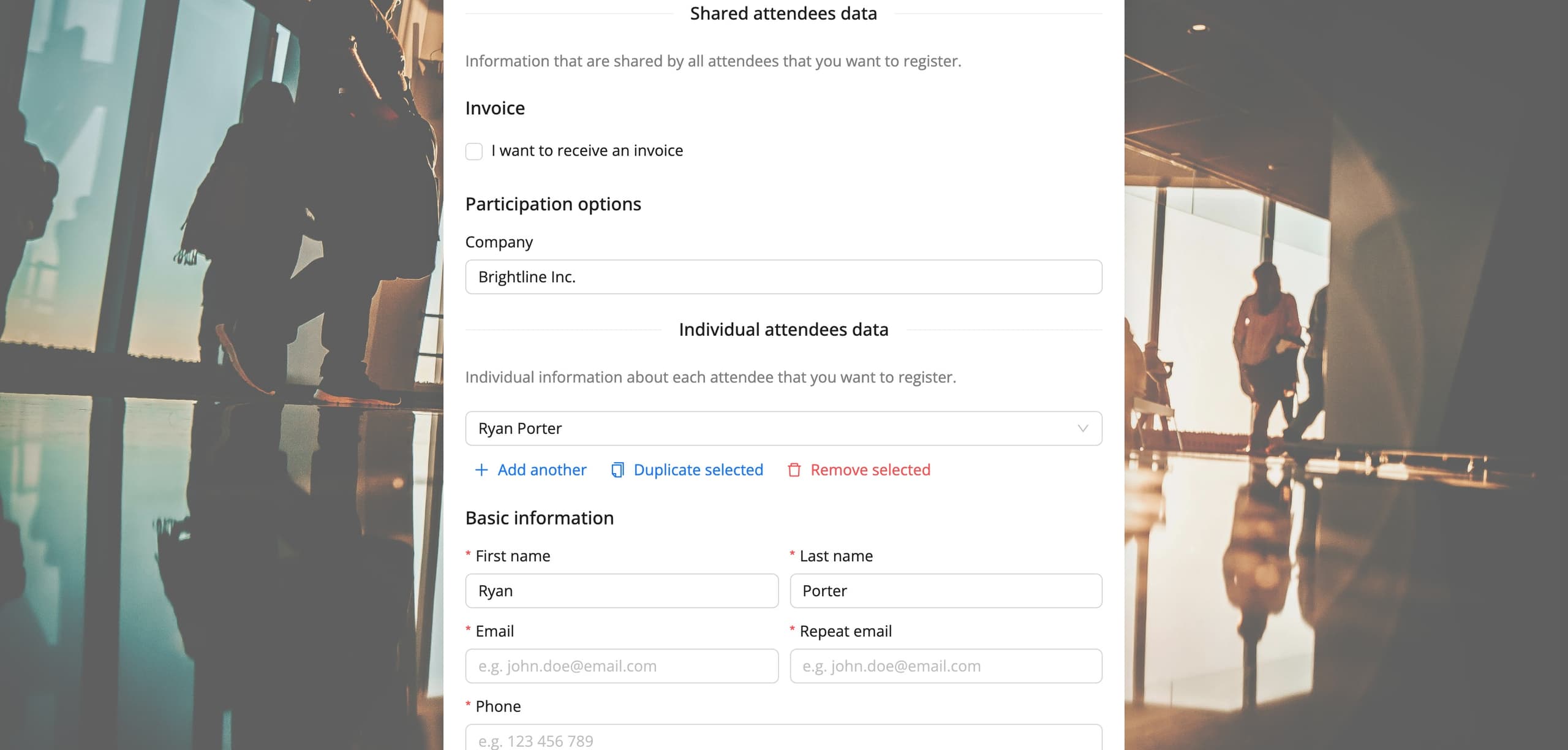
Then come Shared attendees data, filled in once for the whole group, and Individual attendees data. That last part is driven by a list of people with three buttons: Add another appends the next attendee, Duplicate selected copies the current person's answers onto a new one, which with a group picking identical options saves most of the clicking, and Remove selected takes a person off the list. The payment summary at the bottom counts everyone together, so the registrant sees the group's total cost right away.
Shared fields and fields by role
Where a field lands in the group form is decided by two properties in its settings. The Shared property moves the field to the shared data section: the value is given once and applies to every registered person. The natural candidates are the company name and the invoice data, which is why the invoice fields are shared out of the box. A field without this property appears separately for each attendee.
The second property is Roles. A field restricted to the attendee role appears only in the individual people's data, and a field restricted to the representative role only in their part. The typical layout is simple: the priced participation choice gets the attendee role, because you pay for the people being registered, and not for the person filling the form in. The details of editing fields are covered by the registration form editing instruction.
A group registration in the panel
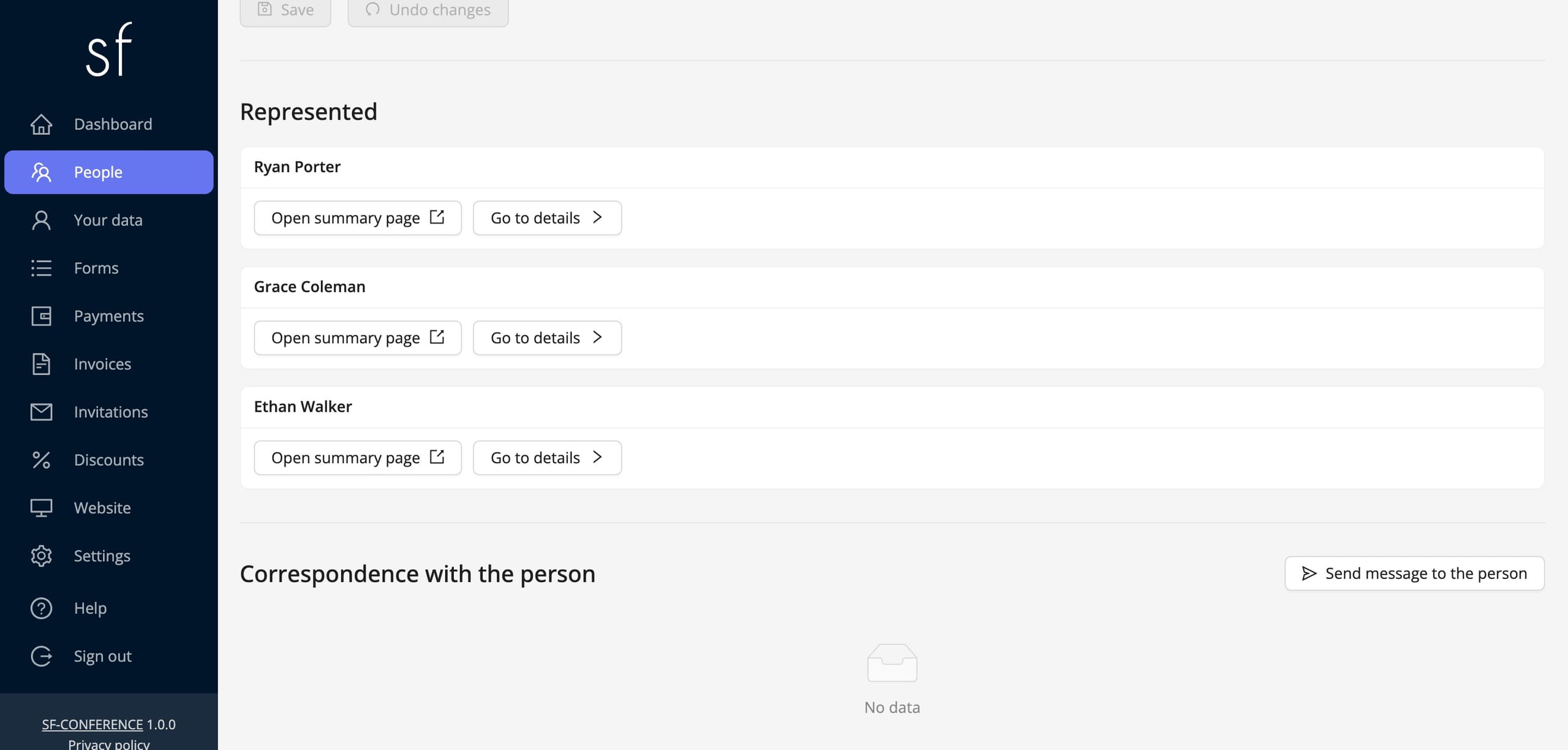
Once the registration is sent, every registered person has their own row in the People entry, like any other attendee: their own answers, messages, entry ticket and certificate. Representatives have their own Representatives tab above the table, from which you can send a message or download the list of registrants. On the representative's page the Represented section gathers cards of everyone they registered, with a jump to the details of each of them.
There is one payment for the whole group and it belongs to the representative, which is where the budget is. The proforma and the invoice carry the company data from the shared fields, and once the transfer is booked, everyone registered becomes paid at once. Document configuration is covered by the collecting payments and issuing invoices instruction.
Login for representatives
If you want the registrant to manage their group themselves later, also enable Login access for representatives on the Modules tab. The group form then gains an Account in the system section with a username and a password, and a logged-in representative sees the data of the people they registered. After registration their account is read-only, so changes require an administrator to lift that lock on the representative's page. It is a safe default: insight straight away, editing deliberately.
Group registrations in training practice, together with invoices for companies and certificates, are covered more broadly by the how to organize a training guide.
See also
How to add an attendee
Add an attendee manually from the panel, without waiting for them to register through the registration form.
How to edit the registration form
Add and change fields, set prices, dates and dependencies between answers and decide when registration is open.
How to collect payments and issue invoices
Set the currencies, bank transfer and online payments, and let the invoices issue themselves.

Complete event management on a single platform. An event website, attendee registration and a full set of organizer tools.
2026 © SF-LABS sp. z o.o. All rights reserved
Entered into the register of entrepreneurs of the National Court Register kept by the District Court for Kraków-Śródmieście in Kraków, 11th Commercial Division of the National Court Register, under KRS number 0000886671. Share capital amount: PLN 5,000.